Download Caxton for Free · 7-day free trial of Caxton Pro, no credit card required · 7 MB · macOS 13.0+
The short answer
For a quick look, less in Terminal streams a CSV of any size instantly and free. Caxton opens the whole file as a table without reading it into memory first, so a multi-gigabyte CSV is on screen immediately, ready to search, filter and edit.
Why does a big CSV freeze my Mac?
The apps people reach for first (Excel, Numbers, TextEdit) are load-everything designs. They parse the full file into their own in-memory structures before rendering anything, and those structures cost several times the file's size on disk. Somewhere past a few hundred megabytes the machine starts swapping, and you get the beachball.
The beachball itself is macOS telling you the app's main thread is stuck, usually inside that parse. Force-quitting mid-parse is safe for the CSV, because the app has only been reading it; nothing has been written back yet.
The fix is architectural, not more hardware. Either stream the file (read only the window you are looking at, the way less does) or memory-map it, letting macOS page pieces of the file in on demand and evict them under pressure. Both approaches make the cost of opening proportional to what you look at instead of what the file weighs. Every tool below does one or the other.
Code editors move the ceiling without removing it. VS Code and vim both read the document into memory too; they cope with bigger files than Excel does, and VS Code switches off syntax features past a size threshold to stay upright, but a multi-gigabyte CSV still means a long load and a heavy memory footprint before the first keystroke. What each Mac editor was actually designed for is a survey of its own: large file text editors on a Mac.
This page is about file size. If Excel opened your file but cut it off at 1,048,576 rows, that is a different wall; see CSV too big for Excel.
How do I look inside a huge CSV right now?
Terminal, zero installs. less streams any size file the moment you hit Return, which makes it the right call for a one-off inspection: no download, nothing to learn beyond four keys.
less -S data.csv     # -S: don't wrap long rows; q quits, /text searches, G jumps to end
head -n 5 data.csv   # first five rows to the terminal
tail -n 5 data.csv   # last five
wc -l data.csv       # row count (subtract 1 for the header)
For narrow files you can even get columns to line up: column -s, -t < data.csv | less -S. It breaks on quoted fields containing commas, and real CSVs bite this way, so treat it as a party trick, not a workflow.
What none of these do is edit, and raw text gets hard to read past a dozen columns.
How do I filter or summarize it without opening it?
qsv (brew install qsv) is built exactly for this: fast, streaming, CSV-aware. It is the maintained fork of xsv, whose Homebrew formula is disabled now that its repository is archived, and it keeps the same commands:
qsv headers data.csv                  # list the columns
qsv stats data.csv | qsv table       # min/max/mean per column
qsv frequency -s status data.csv     # value counts for one column
qsv search -s email 'gmail' data.csv | qsv select name,email | head
When the questions become real queries, DuckDB answers them in SQL straight off the file, never loading it whole; install with brew install duckdb. For anything you will run twice, it is the outright recommendation:
duckdb -c "SELECT user_id, SUM(amount) FROM 'data.csv' GROUP BY user_id ORDER BY 2 DESC LIMIT 20"If you will run several qsv commands against the same file, qsv index data.csv writes a small sidecar index first; the commands that can use it get much faster on repeat runs. In Python, pandas.read_csv("data.csv", chunksize=1_000_000) iterates the file in million-row pieces so aggregation never holds the whole dataset in RAM.
All of these share one gap: they answer questions you already know how to ask. Finding the one malformed row, scanning what the data actually looks like, and fixing values in place need an interactive view. When the row really is malformed, the repair has its own walkthrough: repair a malformed CSV on a Mac.
How do I watch a CSV that's still growing?
Exports and logs are often still being written when you first need to look at them. tail -f data.csv streams new rows to the terminal as they land, free, and is the right answer for a quick "is this thing still running" check.
Caxton has the same idea built into a real view: follow-tail pins the window to the end of a growing file, absorbing appends about once a second while full scrollback, search, and filters keep working above. When the export finishes, you are already in the editor that can handle the result.
Which tool fits which job?
| Approach | Good for | Breaks when |
|---|---|---|
less / head / tail | One-off peek at any size file, free | You need column alignment or editing |
column -t + less | Eyeballing narrow, plainly quoted files | Quoted commas; wide rows |
qsv | Headers, stats, frequencies from Terminal | You need to change the data |
| DuckDB | SQL, aggregates, repeatable pipelines | Hand-inspection and in-place edits |
| Caxton | Browsing, searching, and editing the whole file | You want SQL joins or spreadsheet formulas |
How do I browse and edit the whole file?
Caxton's document model is a memory-mapped piece table: opening a file copies nothing and loads nothing up front, which is why a 10 GB, 80,610,954-line file is scrollable and searchable immediately while indexing finishes in the background in 3.7 s.
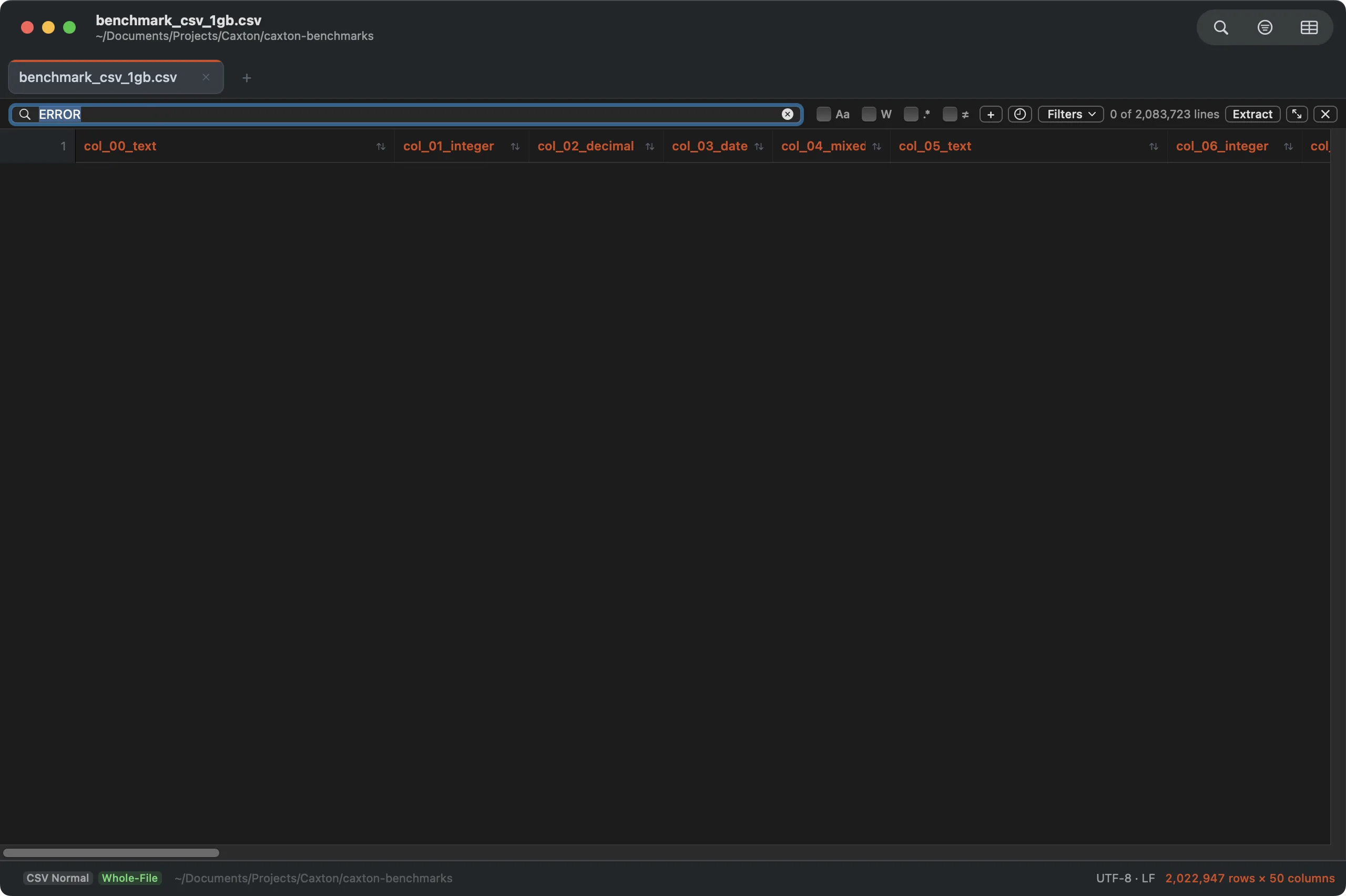
A 2,000,000-row grid filtered to matching rows: original row numbers preserved, full file still on disk.
The working numbers, measured on an M1 Max with 64 GB RAM (methodology and the full table on the benchmarks page): a literal search over the 10 GB file returns 1,613,344 matches in 1.0 s, filtering to those matching lines takes 1.0 s, and Replace All rewrites all 1.61 million sites in 1.7 s as a single undo step. For CSVs specifically, a 1 GB file of 2,022,947 rows × 50 columns parses to a typed, sortable grid in 2.3 s.
Editing stays interactive at that scale: a keystroke applies in about 1 ms on a 10 GB document, and an atomic save of that file takes 11.3 s. It is a native Mac app, not Electron, and the file on disk stays a plain CSV throughout.
One edge case worth naming: not every big file has line breaks. A minified bundle or a JSON export can be a single 500 MB line, which line-oriented terminal tools handle badly: head prints the whole file, less chokes on the wrap. Caxton treats it as just another document; a search across a one-line 500 MB file returns in 0.5 s.
The file is already on your disk. Open it.
Download Caxton for Free7-day free trial of Caxton Pro, no credit card required · 7 MB · macOS 13.0+ · notarized
Frequently asked questions
How big a CSV can Caxton open?
Caxton does not impose a file-size ceiling of its own. It is measured to 50 GB: a 403,046,288-line file opens immediately and stays responsive, and a 10 million row CSV parses to a grid in 4.4 s once its line index has finished. The document model reads from disk on demand rather than loading the file, so size is bounded by your disk, not your RAM.
Why is Excel slow even when my file is under its row limit?
Excel parses the whole file into memory before you see it, so cost scales with file size regardless of the row cap. The row limit itself is a separate problem with separate fixes.
Do I need more RAM to open big CSVs?
Not for streaming or memory-mapping tools: less and Caxton read pages on demand, so an 8 GB machine handles a 10 GB file. For load-into-RAM apps, more memory only moves the failure point.
Can I open a huge CSV in TextEdit?
TextEdit reads the entire document into memory before displaying it, so files in the hundreds of megabytes stall it. Use a streaming viewer or a large-file editor instead.
The file is already on your disk. Download Caxton for Free and open it. 7-day free trial of Caxton Pro, no credit card required.