Download Caxton for Free · 7-day free trial of Caxton Pro, no card · 7 MB · macOS 13.0+
Why is this hard with grep?
A time is a range, and grep matches a pattern. grep '06:14' finds every line with that minute in it, on every day in the file, and nothing from 06:13:59. A range of minutes becomes a regular expression that is wrong at the edges, and a range across midnight becomes two of them. The second problem is the format: an ISO timestamp sorts as text, Mar 4 06:14:13 does not, and an epoch number sorts only while the digit count holds.
Free routes first
awk can compare two strings. The POSIX specification states that comparisons are made numerically when both operands are numeric, and "Otherwise, operands shall be converted to strings as required and a string comparison shall be made," using the locale's collation sequence. An ISO 8601 timestamp at the start of a line collates in time order, so a window is two comparisons:
awk '$1 " " $2 >= "2026-03-04 06:14:00" && $1 " " $2 <= "2026-03-04 06:20:00"' app.logThat reads the whole file once and prints the lines inside the window. It depends entirely on the timestamp being first on the line and sorting as text. For a syslog line, Mar 4 collates after Jan 12 only by luck of the alphabet, and a year is nowhere in it.
grep still wins for one exact prefix. The first minute of the incident is a text match:
grep -n '^2026-03-04 06:14' app.logsed prints everything between two patterns. The macOS manual page documents that "A command line with two addresses selects an inclusive range. This range starts with the first pattern space that matches the first address. The end of the range is the next following pattern space that matches the second address."
sed -n '/^2026-03-04 06:14/,/^2026-03-04 06:20/p' app.logThe second address must actually appear, or the range runs to the end of the file, and a log whose lines are only roughly in order can close the range early.
lnav understands timestamps. Its documentation gives the command :goto as "Go to the given location in the top view," taking "A line number, percent into the file, timestamp, or an anchor in a text file," with :goto 2017-01-01 as the example. :hide-lines-before and :hide-lines-after each take "An absolute or relative date," and the hotkey reference lists d and D to move forward or backward 24 hours. lnav reads the file into its own index first, which is what sets its ceiling.
Where do the free tools stop?
At the format and at the size. The string comparison works for ISO timestamps and breaks for syslog, Apache and epoch forms unless you convert them first. Every tool above reads the file from the top for every question, which at 10 GB is a full pass per query. None of them keeps notes, none shows the severity of the lines around the moment, and none hands you the window around the incident as a file of its own.
How do I jump to a time in the file itself?
Caxton opens the log in place and indexes it in the background: the 10 GB benchmark log is on screen the moment it opens and its 80,610,954 lines are indexed in 3.7 s. The manual's Log Mode page has every detail.
1. Open the file
Any size, read in place. Opening, scrolling and searching are Caxton Free.
2. What Log Mode recognizes
Caxton votes the timestamp format from the first lines, among the lines it recognizes, so a log whose records span several lines still detects. The recognized formats are ISO 8601, syslog, Apache access and error logs, nginx error logs, Go's log package, Unix epoch in seconds or milliseconds, and slash-dated forms. In a log, error and warning lines carry a tinted row band, the same rows carry a band across the minimap, the filter bar gains a Severity popup, and Go to Time is available. A line with no level word and no timestamp follows the record above it, so a stack trace stays under its error line.
3. Go to Time
⌥⌘L opens Go to Time. The field takes a clock time (14:03, 14:03:30), a date and time (2026-09-04 14:03), a bare date, or an offset from the caret line (+5m, -30s, +2h, +1d). A clock time means that time on the caret line's day. The form says which format was detected, and its Format popup lists the recognized formats or Auto-detect to return to the vote. Caxton Free.
4. The severity filter
The filter bar's Severity popup (Warn and above, Error and above, Fatal only, and the rest) is a gate over every other condition, so a text filter inside it shows only the errors that match. View ▸ Log ▸ Severity Patterns… adds your own words or regular expressions with a level each. Caxton Free.
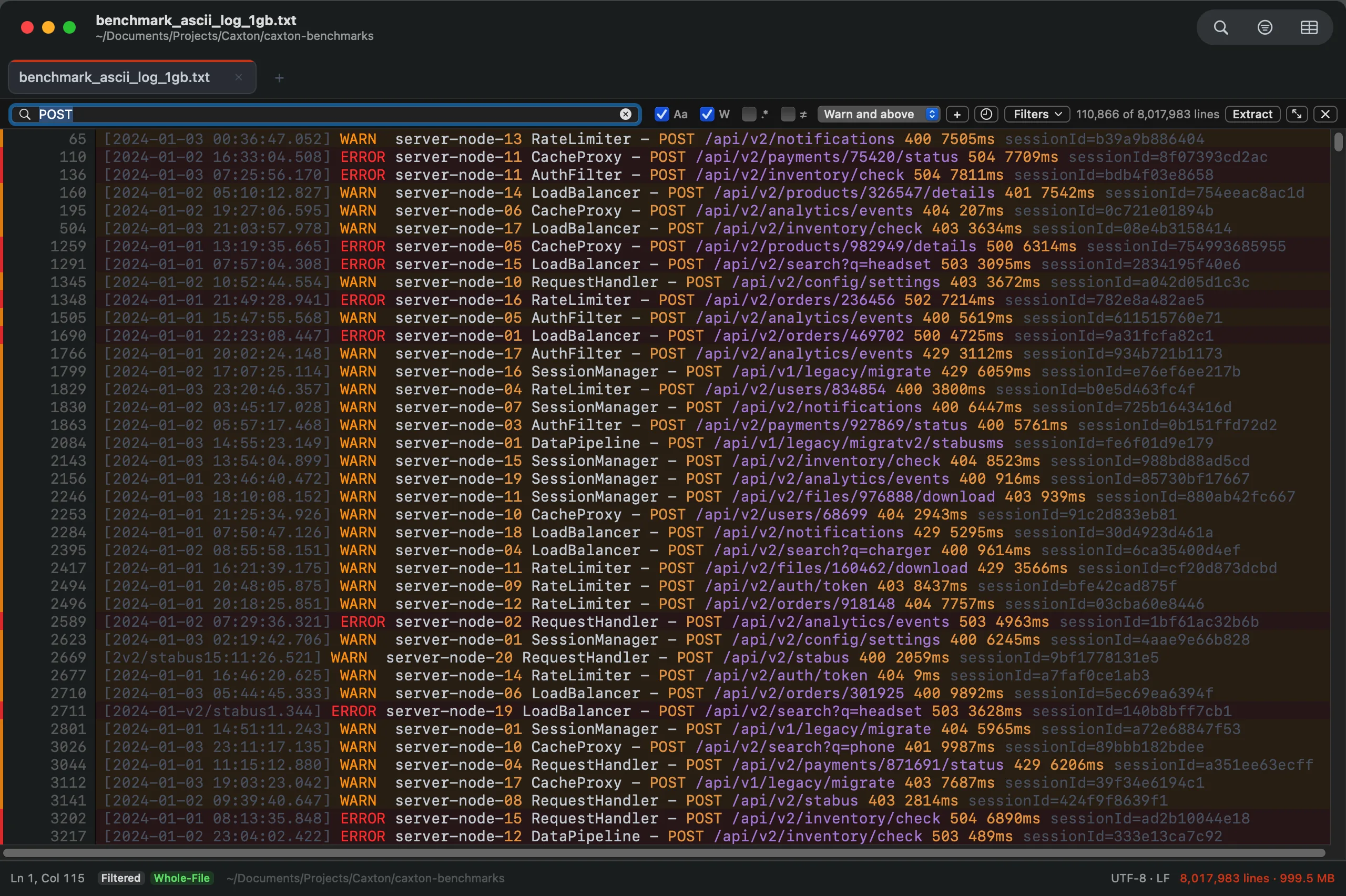
Severity tint on the rows, the same vocabulary driving the filter bar’s Severity popup.
5. A time window as a filter
Any row in the Filter Lines panel can match by level instead of text, and the panel also takes time window rows, From and To, in the Go to Time forms. The filtered view keeps the original line numbers, and Extract writes the window to a new document. Filtering is Caxton Free; the extract is Caxton Pro.
6. Bookmarks with notes
⇧⌘B bookmarks the line. Edit ▸ Bookmarks ▸ Add Note to Bookmark… puts a note on the caret line, bookmarking it first if needed; a noted bookmark shows as a ring in the gutter, and hovering the ring shows the note. The Bookmarks panel (⌥⌘M) lists every bookmark with its timestamp and severity, its first line of text, and its note, editable in place. Caxton Free.
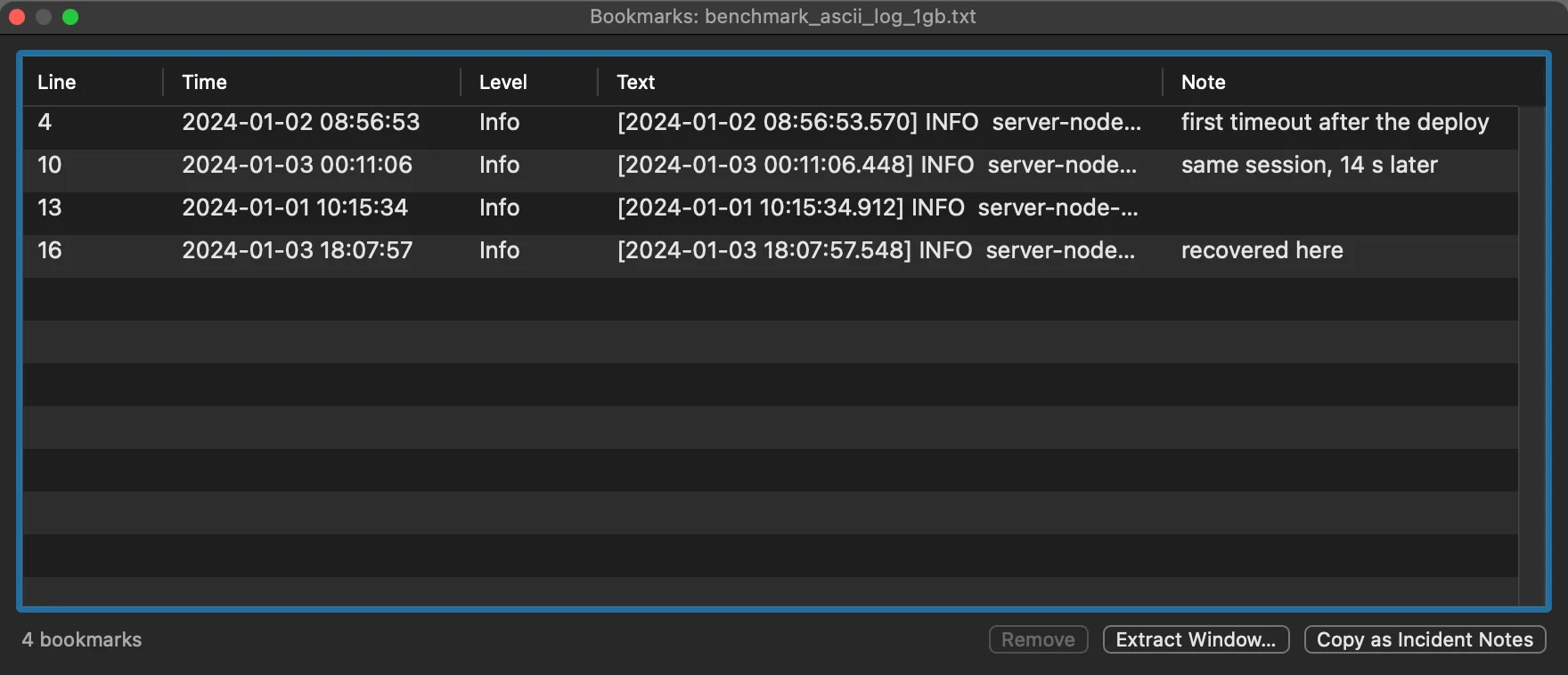
The Bookmarks panel: time and level from the log, the line’s text, and a note you can edit in place.
7. Extract the window around the incident
Edit ▸ Bookmarks ▸ Extract Incident Window…, or the Extract Window button in the Bookmarks panel, takes the lines around every bookmark. The form says how many events it will extract around and offers the window as lines before and after each event, or as seconds before and after each event by timestamp, which is offered when the log's timestamps were recognized. The blocks go to a new document with a header per block. Extracting to a new document is Caxton Pro.
8. When the timestamps are not recognized
Then there is no time navigation until there is a format. Go to Time refuses with a message in the status bar that no timestamps were recognized in this document and that it needs a log with a timestamp at the start of its lines; a From or To row in the filter panel says the same; and Extract Incident Window offers only lines before and after, not seconds. View ▸ Log ▸ Log Timestamp Format… is the way through: it says that no timestamp format was recognized in the first lines and asks you to choose the one this log uses, and it also sets the zone for lines without one and the year for syslog lines. A log whose timestamps sit after a prefix the formats do not expect stays a text file with search, filters and bookmarks, and without Go to Time.
Open the log. Press ⌥⌘L and type the minute.
Download Caxton for Free7-day free trial of Caxton Pro, every feature, no card. After it, Caxton Free keeps opening, searching and filtering at any size.
Which approach fits which job?
| Approach | Good for | Breaks when |
|---|---|---|
awk range | A window between two ISO timestamps, one pass, free | The timestamp is syslog, Apache or epoch, or it is not first on the line |
grep prefix | One exact minute, with line numbers, free | The question is a range, or a different day with the same minute |
sed -n '/a/,/b/p' | Everything between two lines that match, free | The closing pattern never appears, or the lines are only roughly ordered |
| lnav | Timestamp navigation in a terminal with :goto and hide-before and after, free | The file is larger than its index is comfortable with, or you need notes and an extract |
| Caxton | Go to Time on a 10 GB log, severity as a gate, bookmarks with notes, the incident window extracted to its own document | The timestamps are in a format it does not recognize and you do not set one |
For the size question on its own, see opening a 10 GB log file. For the tools side by side, see choosing a log viewer; for filters that keep the original line numbers, filtering a large log file.
Frequently asked questions
How do I find log entries between two times?
With ISO timestamps at the start of each line, awk compares them as strings: awk '$1 " " $2 >= "2026-03-04 06:14:00" && $1 " " $2 <= "2026-03-04 06:20:00"' app.log prints the window. sed -n '/start/,/end/p' prints everything between two matching lines. In Caxton, Go to Time (⌥⌘L) jumps to a clock time, a date and time, or an offset such as +5m, and the Filter Lines panel takes From and To rows so the window becomes a view with its original line numbers.
Which timestamp formats does Caxton recognize?
ISO 8601, syslog, Apache access and error logs, nginx error logs, Go's log package, Unix epoch in seconds or milliseconds, and slash-dated forms, voted from the first lines of the file. The Go to Time form says which one was detected and lets you pick another, and View ▸ Log ▸ Log Timestamp Format… sets the format, the zone for lines without one and the syslog year.
What happens if my log's timestamps are not recognized?
Go to Time refuses with a status bar message that no timestamps were recognized and that it needs a log with a timestamp at the start of its lines; a From or To filter row says the same; and Extract Incident Window offers a window in lines but not in seconds. View ▸ Log ▸ Log Timestamp Format… says no format was recognized in the first lines and lets you choose the one the log uses. Search, filters and bookmarks work regardless.
Can I pull out just the minutes around an incident?
sed prints the range between two patterns to standard output, and awk prints the rows inside two timestamps; redirect either to a file. In Caxton, bookmark the moments, then Edit ▸ Bookmarks ▸ Extract Incident Window… writes the lines or the seconds around every bookmark to a new document with a header per block. Bookmarking and notes are Caxton Free; the extract to a new document is Caxton Pro.
Sources
- The Open Group Base Specifications: awk, on comparisons
- sed(1), the manual page shipped with macOS (
man sed): two-address ranges - lnav documentation: commands (
:goto,:hide-lines-before,:hide-lines-after) and hotkeys - Caxton manual: Log Mode and Navigation & Bookmarks
- Caxton benchmarks, the 10 GB log rows