Download Caxton for Free · 7-day free trial of Caxton Pro, no card · 7 MB · macOS 13.0+
Which kind of comparison do you need?
The word covers five jobs, and no single tool is best at all of them.
- A yes or no. Did the nightly export change at all? One command, one line of output.
- A patch. The changes in a form another person or a script can read and apply.
- A side-by-side read. Two versions of a log or a data file, aligned, so you can see what moved and read around it.
- A merge. Two people edited copies of one file; you want a third file with both sets of changes.
- Two folders. Which files differ between a tree and its copy.
Free routes first
diff ships with macOS. Its manual page documents -q as "Just print a line when the files differ. Does not output a list of changes," which answers the yes or no; -u as producing "a unified diff with 3 lines of context," the patch form; -y as "Output in two columns with a marker between them," a side-by-side in the Terminal; -i as ignoring "the case of letters"; -w as causing "whitespace (blanks and tabs) to be totally ignored"; and -r as applying diff "recursively to common subdirectories encountered," which compares two folders.
diff -q export-monday.csv export-tuesday.csv
diff -u config.old config.new > config.patch
diff -y -W 200 left.txt right.txt | less
diff -r -q release-a/ release-b/
Every form streams to the Terminal, so it scales to the file you can wait for, and every form is scriptable.
FileMerge is Apple's own comparison app. The opendiff manual page describes it as "a command line utility that provides a convenient way to launch the FileMerge application from Terminal to graphically compare files or directories," states that "FileMerge lets you merge two files or directories together to create a third file or directory," offers -ancestor for comparing "the two files or directories to a common ancestor," and notes that "opendiff and FileMerge are installed as part of the Xcode Developer Tools." Xcode is free from the Mac App Store; FileMerge lives inside it.
opendiff draft-a.txt draft-b.txt
opendiff draft-a.txt draft-b.txt -ancestor original.txt -merge final.txt
For the merge, FileMerge is the right tool on this page, and the three-way form with an ancestor is one no other tool here offers.
VS Code documents that it "supports several ways to compare the content of the current file or of any two files": "Right-click on a file in the Explorer view and select Select for Compare. Then, right-click on a second file and select Compare with Selected," and a command to "compare the current file with the clipboard content." It is the natural choice when both files are code already open in it; for a large data file it has a documented size threshold, covered in the file is too large for VS Code.
Where do the free tools stop?
diff prints and exits. Reading two versions of a long file against each other, with the matching lines kept in step while you scroll, is not what it offers, and a change it shows you cannot be moved into the other file from there. FileMerge is built for merging, and its options live in its own preferences and Help, not in a flag you can quote. VS Code loads both files into memory and tells you, by design, when one is too large for it. None of them keeps a plain-text record of a particular comparison beside the files it compared unless you redirect the output yourself.
How do I compare two files in Caxton?
Caxton's Compare opens from the document you are reading and aligns it with any other file. The manual's Compare page has every control.
1. Open one of the files
Drag it onto Caxton or use File ▸ Open. Opening and reading are Caxton Free.
2. File ▸ Compare With…
Pick the other file. The window's title names both sides, and the two panes live in a single view, aligned line by line and scrolled as one, so they cannot drift. Changed pairs, left-only lines and right-only lines each get their own tint from the current theme. Previous and Next (⌘↑ and ⌘↓) step through the differences, a counter shows which you are on and how many there are, and clicking a change selects it. Comparing is Caxton Free.
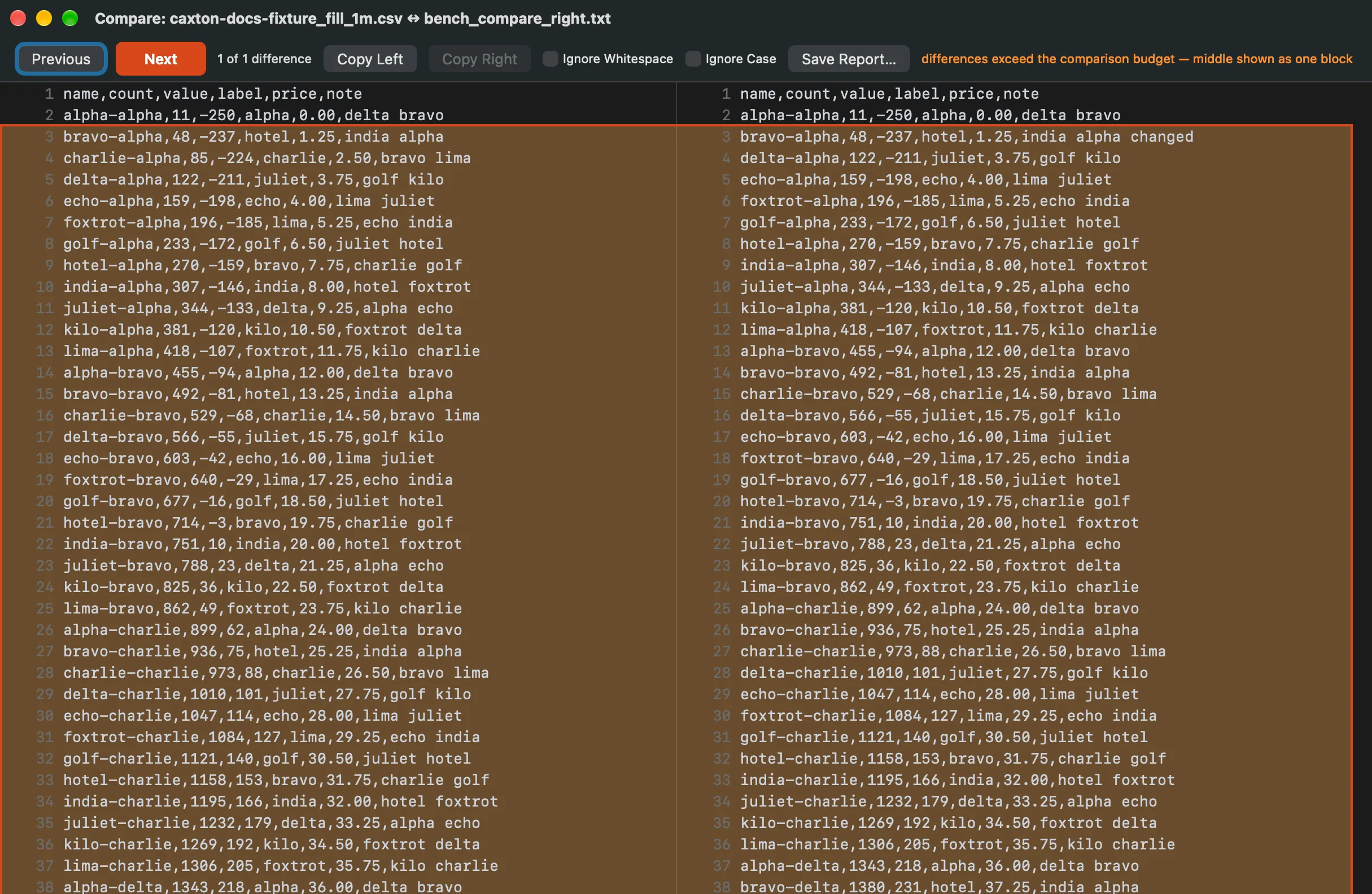
The Compare window: the controls across the top, the two files aligned below, the current difference outlined.
3. Ignore case and whitespace
Ignore Whitespace collapses indentation and spacing differences. Ignore Case folds A to Z, and accented case stays significant. Line terminators are never compared, so a file and its CRLF copy report no differences, and the window says so when the two sides use different line endings. Caxton Free.
4. Copy a change across
Click a difference, then Copy Left replaces the selected change in the open document with the right side's lines, as one undo step in that document. Copy Right works when the other file is open in Caxton too. A file that is open in Caxton compares as its live text, unsaved edits included and labeled, and a copy lands in its buffer, never silently on disk; after a copy the panes recompute. Copying is an edit, so it is Caxton Pro: on Caxton Free, and on any read-only document, the two buttons stay disabled.
5. Save Report…
The report is plain text: one @@ header per change with the left and right line numbers, minus and plus lines below it. It is the record you keep beside the files. Caxton Free.
6. The limits, stated
Each side is compared up to 256 MB, and the window says so in its notice line when a file is larger. Copy works only on fully captured sides and refuses a block over 64 MB. Beyond the comparison budget, distant changes collapse into a single block rather than an unbounded search, and the notice says that too. A file that changes on disk while the window is open is flagged when you return to it, and the prompt Caxton shows when a file changes under you offers Compare as well, so you can see the difference before choosing which version to keep.
Open one file, pick the other, read the differences side by side.
Download Caxton for Free7-day free trial of Caxton Pro, every feature, no card. After it, Caxton Free keeps opening, searching and filtering at any size.
Which approach fits which job?
| Approach | Good for | Breaks when |
|---|---|---|
diff | A yes or no, a patch, two folders, a script; any size you can wait for, free | You want to read two long files against each other, or move a change across |
| FileMerge | Merging two edits of one file, with or without a common ancestor, free with Xcode | You want a scriptable flag or a record you can quote |
| VS Code | Two code files already open in it, free | The file crosses its documented large-file threshold |
| Caxton | Two exports or two logs side by side, scrolled as one, case and whitespace ignored at a click, a change copied into the open document with undo, a saved report | A side is over 256 MB, the job is a three-way merge, or it compares folders; those are diff's and FileMerge's |
Say it plainly: for a patch, a folder tree, or a check inside a script, diff is the better choice, and for a three-way merge FileMerge is. Caxton's lane is the pair of large text files you want to read against each other and fix. If the file is a log that will not open elsewhere, start with opening a 10 GB log file; if you came from Notepad++ and its Compare plugin, the rest of that move is in Notepad++ alternatives for a Mac.
Frequently asked questions
How do I compare two text files on a Mac without installing anything?
diff is already there. diff -q a.txt b.txt prints one line if they differ and nothing if they match, diff -u a.txt b.txt prints the changes as a patch, and diff -y shows them in two columns. FileMerge is free too, but it comes with Xcode, which has to be installed first.
How do I ignore whitespace or case when comparing?
diff -w ignores whitespace and diff -i ignores case, by its manual page. In Caxton the Compare window has Ignore Whitespace and Ignore Case as checkboxes that recompute the comparison when you click them; line endings are never compared, so a CRLF copy of a file shows no differences.
Can I copy a change from one file into the other?
FileMerge merges into a third file. In Caxton, click a difference and Copy Left replaces that change in the open document with the other side's lines as one undo step; Copy Right works when the other file is open in Caxton too. Copying is an edit, so it is Caxton Pro, and the buttons stay disabled on Caxton Free.
How large a file can be compared?
diff streams and is limited by your patience. Caxton compares each side up to 256 MB and says so in the window when a file is larger, and a copied block is limited to 64 MB. Past that, diff is the honest answer.
Can I save the differences?
Redirect diff's output to a file for a patch. In Caxton, Save Report… writes the differences as plain text, one @@ header per change with the left and right line numbers and minus and plus lines below it, on Caxton Free.
Sources
- diff(1), the manual page shipped with macOS (
man diff):-q,-u,-y,-i,-wand-r - opendiff(1), the manual page shipped with the Xcode command line tools (
man opendiff), on FileMerge - Visual Studio Code documentation: Compare files
- Caxton manual: Compare, including the limits as stated there