Download Caxton for Free · 7-day free trial of Caxton Pro, no card · 7 MB · macOS 13.0+
What does a fixed-width file look like?
Like a table with the lines drawn in invisible ink. Here is the shape, in a synthetic sample built for the essay about the state court extracts: several record types in one text file, no delimiters, no header row, each record padded with spaces to its own width, the record type written in characters 21 to 24 of every line.
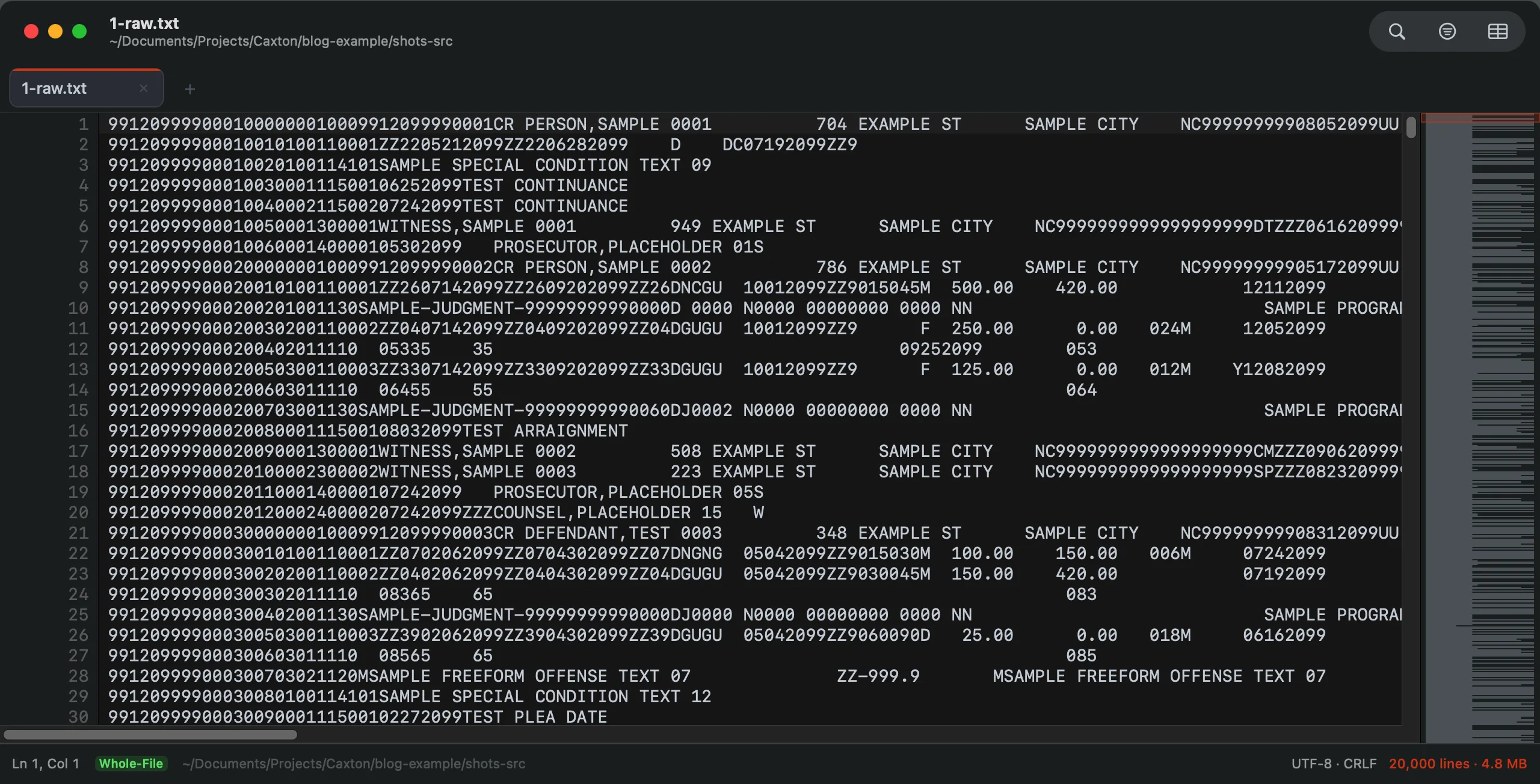
The sample as text: case, offense, event, witness and attorney records interleaved, every field at a fixed position. Layout modeled on a state court extract; all data fictional.
An attorney record from that file is 84 characters wide. The layout document gives each field as a start and an end position, and the widths are the differences:
9912099990002012000240000207242099ZZZCOUNSEL,PLACEHOLDER 15   W

positions  1-3  4-5  6-7  8-13  14-16  17-18  19-20  21-24  25-26  27-34  35-37  38-62  63
widths     3    2    2    6     3      2      2      4      2      8      3      25     1
Three things make these files harder than they look. The fields are padded, so COUNSEL,PLACEHOLDER 15 carries three spaces that are not data. A record type that is not the one you want sits on the next line with a different layout, so one set of widths cannot describe the file. And the positions count characters in the layout document; a file written in a multi-byte encoding may be padded by bytes instead, which is a question for the encoding guide before it is a question for any splitter.
Free routes first
grep separates a record type before anything else. The type sits at a fixed position, so a pattern that skips twenty characters and reads four does it:
grep -a '^.\{20\}4000' extract.txt > attorneys.txtcut -c pulls one field by position. Its manual page documents -c list as "The list specifies character positions," and -b as bytes. One range gives one column:
cut -c 38-62 attorneys.txtSeveral ranges in one -c list come out joined with nothing between them, so cut builds a one-column file, not a CSV.
awk builds the CSV. Its manual page documents substr(s, m [, n]) as "the n-character substring of s that begins at position m counted from 1." One substr per field, a comma between them:
awk '{ printf "%s,%s,%s,%s\n", substr($0,1,3), substr($0,8,6), substr($0,38,25), substr($0,63,1) }' attorneys.txt > attorneys.csvThe padding comes along: substr keeps the trailing spaces, and a field that holds a comma, as the names in this layout do, needs quotes that printf does not add. Both are fixable in awk, each with another line.
Python slices do the same with trimming and quoting handled. The tutorial documents that "slicing allows you to obtain a substring" and that "Slice indices have useful defaults; an omitted first index defaults to zero, an omitted second index defaults to the size of the string being sliced." Positions in the layout count from one and the slice counts from zero, so a field at 38 to 62 is line[37:62]. The csv module's writer adds the quotes:
import csv

fields = [(1, 3), (8, 13), (38, 62), (63, 63)]       # start and end, from the layout, counted from 1
with open("attorneys.txt") as src, open("attorneys.csv", "w", newline="") as dst:
    out = csv.writer(dst)
    for line in src:
        out.writerow([line[s - 1:e].strip() for s, e in fields])
Where do the free tools stop?
You count positions by hand and see nothing until the output exists. An off-by-one in one width shifts every field after it, silently, in every line. The result is a file you then open elsewhere to check against the layout, and when it is wrong the fix is editing the numbers and running again. Across a dozen extracts of a few gigabytes each, that is a script worth writing well; for one file, or the first look at an unfamiliar layout, it is slow.
How do I convert the file in Caxton?
Caxton opens the fixed-width file as text at any size, lets you isolate one record type with the original line numbers kept, and splits it at the widths you type, with the first line shown split as you type them. The manual's CSV Workbench page lists the command.
1. Open the file as text
Drag it onto Caxton or use File ▸ Open. A fixed-width .txt opens in the text view, which is where the conversion runs from. Put the cursor at the start of a field and the status bar reads its position as Ln and Col, counted from one, the same way the layout counts. Opening and reading are Caxton Free.
2. Mixed record types: filter one out first
The conversion splits every line of the document, so a mixed file needs one record type on its own first. Press ⇧⌘L, turn on the .* regex toggle, and type ^.{20}4000: only the attorney records stay visible, with their original line numbers in the gutter. Filtering is Caxton Free. Then open the Filter Lines panel and press Extract All, which copies every matching line into a new untitled document; save that document with ⇧⌘S so the record type has its own file and the converted CSV takes its name. Extracting and saving are Caxton Pro.
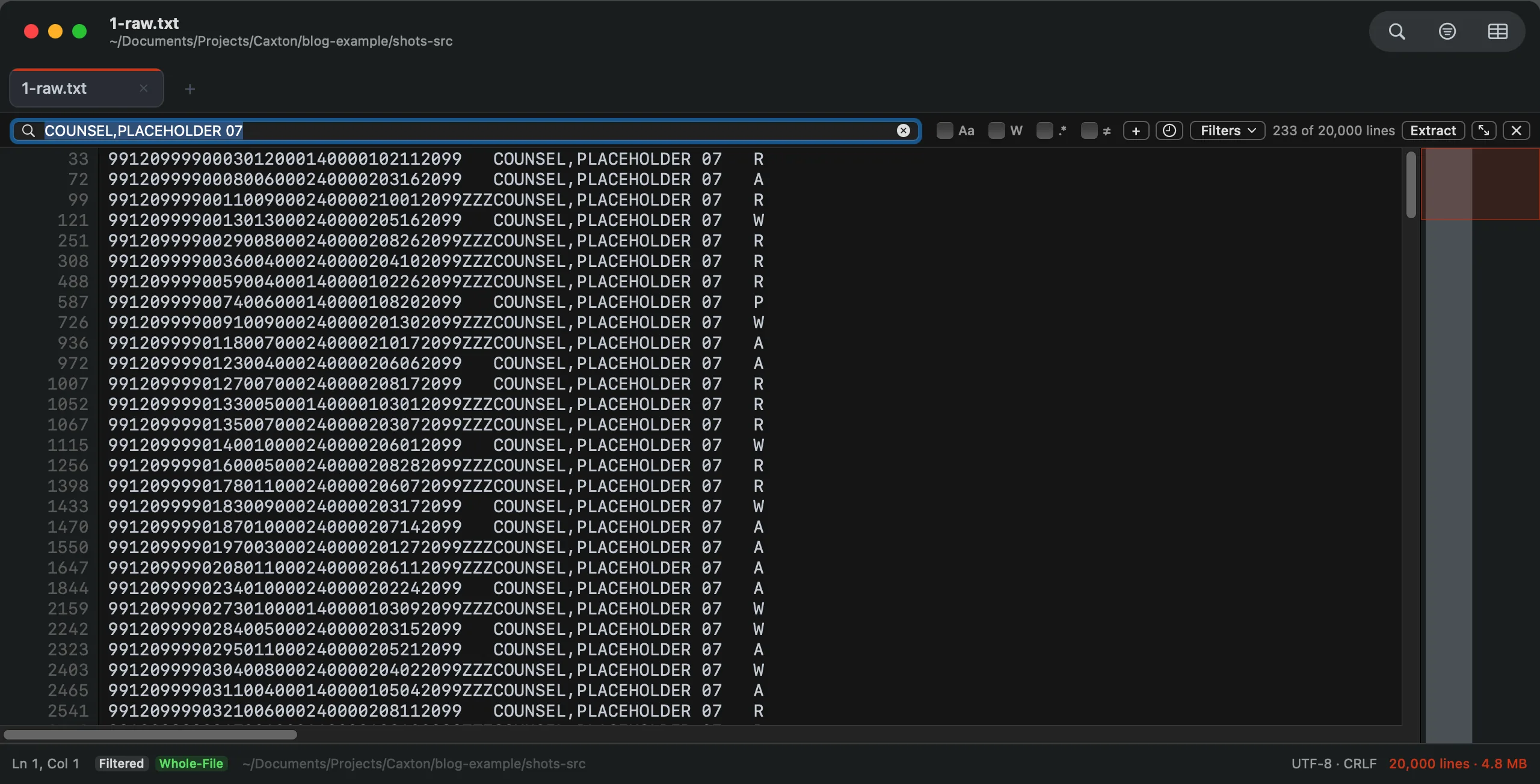
A filter on the sample from the essay: the matching lines only, original line numbers kept, the whole file still one document.
3. CSV ▸ Convert Fixed-Width to Columns…
The sheet takes the Widths in characters, separated by commas or spaces (for the attorney record above, 3, 2, 2, 6, 3, 2, 2, 4, 2, 8, 3, 25, 1), a Delimiter for the output (Comma, Tab or Semicolon), and Trim spaces in each cell, on by default, which removes the padding. Under them the First line preview shows that line split by the widths you have typed so far, so an off-by-one is visible before anything is written. Text beyond the last width becomes a final column, which for a padded record is the padding, blank once trimmed. The conversion needs the line index, and the status bar says so if it is not finished yet. Caxton Pro.
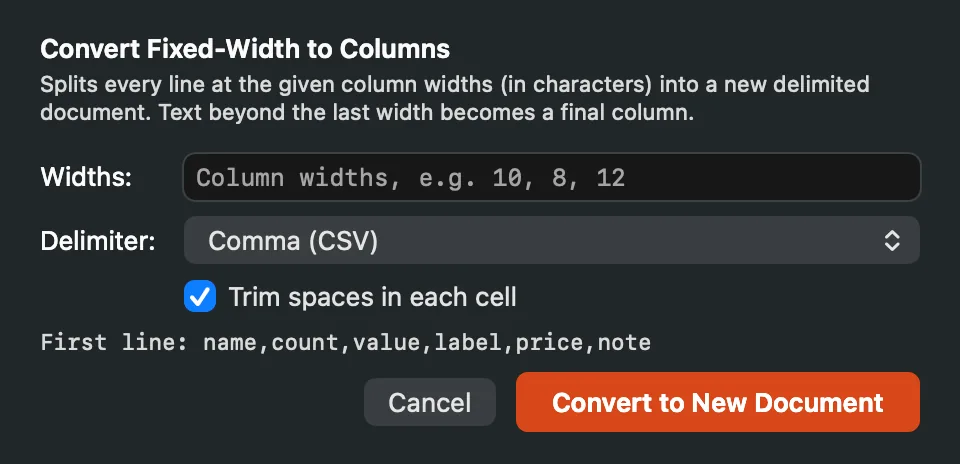
The sheet: widths, output delimiter, trimming, and the first line split as you type.
4. Convert to New Document
The split streams every line into a new document, named after the source with (converted), which opens in the grid as a CSV. A cell that holds the delimiter or a quote is quoted on the way out, the source's line endings are kept, and the job is listed in the Operations panel while it runs and can be cancelled there. The original file is not touched. Caxton Pro.
5. Check it in the grid, then save
Every column of the new document is a field of the layout, in order, and the grid shows them typed. A column that is only padding can go with CSV ▸ Delete Column. ⌘S on the new document asks where to write it. Editing and saving are Caxton Pro.
Open the extract, type the widths, watch the first line split.
Download Caxton for Free7-day free trial of Caxton Pro, every feature, no card. After it, Caxton Free keeps opening, searching and filtering at any size.
Which approach fits which job?
| Approach | Good for | Breaks when |
|---|---|---|
grep | Separating one record type by its position, free | The record type is not at a fixed position |
cut -c | One field by character position, free | You need more than one column |
awk substr | A CSV from any fields, one line of awk, free | Fields need trimming and quoting, or the widths are wrong and nothing told you |
| Python slices | Trimmed, quoted CSV from a layout you can type in, free | The layout is unfamiliar and every mistake is a rerun |
| Caxton | The first line previewed as you type the widths, a record type filtered out first with line numbers kept, the result in a grid, any file size | The job recurs on a schedule; script that one |
If the file was a CSV all along and its rows are broken, that is a repair job. The workflow this sample comes from, separating record types and building a master table from an extract several gigabytes long, is told in full in the essay.
Frequently asked questions
How do I handle a file with several record types?
Separate one type first. If the type code sits at a fixed position, grep -a '^.\{20\}4000' writes those lines to their own file. In Caxton, a Filter Lines regex such as ^.{20}4000 shows only that type with the original line numbers kept, Extract All in the Filter Lines panel copies those lines to a new document, and the conversion runs on that document with the type's own widths. Repeat per type.
How do I find the column positions?
From the layout document, which gives each field's start and end; the width is end minus start plus one. Without one, open the file in a text view, put the cursor at the start of each field and read the column from the status bar, which Caxton shows as Ln and Col counted from one. The first-line preview in the conversion sheet confirms the widths before anything is written.
What about the padding, and fields that are all spaces?
The widths include the padding, so a field is always the same width. Trim spaces in each cell, on by default in Caxton's sheet, removes the spaces on both sides of every cell, and a field that was only spaces becomes an empty cell. In Python, strip does the same; awk's substr keeps the spaces unless you remove them.
How large a file can be converted?
awk, cut and Python stream through a file of any size. Caxton opens the file at any size, filters it with the original line numbers kept, and streams the conversion to a new document as a job in the Operations panel, leaving the original untouched.
Sources
- cut(1) and awk(1), the manual pages shipped with macOS (
man cut,man awk):-c,substr - grep(1), the manual page shipped with macOS (
man grep) - Python tutorial: strings and slicing and the csv module
- For years, my answer to a 30 GB file was to use a different computer, the essay whose synthetic court extract appears above; all data fictional
- Caxton manual: CSV Workbench and Filtering