Download Caxton for Free · 7-day free trial of Caxton Pro, no card · 7 MB · macOS 13.0+
What goes wrong with a folder-wide replace?
The same four things, every time. A pattern matches a file it should not have, a binary file among the text ones is rewritten and ruined, a write stops partway and leaves a file half old and half new, and the moment you see the mistake there is no way back because the originals are gone. So, plainly: before any replace across a folder, make a copy of the folder or commit it. The tools below differ in how much of this they protect you from, and none of them replaces the copy.
Free routes first
grep finds. Its manual page documents -r as "Recursively search subdirectories listed," -n as prefixing each line with "its relative line number in the file," -l as writing "Only the names of files containing selected lines," and --include pattern as "only files matching the given filename pattern are searched."
grep -rn --include='*.log' 'old-host.example' ~/logs
grep -rl --include='*.log' 'old-host.example' ~/logs
The first lists every matching line with its file and line number, which is the review. The second lists only the files, which is the input to the replace.
sed -i replaces in place, and this is where a Mac differs from Linux. The sed that ships with macOS documents the flag as -i extension: it edits "files in-place," and the extension names the backup. On the zero-length form the manual page is blunt: "If a zero-length extension is given, no backup will be saved. It is not recommended to give a zero-length extension when in-place editing files, as you risk corruption or partial content in situations where disk space is exhausted, etc." A bare -i with no argument, the form in most tutorials, takes the next word as the extension on a Mac.
sed -i .bak 's/old-host\.example/new-host.example/g' ~/logs/app.log
grep -rl --include='*.log' 'old-host.example' ~/logs | xargs sed -i .bak 's/old-host\.example/new-host.example/g'
The second line is the whole job in one pipe, with a .bak beside every file it touches. Paths with spaces break it; find -print0, which prints each path "followed by an ASCII NUL character," with xargs -0, which expects "NUL characters as separators," is the documented pair for that.
VS Code documents the search view: "Press ⇧⌘F and enter your search term," with results "grouped into files containing the search term, with an indication of the hits in each file and its location." Under the search box, "you can enter patterns to include or exclude from the search," using glob syntax with a comma between patterns, and "When you type text into the Replace text box, you will see a diff display of the pending changes." You "can replace across all files from the Replace text box, replace all in one file or replace a single change." That is a preview and a per-change choice, free, for the files it opens; it has a documented large-file threshold, covered in the file is too large for VS Code.
Where do the free tools stop?
sed has no preview and no report: a typo in the pattern rewrites every file in the list at once, and only the .bak files tell you what was there. It does not know a binary file from a text one, and a file open in your editor is overwritten under the editor's unsaved buffer. VS Code previews, but it loads each file to search it and stops at its own size limit. Neither tells you which files were skipped and why.
How do I find and replace across files in Caxton?
Find in Files searches files on disk without opening them and replaces across them with the counts shown first. The manual's Find & Replace page has every control.
1. Edit ▸ Find ▸ Find in Files…
Press ⇧⌘F. The scope popup is Folder, with Choose… to pick it, or All Open Documents. The filename patterns field takes *.log; *.csv, patterns separated by semicolons or spaces, and empty means every file. Type the query, set Match case or Regex, and click Search, which reads Stop while the walk runs. Results stream in as they are found: the file, the line and the matching text. In Caxton 2.1.0 searching is Caxton Free.
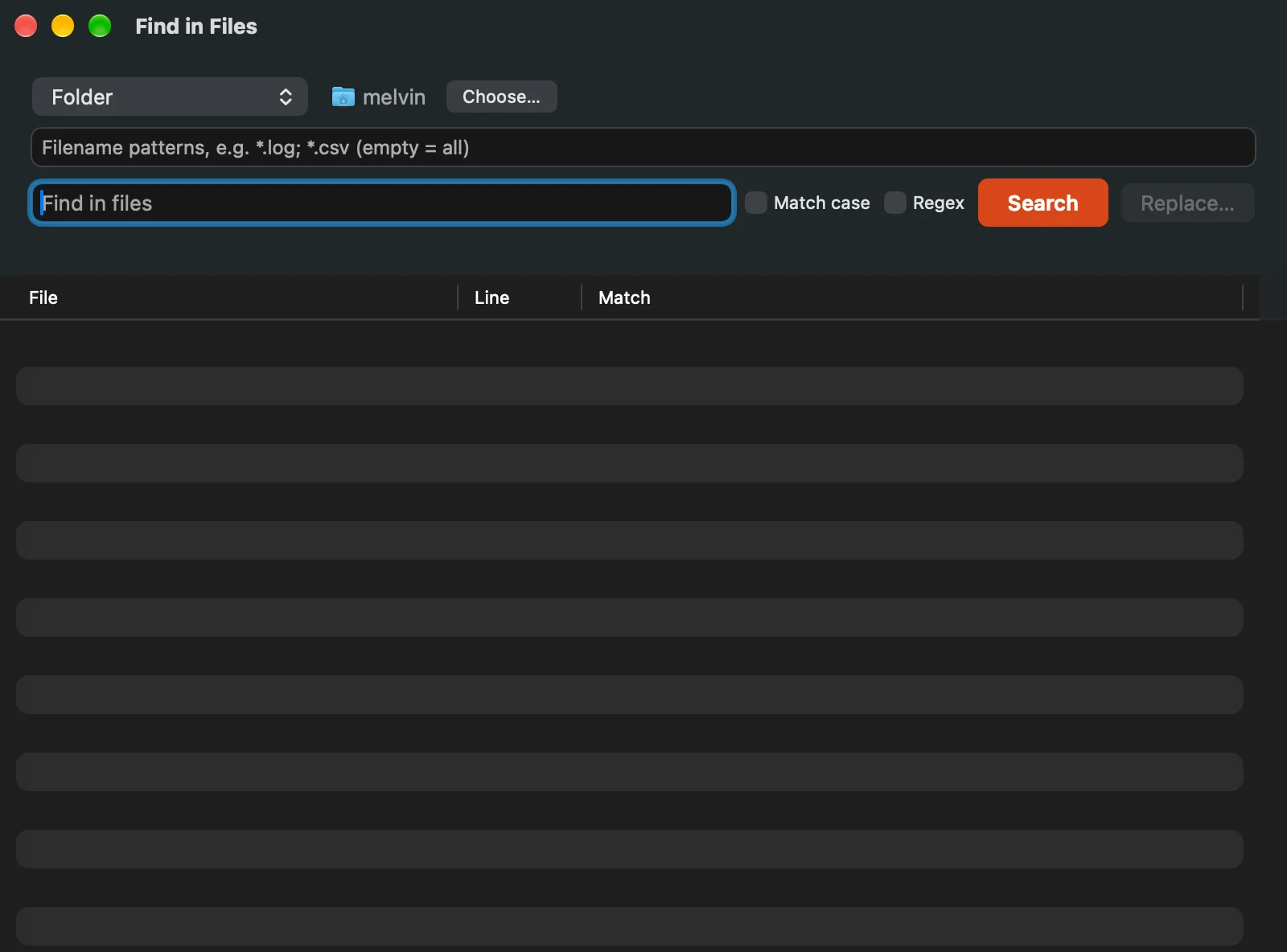
Find in Files: a folder or every open document, filename patterns, the query, and the results list.
2. Read every match
Double-click a result to open the file at that line. What the search skipped, it reports: files over the 50 MB scan cap, binary files and unreadable files are listed behind the Skipped button, never silently omitted. UTF-16 files decode and get searched. A regex is judged per line, so a pattern never matches across a line ending. Caxton Free.
3. Replace…
The button asks Replace in N files? and shows, before anything is touched, the replacement field, Keep .bak backups checked by default, and the matching-line count per file for the first files in the list. The sheet states the rules: the replacement is line-wise on the files as scanned, a file that changed since the search is skipped, and a document open in Caxton is skipped, since Batch Replace covers open documents with their own undo. Each file is then rewritten atomically: the new text goes to a temporary file in the same folder and is swapped in whole, so a file is never left half old and half new, and the .bak is a copy of the original beside it. When the run ends, a report lists every file it skipped and why. In Caxton 2.1.0 the replace across files carries no license check, so it runs on Caxton Free as well.
4. What undo means here
There is no undo for files rewritten on disk, in Caxton or anywhere else. The .bak copies are the way back: rename one over its file in the Finder, or mv app.log.bak app.log. Inside Caxton, a replace in an open document, whether from the find bar or Batch Replace, is one undo step in that document, which is why open documents are left to those commands.
Search the folder, read every match, then replace with the backups on.
Download Caxton for Free7-day free trial of Caxton Pro, every feature, no card. After it, Caxton Free keeps opening, searching and filtering at any size.
Which approach fits which job?
| Approach | Good for | Breaks when |
|---|---|---|
grep -r | Finding every line and every file, any size, free | You need to change them |
sed -i .bak with grep -l | A known substitution across a file list, scripted, with backups, free | You want to see the counts first, or a binary file is in the list |
| VS Code | A previewed replace across a code folder, change by change, free | The files cross its documented size threshold |
| Caxton | A folder searched without opening it, per-file counts before the write, backups and atomic writes, a report of what was skipped | A file is over the scan cap, or the job recurs on a schedule; script that one |
For one enormous file rather than many, the preview, the honest counts and the single undo step are on find and replace in a huge file. If the folder is a day's logs, opening a 10 GB log file and choosing a log viewer cover the reading side of the same job.
Frequently asked questions
How do I replace text in all files in a folder on a Mac?
With the tools already there: grep -rl lists the files that contain the text, and xargs sed -i .bak rewrites them with a backup beside each. In Caxton, Find in Files searches the folder with filename patterns, lists every match, and Replace… shows the matching-line count per file before writing, keeps a .bak beside every file it changes, and reports every file it skipped.
Why does sed -i fail on a Mac?
The sed that ships with macOS takes the backup extension as the flag's argument, so sed -i 's/a/b/' file reads 's/a/b/' as the extension. Write sed -i .bak 's/a/b/' file to keep a backup, or sed -i '' 's/a/b/' file for none, which the manual page says is not recommended.
Can I preview a replace before it runs?
VS Code shows a diff of the pending changes as you type the replacement. Caxton's Replace… sheet shows the matching-line count per file for the first files in the list before you confirm, and the search results above it are every line that will be touched; double-click any of them to read it in place.
Can I undo a replace across many files?
Not on disk. The .bak files are the undo: rename one over its file. Caxton skips documents that are open in it, so a replace inside an open document stays an ordinary undo step there.
Does it search files that are too big?
Caxton's Find in Files skips files over the 50 MB scan cap and lists them behind the Skipped button, with the binary and unreadable files. Open a file that size in Caxton itself and search it there; that is the job on the find and replace in a huge file page.
Sources
- grep(1), sed(1), find(1) and xargs(1), the manual pages shipped with macOS:
-r,-l,-n,--include,-i extension,-print0and-0 - Visual Studio Code documentation: Search across files and Search and replace
- Caxton manual: Find & Replace, the Find in Files and Batch Replace sections