Download Caxton for Free · 7 days, no card · 7 MB · macOS 13.0+
What VS Code actually does with a big file
All of this is in Microsoft's own release notes and settings, not folklore. The 1.15 release notes state that "any file that is over 30MB or over 300K lines will now be considered a large file and will be handled specially": tokenization, line guides, wrapping, and folding are disabled, which the notes say cut memory usage in some cases by as much as 50%. Large files also "never travel to our web worker, which computes diff information, link detection, or word based completions," so those features go quiet too. The same release removed the earlier hard-coded 50 MB open limit on 64-bit installations and set a 300 MB limit for 32-bit ones. Those notes date from 2017, and the cutoff in the current source may have changed since; the largeFileOptimizations source linked below holds the value a given build uses.
The behavior is governed by a setting the product documents as "special handling for large files to disable certain memory intensive features" (editor.largeFileOptimizations, on by default). A separate threshold covers long lines rather than long files: lines beyond editor.maxTokenizationLineLength, 20,000 characters by default, are not tokenized at all, which is why a minified bundle or a one-line JSON export loses its coloring even when the file is small.
So the moment you hit mid-task (highlighting gone, folding gone, extensions quiet) is not a malfunction. It is the product's documented answer to a file it was not designed around.
Why, at the design level
Microsoft's FAQ describes VS Code as "a streamlined code editor with support for development operations like debugging, task running, and version control." That model (the document in the editor's memory, tokenized for language services, wired to an extension host) is the right architecture for source files, which are small, numerous, and semantically rich. A 2 GB log is the opposite kind of object: one file, no semantics worth tokenizing, too big to hold comfortably in a process that is also running your language servers. The large-file optimizations above are engineering for that reality, not a failure of it. The wider survey of which editors were designed for which sizes is a separate page: large file text editors on a Mac.
The free path first
You already have a terminal inside VS Code. For a one-time look, use it:
less -S huge.log        # opens instantly at any size; /text searches, G jumps to end, q quits
grep -n -C 3 "ERROR" huge.log > errors.txt   # the interesting lines, with context, into a file VS Code likes
tail -n 1000 huge.log > tail.log             # or carve off just the end
less documents that it does not read the whole input before starting, which is why it opens anything instantly. And splitting is sometimes the pragmatic answer: errors.txt and tail.log above are ordinary small files, and every VS Code feature works on them.
What the terminal does not give you: scrolling the whole file, hopping between matches with context, or editing in place.
Keep VS Code. Open the file next to it.
Caxton is not trying to replace your editor; it is the tool for the files your editor classifies as large. Documents are memory-mapped rather than loaded, so opening copies nothing up front and size stops being the variable that matters. The published numbers, measured on an M1 Max with 64 GB RAM (methodology on the benchmarks page):
- The 10 GB benchmark log (80,610,954 lines) opens immediately; the background index finishes in 3.7 s, and on the 50 GB log memory stays under 160 MB through every measured operation.
- A literal search across it returns 1,613,344 matches in 1.0 s, with an exact counter.
- The long-line case has its own number: a search across a single-line 500 MB file returns in 0.5 s, and the minified bundle that lost its coloring in VS Code scrolls and searches as ordinary text.
- If the big file is a CSV, it parses to a typed grid: 2,022,947 rows × 50 columns in 2.3 s.
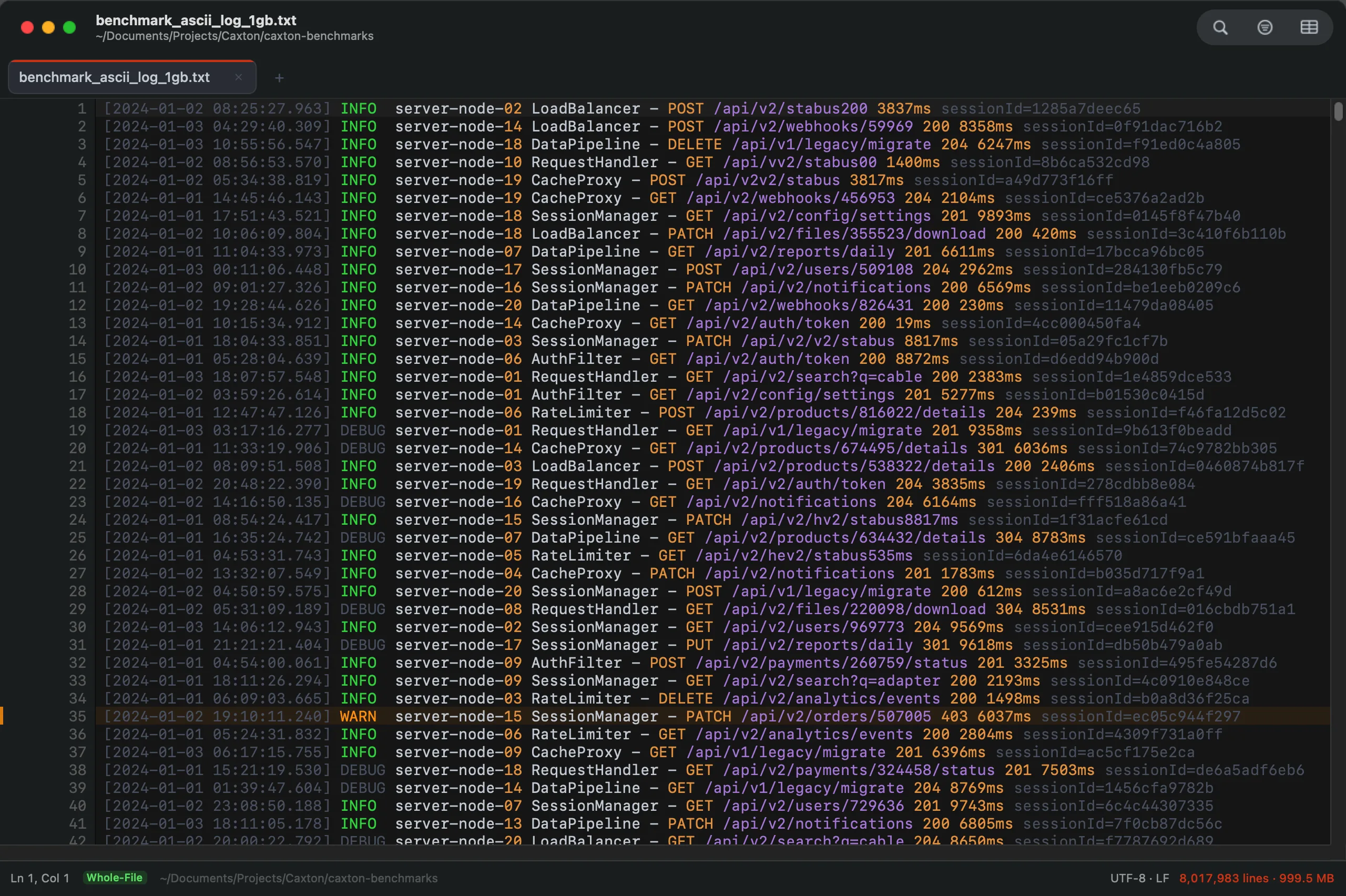
The 1 GB benchmark log (8,017,983 lines, 999.5 MB) open whole, severity coloring active, at line 1.
And the honest boundary, so expectations are exact: Caxton is not an IDE. There is no LSP, no debugger, no plugin ecosystem. It is a native macOS editor for large text files and CSVs that sits beside VS Code, not in place of it. You keep your editor; the data file stops being its problem.
The file that triggered the warning is still sitting there.
Download Caxton for Free7 days free, no credit card · 7 MB · macOS 13.0+ · notarized
Frequently asked questions
Why does VS Code say a file is too large to open?
Because the editor loads documents into memory, size is bounded by design. VS Code's 1.15 release notes removed the earlier hard-coded 50 MB limit on 64-bit installations and set a 300 MB limit for 32-bit ones; on a modern 64-bit Mac build the practical bound is memory rather than a fixed published ceiling, and very large files can still exceed what the editor will load.
How do I open a file that is too large for VS Code on a Mac?
For a read-only look, use the integrated terminal you already have open: less -S file.log views any size instantly, and grep with context extracts the interesting lines into a small file VS Code will open happily. To scroll, search, and edit the whole file, open it in an editor that memory-maps rather than loads: Caxton's published benchmark opens a 10 GB, 80,610,954-line log immediately, and it is measured to 50 GB with memory under 160 MB.
Why does syntax highlighting turn off in big files in VS Code?
By documented design. VS Code's 1.15 release notes state that any file over 30 MB or over 300K lines is considered a large file, and tokenization, line guides, wrapping, and folding are disabled for such files to reduce memory usage. Separately, lines longer than the editor.maxTokenizationLineLength setting, 20,000 characters by default, are not tokenized regardless of file size.
Can VS Code open a 1 GB text file?
Per its documented behavior, a 64-bit installation has had no fixed size ceiling since the 1.15 release, so it can often load a 1 GB file if the machine has the memory for it, with large-file optimizations disabling tokenization, wrapping, and folding along the way. Whether it does in a given case depends on available memory, and the file arrives in the degraded large-file mode the documentation describes.
Sources
- Microsoft: VS Code 1.15 release notes, large file support
- microsoft/vscode: largeFileOptimizations source
- Microsoft: Visual Studio Code FAQ
- Greenwood Software: less home page and manual
- Caxton benchmark methodology and results
Your task is waiting on the other side of that file. Download Caxton for Free and open it whole: 7 days free, no card.