Download Caxton for Free · 7-day free trial of Caxton Pro, no credit card required · 7 MB · macOS 13.0+
The short answer
If you only need answers from the data, DuckDB queries a CSV of any size free from Terminal. Caxton opens a CSV past Excel's row limit as a table, straight from the file with no import, to view, search, filter and edit.
Other tools' details were last checked against their vendor documentation in August 2026 and may have changed since. Caxton's figures come from the benchmarks page, which gives the machine, the build and the method behind them.
Why does Excel say “File not loaded completely”?
That message means your file has more rows than an Excel worksheet can hold. Excel loads the first 1,048,576 rows, drops everything after them, and shows the warning once. The limit has been the same since Excel 2007 and is identical on Mac and Windows.
The dangerous part comes after the warning. If you edit the truncated sheet and save it over the original CSV, Excel writes back only the rows it loaded: every row past 1,048,576 is deleted from the file on disk. Work on a copy until you have picked one of the approaches below.
If your file is under the row cap but still hundreds of megabytes and Excel hangs rather than truncates, that is a memory problem, not a row-limit problem; see opening huge CSVs on a Mac. If you are in Apple Numbers rather than Excel, its ceilings are different; see when Numbers can't open a file. And if the file is not a CSV at all (a log, a JSON export), the tool-by-tool answer is large file text editors on a Mac.
Can Excel for Mac import more than a million rows from a CSV?
Partly, and the boundary is documented. Microsoft's Import and shape data in Excel for Mac (Power Query) page says Get Data is "generally available to Microsoft 365 subscribers, running Version 16.69 (23010700) or later of Excel for Mac," with Text/CSV among the sources, a Transform Data button that opens the Power Query Editor, and refresh for text/CSV files. Microsoft's Excel blog adds that on the Mac you "can shape and transform your data using the Query Editor as you do in Excel for Windows."
What works: the query reads a CSV with more rows than the grid, and a filtered or aggregated result loads to a sheet as long as that result fits the worksheet limit of 1,048,576 rows by 16,384 columns. Filter to one region, one year, or one status, and Excel for Mac handles the rest.
What does not: loading every row to a sheet. Microsoft's too-large-for-the-grid page, which applies to Excel for Microsoft 365 for Mac, explains the message "This data set is too large for the Excel grid" and says some data was not loaded; its route for the complete data set, loading into the Data Model, is described for "the Excel app for PC." Microsoft's Power Pivot page lists Windows editions only, and its overview says Excel for Mac "offers some support for Power Query" and that "some data and analysis features are different on Excel for Mac."
So a filtered import is a real answer on a Mac, and the whole file is not. If you need to see and edit every row rather than a query's result, the grid without the cap is below.
How many rows does my CSV actually have?
Worth checking before you pick a fix; the answer decides everything below.
wc -l data.csv       # line count, including the header
qsv count data.csv   # CSV-aware row count, excluding the header
Excel's limit includes the header row, so a CSV fits when the header plus the data rows total 1,048,576 or fewer. wc -l counts newlines rather than records and miscounts files with quoted line breaks or no final newline, so use a CSV-aware count: qsv count (install below) excludes the header and counts quoted multi-line records correctly.
How do I split a big CSV so Excel can open it?
Splitting works when you genuinely need Excel (a colleague's macro, a pivot table someone else maintains), and the analysis can live inside one chunk. macOS ships the split tool. The wrinkle is the header row: a naive split gives every chunk after the first no column names. This split only works when every record is one physical line. For CSVs with quoted line breaks, use a CSV-aware splitter such as the qsv command below.
tail -n +2 data.csv | split -l 1000000 - rows_
for f in rows_*; do (head -n 1 data.csv; cat "$f") > "$f.csv"; rm "$f"; done
That strips the header, splits the remainder into files of 1,000,000 rows, and puts the header back on each chunk. If you would rather not script it, qsv (brew install qsv) handles headers itself:
qsv split -s 1000000 chunks/ data.csvTwo habits make chunked work survivable. Name the output for what it is (orders_2024_part1.csv, not xaa), because a folder of anonymous chunks ages badly. And treat the original as read-only from this point: every downstream mistake is recoverable while the source file is intact.
Splitting is the wrong answer when the analysis spans the whole dataset: a sum over twelve chunks is twelve sums and a reconciliation step, and re-joining chunks that different people edited is where errors breed.
How do I use the data without opening it at all?
DuckDB (brew install duckdb) runs SQL directly against a CSV without a worksheet in the way, reading it in streaming fashion rather than loading it whole. For a repeatable reporting or filtering pipeline it is the best tool on this page, full stop.
duckdb -c "SELECT COUNT(*) FROM 'data.csv'"
duckdb -c "SELECT status, COUNT(*) FROM 'data.csv' GROUP BY status ORDER BY 2 DESC"
duckdb -c "COPY (SELECT * FROM 'data.csv' WHERE amount > 100) TO 'filtered.csv'"
That last command is a common escape hatch: filter the dataset down below the row cap, then open filtered.csv in Excel as usual. Python users can do the same with pandas by passing chunksize to read_csv and aggregating per chunk.
What DuckDB does not give you is eyes on the data. You write a query, you get a result; scanning for the malformed row, the stray character, the value that looks wrong takes a different kind of tool.
Can Google Sheets open a CSV that Excel can't?
Sometimes. Sheets' ceiling is 10 million cells per spreadsheet, so the math depends on width: a 7-column CSV fits about 1.4 million rows, more than Excel, but a 50-column CSV hits the ceiling near 200,000 rows, far less. Import via File ▸ Import in a blank sheet and Sheets will tell you if the file exceeds the limit.
It is a reasonable path for data you need to share and edit collaboratively. For a file you process every week, uploading it to a browser tab is the slowest step in the pipeline.
Which approach should I use?
| Approach | Good for | Breaks when |
|---|---|---|
Split with split or qsv | One-time handoff to Excel users | Analysis spans chunks; edits must be re-merged |
| DuckDB | Repeatable queries, aggregates, filtered exports | You need to eyeball or hand-edit rows |
| Google Sheets | Sharing datasets under 10 million cells | Wide files: 50 columns caps near 200,000 rows |
| Caxton | Browsing, cleaning, and editing every row in a grid | You need formulas, charts, or pivot tables |
How do I open every row in a grid?
Caxton has no row cap. It opens the CSV as the text file it is, backed by a memory-mapped document model, so nothing is imported or converted, and shows it as a real grid: typed columns, frozen header, one-click sorting.
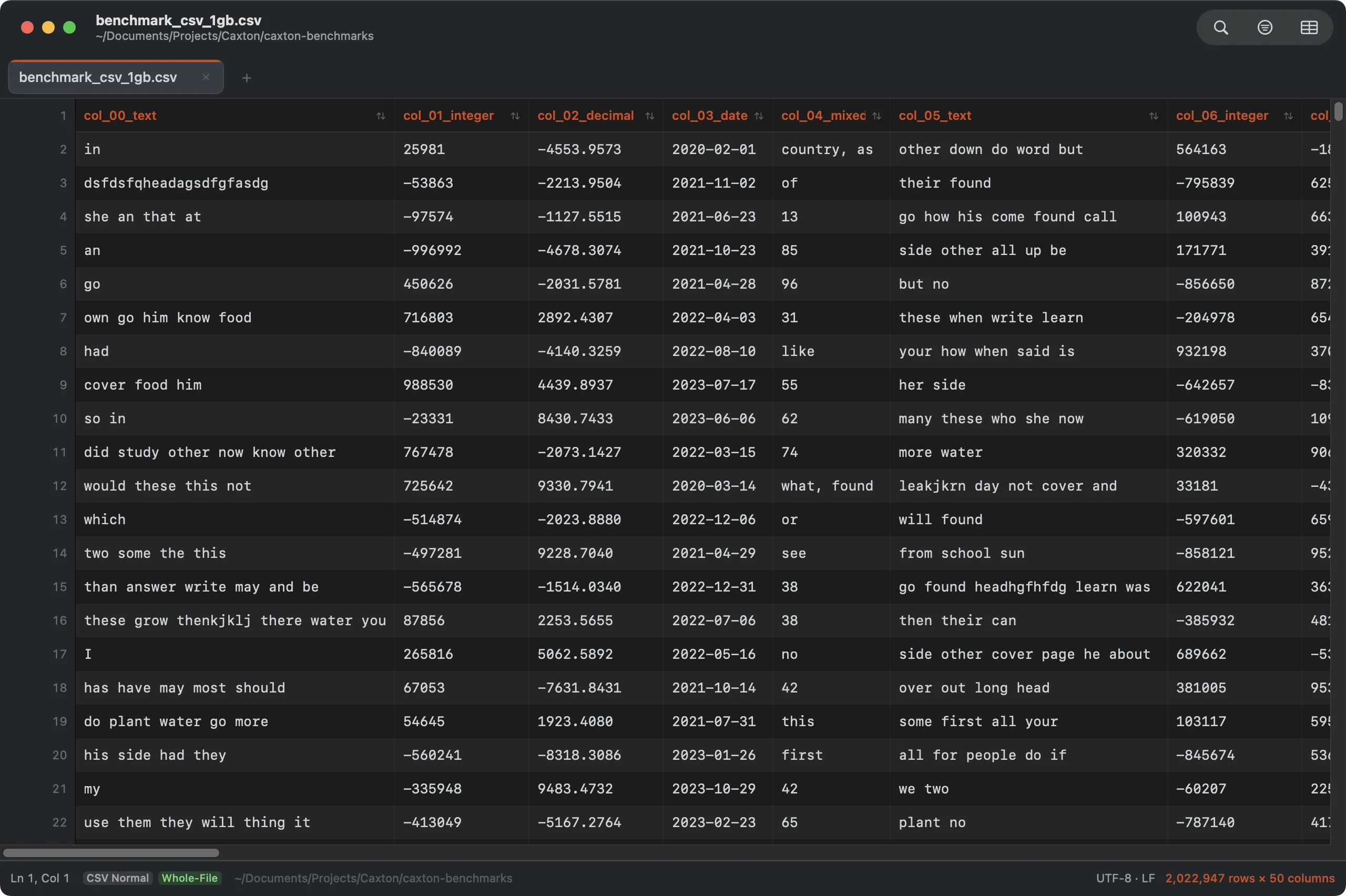
2,022,947 rows of the benchmark CSV in the grid, roughly double Excel’s ceiling, with typed columns and a frozen header. Click any header to sort.
The numbers, measured on an M1 Max with 64 GB RAM (full table and methodology on the benchmarks page): a 1 GB CSV of 2,022,947 rows × 50 columns (roughly double Excel's cap) parses to a working grid in 2.3 s, and a numeric sort of those 2 million rows takes 4.4 s. Find & replace works at the same scale: 1,613,344 replacements across a 10 GB file apply in 1.7 s, as one undo step.
The rest of the workbench is what you would expect from a grid that is not pretending to be a spreadsheet: duplicate-row removal, per-column value frequencies, adding, deleting, and reordering columns, and fill series for numbering rows. The CSV Workbench documentation covers the full set.
Because the file never stops being a CSV, saving writes the same file back: no export step, no format conversion, and the rows Excel would have discarded are all still there. Caxton is not a spreadsheet: there are no formulas or charts. If the endpoint of your work is a pivot table, filter the data down in Caxton first and hand the result to Excel.
Open the whole file, all rows, in a grid.
Download Caxton for Free7-day free trial of Caxton Pro, no credit card required · 7 MB · macOS 13.0+ · notarized
Frequently asked questions
Can Excel for Mac show more than 1,048,576 rows?
No. The worksheet grid has held 1,048,576 rows since Excel 2007, and 64-bit builds and Microsoft 365 use the same grid. Power Query (Get Data) can filter or aggregate a bigger file during import, but anything loaded to a sheet still stops at the cap.
Can Excel for Mac import more than a million rows from a CSV?
Through Get Data (Power Query), which Microsoft documents for Microsoft 365 on Version 16.69 or later, Excel for Mac can read a CSV bigger than the grid and load a filtered or aggregated result, as long as that result fits in 1,048,576 rows. Loading every row to a sheet still stops at the limit; Microsoft documents the load-the-complete-data-set route into the Data Model for the PC app.
Will more RAM or an M-series chip raise the limit?
No. The cap is a property of the worksheet format, not of your machine. A Mac Studio with 192 GB of RAM opens exactly as many rows as a MacBook Air.
Is the data past row 1,048,576 gone?
Not yet. The CSV on disk still contains every row; Excel only truncated what it loaded. It is lost if you save over the original from Excel, because Excel writes back only the rows it has.
Does the limit apply to .xlsx files too?
Yes. An .xlsx worksheet itself holds at most 1,048,576 rows and 16,384 columns, so the data cannot arrive in Excel format either. Larger datasets stay in CSV or a database.
Sources
- Microsoft: Excel specifications and limits
- Microsoft: Import and shape data in Excel for Mac (Power Query)
- Microsoft: What to do if a data set is too large for the Excel grid
- Microsoft: Learn to use Power Query and Power Pivot in Excel
- Microsoft: Where is Power Pivot?
- Microsoft Excel Blog: Shape data with Power Query Editor in Excel for Mac
- DuckDB documentation
- split manual page
- wc manual page
- Caxton benchmark methodology and results
Still staring at a CSV Excel cut off at row 1,048,576? Download Caxton for Free: every row, 7-day free trial of Caxton Pro, no credit card required.