Download Caxton for Free · 7-day free trial of Caxton Pro, no card · 7 MB · macOS 13.0+
What does cleaning a column involve?
Four jobs cover most of it, and the tools below differ in how many of them they can see.
- Case. One export shouts
ACME CORP, the next whispersacme corp, and a join between them finds nothing. Upper, lower, title or sentence case, applied to every cell in the column. - Whitespace. A trailing space, a tab, two spaces where one belongs. Invisible in a spreadsheet, fatal to an equality check. Trimmed or collapsed.
- Dates.
03/02/2026,2026-03-02and2 Mar 2026are the same day written three ways, and an importer accepts one of them. Read in the source format, written in one target format. - Everything else. A prefix on every id, a currency sign stripped, a number rounded,
éflattened toe. The same shape of job: one rule, every cell in one column.
A spreadsheet does all of this with a formula in a helper column, then re-types every other column on the way in and out; that trap has its own page. The routes below leave the other columns alone.
Free routes first
awk ships with macOS and changes one field per line. Its manual page documents toupper(str) as a function that "returns a copy of str with all lower-case characters translated to their corresponding upper-case equivalents," and tolower(str) as the reverse. With the comma as both the input and the output separator, this upper-cases the third column of every row after the header:
awk 'BEGIN { FS = OFS = "," } NR > 1 { $3 = toupper($3) } 1' data.csv > clean.csvTrimming a field is a substitution on that field alone, gsub(/^ +| +$/, "", $3) in place of the toupper call. The limit is quoting: FS = "," splits on every comma, quoted or not, so a field such as "Smith, Jane" shifts every column after it.
sed sees lines, not columns. It is the right tool when the change applies to the whole line, such as collapsing runs of spaces everywhere in the file:
sed -E 's/ +/ /g' data.csv > clean.csvFor one column among many, sed needs a pattern that counts commas, and the same quoting limit applies.
DuckDB reads the CSV with its quoting intact and has the functions. Its documentation describes upper(string) as "Converts string to upper case," trim(string[, characters]) as "Removes any occurrences of any of the characters from either side of the string. characters defaults to space," and replace(string, source, target) as "Replaces any occurrences of the source with target in string." For dates, "The strptime(text, format) function converts strings to timestamps according to the specified pattern," and "The strftime(timestamp, format) converts timestamps or dates to strings according to the specified pattern." The REPLACE clause of a star expression "allows you to replace specific columns by alternative expressions," so the other columns pass through untouched:
COPY (
  SELECT * REPLACE (
    upper(trim(company)) AS company,
    strftime(strptime(ordered, '%m/%d/%Y'), '%Y-%m-%d') AS ordered
  )
  FROM read_csv('data.csv', all_varchar = true)
) TO 'clean.csv' (HEADER, DELIMITER ',');
all_varchar matters: the documentation describes it as "Skip type detection and assume all columns are of type VARCHAR," which is what keeps a zip code's leading zero and a long id out of the type detector on the way through. A date strptime cannot read under the format you gave stops the whole query with an error, which is safer than a guess and slower than a preview.
Python needs no install either. The csv module "implements classes to read and write tabular data in CSV format," its reader and writer "read and write sequences," and its documentation asks that the file "be opened with newline=''". The string methods do the cleaning: str.strip returns "a copy of the string with leading and trailing whitespace removed," str.title "a version of the string where each word is titlecased."
import csv

with open("data.csv", newline="") as src, open("clean.csv", "w", newline="") as dst:
    rows = csv.reader(src)
    out = csv.writer(dst)
    out.writerow(next(rows))              # the header, unchanged
    for row in rows:
        row[2] = row[2].strip().title()   # the third column
        out.writerow(row)
Quoting is handled, every other column is written back as read, and a date change is a datetime.strptime call in the same line. The cost is the script itself, and a second script when the first pass shows you a value you had not expected.
Where do the free tools stop?
Each of them writes a copy and shows you nothing until it is done. You open the result elsewhere to check it, in a tool that may re-type the columns you did not touch. The line tools split on commas blind to quoting, so one quoted address shifts a row. A date format you got slightly wrong fails the whole run in DuckDB or Python, or passes a blank through in awk, and the cells it would have changed are not listed anywhere before it runs. And when the result shows a stray value, the fix is another script and another copy, not an undo.
How do I transform the column in the file itself?
Caxton opens the CSV as a typed grid over the file on disk, so the transform runs on the file you will save, with the before and after in front of you first and one undo after. The manual's Transform Cells page lists every kind with its options.
1. Open the file
Drag it onto Caxton or use File ▸ Open. A .csv opens in the grid, at any size, with every value shown as the bytes on disk hold it. Opening and reading are Caxton Free.
2. Pick the column
Click the column's header to select the whole column, or click any cell in it; the sheet's Column popup can change the choice. Selecting is Caxton Free.
3. Choose the transform
CSV ▸ Transform Cells… (⌥⇧⌘T, or the grid's context menu) opens a sheet. Scope offers what the selection makes possible: the selected cell, the selection, the selected columns, the column, or the whole table; the header row is never transformed. Transform lists the kinds under their family names: Whitespace (Trim, Trim Leading, Trim Trailing, Collapse Whitespace, Remove Whitespace), Case (Upper, Lower, Title, Sentence), Add and Replace (prefix, suffix, literal and regex replacement, regex extraction), Slice, Characters (Unicode normalization, Remove Diacritics, Normalize Quotes and Dashes among them), Numbers (Parse Number, Round, Pad with Zeros, Decimal Separator among them), Dates and Times, and Booleans and Nulls. A line under the popup says what the chosen kind does, and its option rows appear below it.
For dates, Format Date reads each value by a source format you name, or by detection when you leave the field blank, and writes it in the output format you give; To ISO 8601 writes a date as 2026-09-23 and a date-time as 2026-09-23T19:30:00. A value that cannot be read as a date is left exactly as it was and counted, never guessed. Transform Cells is an edit, so it is Caxton Pro; on Caxton Free the command stays disabled.
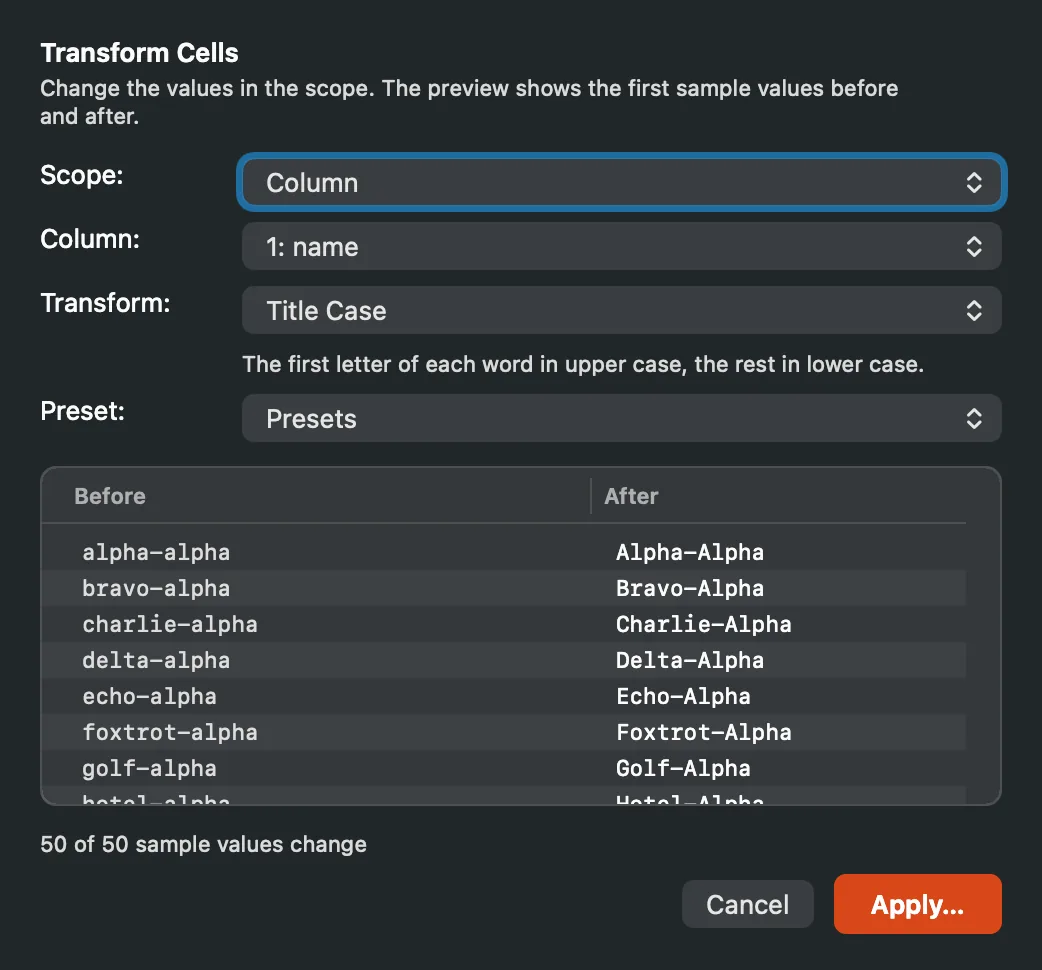
Title Case on one column: the scope, the kind, and every sample value before and after.
4. Read the preview
The Before and After table shows the first sample values in the scope with the result beside each, and a line counts how many of them change and how many it cannot read. Change the kind or an option and the table follows. Apply… then runs over the whole scope and asks before writing: how many cells change, how many stay as they were, how many could not be transformed and stay, with examples of each. A cell that was quoted stays quoted, and a value that now holds the delimiter gains its quotes. Caxton Pro.
5. Apply, then undo if you must
Apply writes every changed cell as one bulk edit and records one undo entry, so ⌘Z reverses the whole transform as one step. The operation's report stays in the Operations panel. Caxton Pro.
6. Under a filter
With a row filter on, the Scope popup offers Visible rows in this column, the default, which leaves the hidden rows alone, and Column (ignores the filter), which reaches every data row; each visible-rows choice counts its rows. The filter is kept across the transform, so the same rows come back when the grid rebuilds, and the status bar says so. Filtering is Caxton Free; the transform under it is Caxton Pro.
7. Save
⌘S writes the same file back as plain CSV, no export step, with every untouched column byte for byte as it was. Saving is Caxton Pro.
Open the column that needs cleaning. Read the preview, then apply.
Download Caxton for Free7-day free trial of Caxton Pro, every feature, no card. After it, Caxton Free keeps opening, searching and filtering at any size.
Which approach fits which job?
| Approach | Good for | Breaks when |
|---|---|---|
awk | Case or trimming on one unquoted column, one line, free | A field holds a quoted comma, or the job is a date format |
sed | A change that applies to the whole line, free | The change belongs to one column among many |
| DuckDB | Case, trimming, replacement and date reformatting with quoting handled, free | You want to see which cells will change before they do, or the format guess is wrong |
| Python | Any rule you can write, the other columns untouched, free | The second pass needs a second script |
| Caxton | The preview first, the scope you choose, dates read by format or detection, one undo, the same file saved | The step is a recurring pipeline job; script that one |
If the rows themselves are broken, that is a repair job. If the import has rules the values must pass, validate the file first and the transforms become the fixes. And if the column is clean but the rows repeat, remove the duplicates, which compares decoded text, so a trim before it finds the pairs a byte tool misses.
Frequently asked questions
How do I reformat dates in a CSV column on a Mac?
With DuckDB, strftime(strptime(col, '%m/%d/%Y'), '%Y-%m-%d') reads each value by the format you give and writes it in another, and a value that does not fit stops the query. In Python, datetime.strptime does the same per row. In Caxton, CSV ▸ Transform Cells… with Format Date reads the column by a source format you name, or by detection when the field is blank, writes the output format you give, shows the sample values before and after, and leaves any value it cannot read exactly as it was, counted in the report.
How do I change the case of a CSV column?
awk's toupper and tolower change one field per line in the Terminal, and DuckDB's upper and lower do it with quoting handled. Caxton's Case family has Upper Case, Lower Case, Title Case and Sentence Case; pick the column, pick the kind, read the preview, and Apply writes the column as one undo step.
How do I trim spaces in a CSV column?
A gsub on the field in awk, trim in DuckDB, or str.strip in Python. In Caxton the Whitespace family has Trim, Trim Leading, Trim Trailing, Collapse Whitespace, which turns runs of spaces, tabs and line breaks into one space, and Remove Whitespace. The preview counts how many sample values change, which is how you find out whether the invisible spaces were there at all.
How large a CSV can this handle?
awk and sed stream through a file of any size. DuckDB and Python read the file as they go. Caxton memory-maps the file and runs the transform as a job in the Operations panel, planning one edit per cell and writing them as one bulk edit; over a very large table it checks its memory as it plans and refuses with a banner before it runs short, rather than failing partway, and a very large undo entry spills to scratch space so ⌘Z still reverses it.
Can I undo a transform?
Not with the command-line tools; they wrote a new file, so the original is your undo. In Caxton every transform is one undo entry, whatever its size, and the report of what changed stays in the Operations panel.
Sources
- awk(1), the manual page shipped with macOS (
man awk):toupper,tolowerandgsub - sed(1), the manual page shipped with macOS (
man sed) - DuckDB documentation: text functions, date format functions, the star expression's REPLACE clause and CSV import, the
all_varcharoption - Python documentation: the csv module and string methods
- Caxton manual: Transform Cells and CSV Workbench