Download Caxton for Free · 7-day free trial of Caxton Pro, no credit card required · 7 MB · macOS 13.0+
The short answer
Console is built into every Mac for the logs macOS writes, and less and tail in Terminal follow any log file for free. Caxton is for the server log you downloaded: it opens a log of any size, filters by severity, jumps to a time, follows a growing file, and lets you edit the file.
Other tools' details were last checked against their documentation in September 2026 and may have changed since. Caxton's figures come from the benchmarks page, which gives the machine, the build and the method behind them.
The short version, by job:
- Console: the Mac's own log messages and the reports macOS writes, documented for your Mac and connected Apple devices.
- less, tail, grep: any plain text log, any size, free and already installed.
less +Ffollows a growing file. - lnav: the free terminal viewer for structured logs: format detection, files merged by time, SQL over log lines. Genuinely recommended.
- klogg: a free, open-source GUI viewer that searches with regular expressions and reads from disk without loading the file.
- Whaile: a paid, read-only viewer on the Mac App Store for very large files.
- Caxton: a text editor whose Log Mode navigates by time and severity, notes incidents, and follows a fast file, benchmarked at 10 GB.
Is Console a log viewer?
For the Mac's own logs, yes, and it is the answer that comes with the machine. Apple's Console User Guide puts it plainly: "Use Console to view log messages collected by your computer and other connected devices." The sidebar lists devices (your Mac, an iPhone, iPad, Apple Watch, or Apple TV), clicking Start streams their messages live, with red dots for faults and yellow for errors, and a search can be saved to run again. Under Reports it lists what macOS writes to disk: crash reports (.ips), log reports (.log, ._log, .its), spin and diagnostic reports, and the legacy system.log.
The scope is the point. Every documented task starts from the Mac's own logging: viewing messages, searching them, selecting a report in the sidebar, revealing a log file in the Finder. Opening a log you copied from a server, following it as it grows, or filtering it by severity are not documented tasks. For those, the file needs a tool built around files.
What does the terminal already do?
Everything a viewer does for a plain text log, free, and it is the right first move for a file of any size. less "does not have to read the entire input file before starting," in its manual's words, so a 10 GB log is on screen at once; its F command "keeps trying to read when the end of file is reached," which the manual itself compares to tail -f, and +F starts that way:
less +F /var/log/app/server.log
grep -n "ERROR" server.log | less
tail -F server.log
tail -f waits for data appended to the file, and -F also survives a rename or rotation. grep selects the lines that match a pattern, and its output is a new file rather than a view, which is exactly right for a one-off extract and wrong for the third refinement of a question. The detail of opening one this way, and where the free tools stop, is in how to open a 10 GB log file on a Mac.
When the log has structure, the free tool to install is lnav, "a log file viewer for the terminal," released under the BSD 2-Clause license and one brew install lnav away. It detects the log format automatically, decompresses on the fly, merges several files into a single view ordered by time, filters by regular expression or SQLite expression, draws a histogram of messages over time, queries log lines with SQL, and tails files through renames. If your work lives in a terminal, lnav is the recommendation, not a consolation prize.
What about a GUI viewer?
klogg describes itself as "an open source multi-platform GUI application to search through all kinds of text log files using regular expressions." It started as a fork of glogg, whose own site lists version 1.1.4 from May 2017 as its latest release, and has since been rewritten around multi-core search. Per its site, klogg displays search results separately from the original file, supports Perl-compatible regular expressions, reads the file directly from disk without loading it into memory, and watches the file for changes and reloads it, "kind of like tail." It is GPL-licensed, runs on Windows, Linux, and Mac via Qt, and installs on a Mac as a Homebrew cask. For a free graphical search-and-highlight pass over a big log, it is the tool.
Whaile: Large File Log Viewer is a paid app on the Mac App Store (macOS 14 or later when last checked in September 2026). Its listing promises files of 1 GB, 8 GB, or bigger ready in seconds with native scrolling, whole-file search, a jump to any line number, a small memory footprint because the system pages the data in and out, and full sandboxing with no network access. It also states its design choice outright: "Whaile is a read-only viewer, on purpose." Its stated audience is SREs triaging nginx, syslog, and crash logs, and data engineers spot-checking JSONL, NDJSON, and CSV dumps.
Which log viewer fits which job?
| Tool | Free? | Where it runs | Follows a growing file? | Best for |
|---|---|---|---|---|
| Console | Built into macOS | Mac app | Live messages from your Mac and connected Apple devices | The Mac's own logs and reports |
| less, tail, grep | Built into macOS | Terminal | Yes (less +F, tail -f) | Any plain text log, any size |
| lnav | Free (BSD 2-Clause) | Terminal | Yes, through renames | Structured logs, merged files, SQL |
| klogg | Free (GPL) | Mac, Windows, Linux | Yes, reloads on change | Regex search with a separate results view |
| Whaile | Paid | Mac (App Store) | Not stated in its listing | Read-only browsing of very large files |
| Caxton | Caxton Free to view, search, filter and follow; Caxton Pro to edit, save and extract, 7-day free trial of Caxton Pro | Mac | Yes, with a behind-by count and Catch Up to Live | Time and severity navigation, incident notes, editing |
When is Caxton the right log viewer?
When the log is something you work through rather than glance at. Caxton is a text editor built around a memory-mapped document model, and since 1.7 a log is a first-class view in it. The published benchmark opens a 10 GB, 80,610,954-line log immediately; a literal search returns 1,613,344 matches in 1.0 s; filtering the view down to those 1.61 million lines takes 1.0 s; and on the 50 GB log memory stays under 160 MB through every measured operation (M1 Max, 64 GB RAM; methodology and the full table on the benchmarks page). That memory figure is the 50 GB text benchmark on macOS 15.7; CSV grids and other macOS versions use more.
Log Mode in 2.2.0:
- Go to Time (⌥⌘L). In a log whose lines start with a timestamp, the Go to Time field takes
14:03,2026-09-04 14:03, or+5mfrom the caret line and lands on the first line at or after it. The search probes a few dozen lines through the index, so it is instant at 10 GB. ISO 8601, syslog, Apache and nginx, Unix epoch in seconds or milliseconds, and slash-dated forms are recognized; View ▸ Log ▸ Timestamp Format… overrides the detected format, the zone for lines that carry none, and the year syslog lines lack. - Filter by severity. The filter bar gains a Severity popup in log documents (Warn and above, Error and above, Fatal only, and the rest), which gates every other condition. Any row in the Filter Lines panel can match by level instead of text, and the panel also takes time window rows, From and To. One vocabulary drives the row tint, the translucent bands across the minimap, and the filter: ERROR, WARN, INFO, DEBUG, FATAL and their relatives, plus your own words or regexes from View ▸ Log ▸ Severity Patterns…, which win over the built-ins. The filter is a live view of the document rather than a copy; what that changes about log work is the subject of filtering a large log file on a Mac.
- Incident notes. Edit ▸ Bookmarks ▸ Add Note to Bookmark… puts a note on the caret line, bookmarking it first if needed. The Bookmarks panel (⌥⌘M) lists every bookmark with its timestamp and severity, its first line of text, and its note, editable in place. Copy as Incident Notes puts that table on the clipboard as plain text for a ticket. Edit ▸ Bookmarks ▸ Extract Incident Window… takes the lines around every bookmark, N lines before and after, or N seconds by record time, merges overlapping windows, and writes them to a new document with a header naming each block's source span. Extracting to a new document is Caxton Pro.
- Following a fast file. When a file grows faster than one poll absorbs, the Following pill says how far behind it is. Past half a gigabyte of backlog Caxton reloads the last 64 MB and tells you exactly which byte range it skipped; View ▸ Log ▸ Catch Up to Live does the same on demand. Follow works on files reopened in another encoding, with appended bytes transcoded as they arrive.
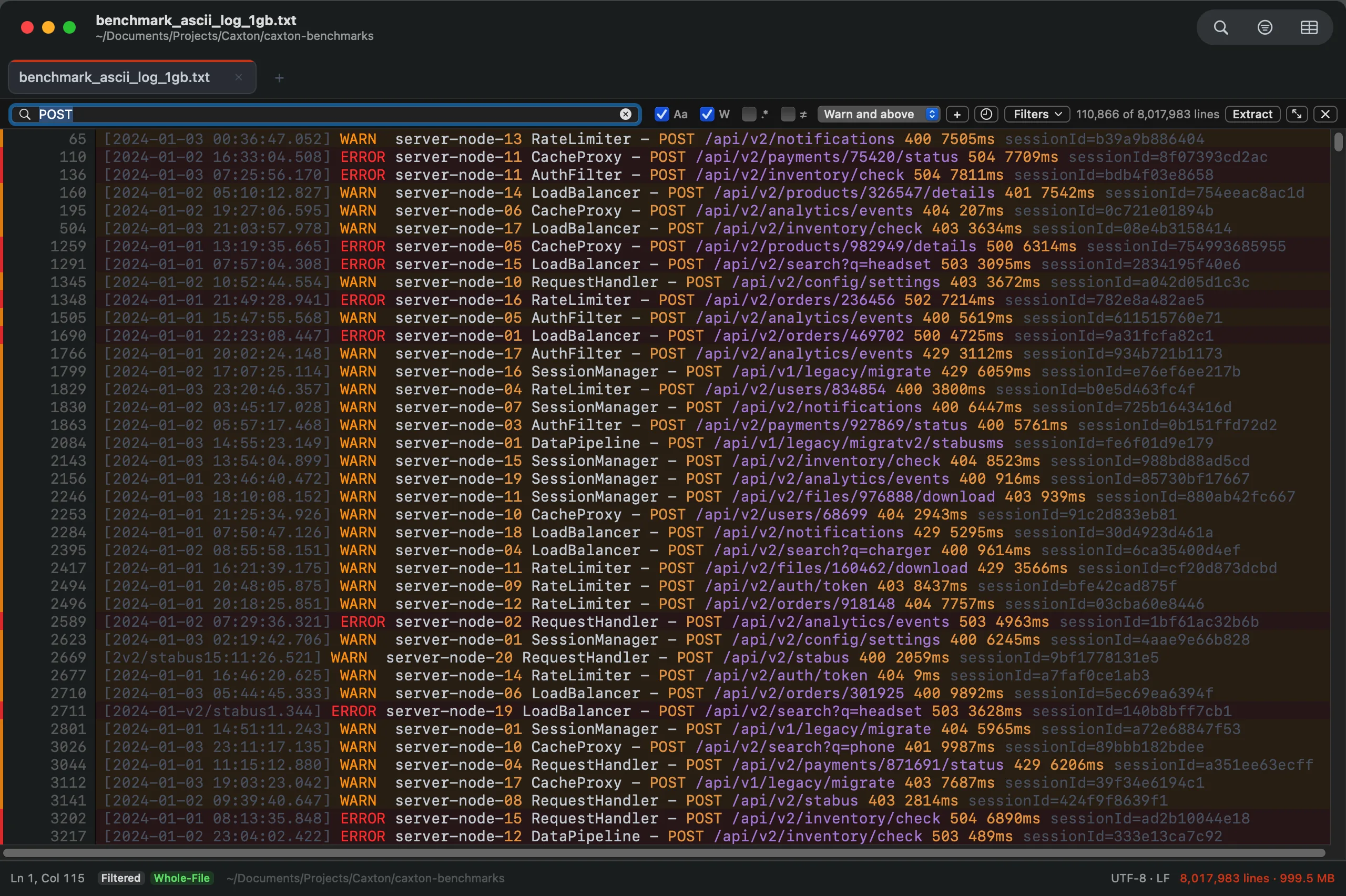
The Severity popup at Warn and above, combined with a text condition (POST), on the 1 GB benchmark log: 110,866 of 8,017,983 lines. The two conditions AND together; the counter is exact.
And it is an editor. The line you found can be fixed, the noise deleted, and the file saved back as itself, which is the half of log work none of the viewers on this page claim.
The honest scope line, per their own documentation: lnav merges several files into one view ordered by time and queries them with SQL; klogg extracts logs from archives; Console streams live log messages from a connected iPhone or iPad; Whaile pairs with a companion MCP server so an AI assistant can search the file. Caxton does none of those. If your large files are CSVs rather than logs, that survey is the best CSV editors for Mac. Two neighbouring jobs have their own pages: comparing two logs side by side and finding and replacing across a folder of logs.
Go to the time, filter to the errors, note the incident, fix the file.
Download Caxton for Free7-day free trial of Caxton Pro, no credit card required · 7 MB · macOS 13.0+ · notarized
Frequently asked questions
What is the best log viewer for Mac?
Console is built into every Mac for the logs macOS writes, and less and tail in Terminal follow any log file for free. Caxton is for the server log you downloaded: it opens a log of any size, filters by severity, jumps to a time, follows a growing file, and lets you edit the file.
Can Console.app open a log file from a server?
Not as a documented task. Apple's Console User Guide covers log messages collected by your Mac and connected Apple devices, the reports macOS writes (crash, spin, log, and diagnostic reports), and revealing a log file in the Finder. Opening a file copied from a server, following it as it grows, or filtering it by severity is not in the guide. For that file, use less or lnav in Terminal, klogg, or Caxton.
How do I view a multi-gigabyte log on a Mac?
Start with less in Terminal: it is already installed, does not have to read the entire file before starting, and less +F follows the file as it grows; grep extracts matching lines to a new file. klogg and Whaile both state that they read from disk rather than loading the file. Caxton's published benchmark opens a 10 GB, 80,610,954-line log immediately, finds 1,613,344 matches in 1.0 s, and is measured to 50 GB with memory under 160 MB, with Go to Time and severity filtering on top.
Is there a log viewer for Mac that can also edit the file?
Caxton. The viewers on this page describe themselves as viewers: Whaile states it is read-only on purpose, klogg is an application to search through log files, and lnav is a log file viewer for the terminal. Caxton is a text editor whose Log Mode adds Go to Time, severity filtering, incident notes, and Follow with a behind-by count, and the file you fix saves back as itself.
Sources
- Apple: Console User Guide and View reports in Console on Mac
- lnav and its project README
- klogg project site and the glogg: GitHub repository
- Whaile: Large File Log Viewer on the Mac App Store
- less(1), tail(1), and grep(1) manual pages, macOS 27
- Caxton benchmark methodology and results and the Caxton 1.7.0 and 2.2.0 release notes
The log is already on your Mac. Download Caxton for Free and go to the minute it broke. 7-day free trial of Caxton Pro, no credit card required.