CSV ▸ Transform Cells… (⌥⇧⌘T in an editable CSV document; View ▸ Show Toolbar shares the key), or the grid's context menu, opens a sheet that changes cells in place: a cell, the selection, a column, several columns, the rows a filter shows, or the whole table. Nothing changes until you press Apply; the sheet shows what will, and ⌘Z reverses the whole transform as one step.
The sheet
The sheet carries its own heading, Transform Cells, over these rows: Scope, Column when the scope needs one, Transform with a line saying what the chosen kind does, the option rows of that kind, and Preset. Below them the Before and After table shows the sample, with a line counting how many of the sample values change. Cancel and Apply… sit at the right.
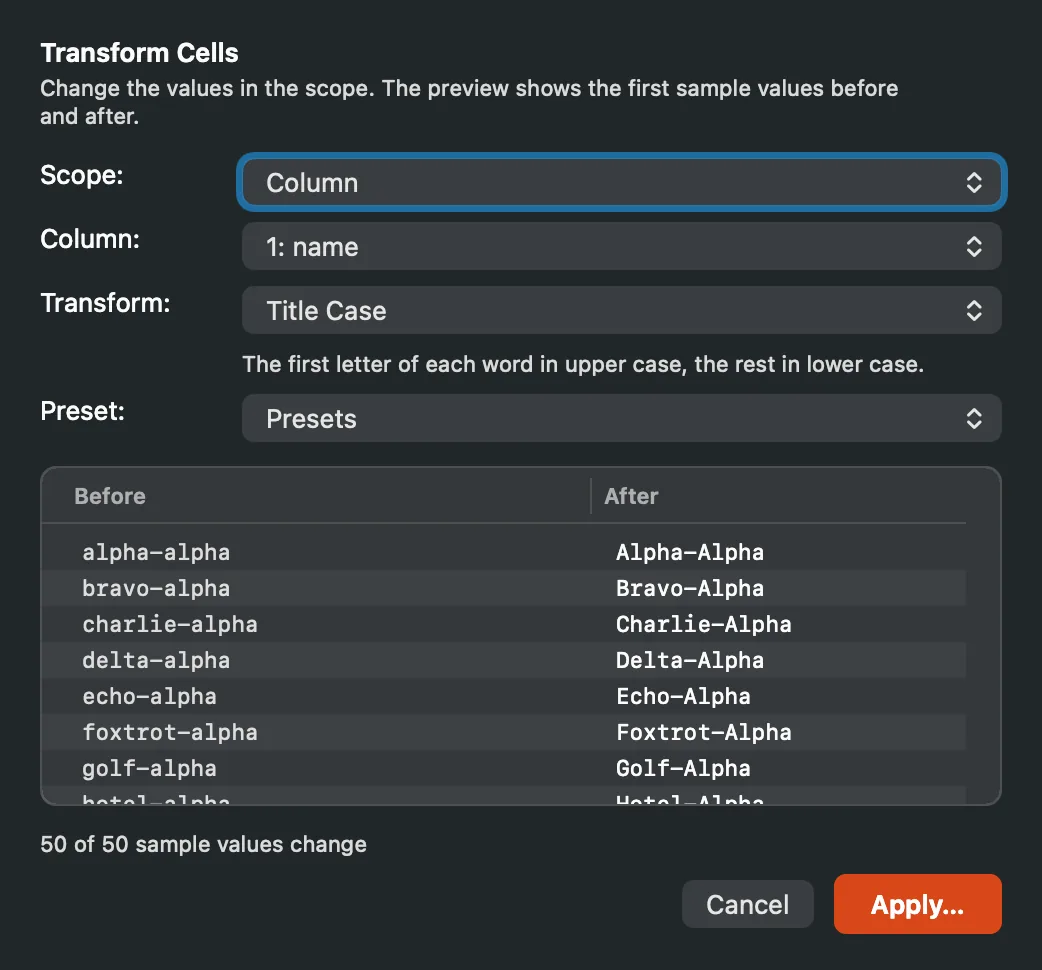
Upper Case on a column: the sample values before and after, and how many change.
Scope
The Scope popup offers what the grid's selection makes possible: Selected cell (named by row and column), Selection (with its rows and columns counted), Selected columns, Column, and Whole table. Under a row filter a column has two readings, and the popup offers both: Visible rows in this column, the default, which leaves the hidden rows alone, and Column (ignores the filter), which reaches every data row. Visible rows, every column covers the rows the filter shows across the table. Each visible-rows choice counts its rows. The Column popup picks the column when the scope needs one. The header row is never transformed, and a hidden column inside a selected range is transformed with the others.
While a row filter is still running, the popup says so on its Column choice and the visible-rows choices appear when the filter finishes. A transform keeps the row filter it was run under: when the grid's index rebuilds after the batch, the same rows come back and the status bar says Row filter kept across the transform. The preview warns past 100,000 cells.
The transforms
Forty-eight kinds in eight families. The Transform popup lists them under their family names, and the sheet shows the options of the one you pick:
- Whitespace (five): Trim, Trim Leading, Trim Trailing, Collapse Whitespace (runs of spaces, tabs and line breaks become one space, and the ends are trimmed) and Remove Whitespace. No options.
- Case (four): Upper Case, Lower Case, Title Case (the first letter of each word) and Sentence Case (the first letter of each sentence). No options.
- Add and Replace (six): Add Prefix and Add Suffix take the text to add. Replace Text takes the text to find and its replacement, taken literally. Replace with Regex takes a pattern and a replacement in which
$1,$2stand for capture groups (write\$for a dollar sign beside one); a replacement with no group reference is written as typed, soUS$staysUS$. Remove Regex Matches deletes what the pattern matches. Extract Regex Group keeps one capture group of the first match (group 0 is the whole match). The replace and remove kinds have Ignore case and All occurrences (off, only the first is replaced); the extraction has Ignore case and Empty when no match (off, a cell with no match is left as it was). - Slice (six): Substring keeps the characters from a start position, counted from 1, for a length or to the end. First Characters and Last Characters keep N. Text Before and Text After keep what sits before or after a delimiter, with Ignore case, Last occurrence and Empty when no match. Text Between keeps what sits between a start and an end delimiter, with Ignore case and Empty when no match.
- Characters (six): Reverse; Normalize Unicode with a form (NFC, NFD, NFKC, NFKD); Remove Diacritics (é becomes e), which acts on Latin, Greek and Cyrillic letters and leaves other scripts, kana, Hebrew and Arabic marks among them, as they are; Transliterate to ASCII (a character with no ASCII form becomes
?); Remove Control Characters, tabs and line breaks included; and Normalize Quotes and Dashes (curly quotes become straight quotes, en and em dashes become hyphens). - Numbers (twelve): Parse Number reads a number with grouping, currency marks, accounting parentheses or a percent sign and writes it plainly. Add, Subtract, Multiply and Divide take an amount, a factor or a divisor. Percentage converts a fraction to a percent (0.25 to 25%) or back; a value that already carries a percent sign is left alone when converting to percent. Round takes a number of decimals and a mode: half away from zero, half to even, floor, ceiling or truncate. Absolute Value drops the sign. Clamp takes a minimum and a maximum. Pad with Zeros takes a width (7 becomes 007). Thousands Separator adds or removes a grouping mark you name. Decimal Separator rewrites a number from comma to period (1.234,56 to 1234.56) or from period to comma, dropping grouping. Every numeric kind but Decimal Separator has a Decimal mark row (Auto, Period, Comma) that says how the column's numbers are read, and a mark you choose is honored. Numbers are read strictly: grouping marks come in threes whichever mark they are, and a value such as
1.2.3or192.168.0.1is not a number. Add, Subtract, Multiply, Divide, Round, Absolute Value, Clamp and Pad with Zeros keep the column's notation, writing back its decimal mark, grouping and currency sign; Parse Number is the transform that normalizes. - Dates and Times (seven): each reads a date by a Source format you name, or by detection when the field is left blank. Format Date writes it in an output format. To ISO 8601 writes dates as 2026-09-23 and date-times as 2026-09-23T19:30:00, keeping an explicit offset. Unix Time converts between dates and seconds or milliseconds since 1970, in either direction. Excel Serial Date converts between dates and serial numbers in the 1900 or the 1904 date system, in either direction. Add to Date moves each date by an amount of a unit (years, months, weeks, days, hours, minutes or seconds), written in the same shape. Convert Time Zone reads the value in one zone and writes it in another; a value with its own offset keeps it as the source. Normalize to UTC writes every date-time as 2026-09-23T19:30:00Z. A date with no time keeps its calendar day under any source format, so Normalize to UTC, Unix Time and Convert Time Zone give the right instant for every day of the month.
- Booleans and Nulls (two): Normalize Booleans reads yes, no, y, n, 1, 0, on, off, true, false and the tokens you add, and writes one pair (true/false, TRUE/FALSE, True/False, yes/no, Yes/No, Y/N, 1/0 or on/off). Normalize Nulls reads blanks, null, NULL, N/A, NaN, a dash, a question mark and the tokens you add, and writes one token (blank by default); NA, none, nil and missing are read only when you add them. A quoted empty cell can count as null or be kept as a value.
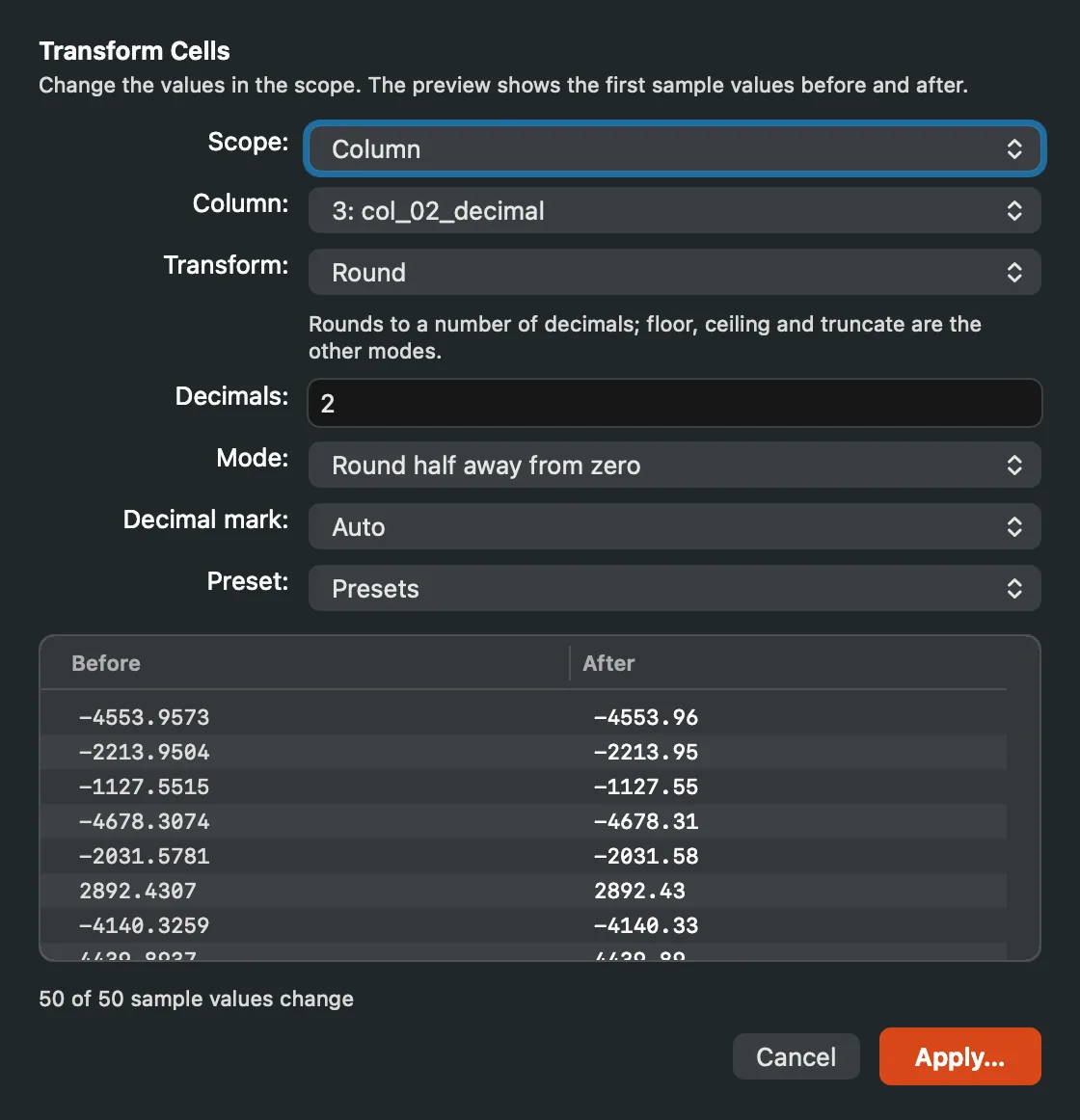
Round, with its mode and decimal mark rows.
The preview
The sheet runs the transform over the first fifty values in the scope and shows each before and after, how many of them change and how many it cannot read. Apply… then runs over the whole scope and asks before writing, in a sheet attached to the document's window: how many cells change, how many stay as they were, how many could not be transformed and stay, with examples of each. An unparseable value (a date that is not a date, a number with letters in it) is left as it was and counted, never guessed. Apply writes every changed cell as one bulk edit, records one undo entry, rebuilds the record index and adds the operation's report to the Operations panel. A cell that was quoted stays quoted, and the preview counts the values that will gain quotes because they now hold the delimiter, a quote or a line break.
Presets
A transform with its options can be kept under a name from the sheet's Preset popup (Save Current as Preset…), and the last transform used for each kind is remembered, so picking a kind brings back its last settings. Transform presets live in settings and move between Macs with the preferences file (Settings & Storage).
At scale
A transform runs as a job in the Operations panel, Planning then Transforming with its progress, and can be cancelled there. It plans one edit per cell; on a 2,022,947-row file that is a few seconds of planning and one bulk edit. A transform over a very large table checks its memory as it plans and refuses before it runs short, with a banner naming what it needs and what is left, rather than failing partway. Very large results spill their undo entry to scratch space so ⌘Z still reverses them.