Introducing Caxton 2.0. More powerful than ever.
A major update to Caxton brings professional data tools, a redesigned workspace, eight themes, and significant performance improvements to the native Mac editor built for files of any size.
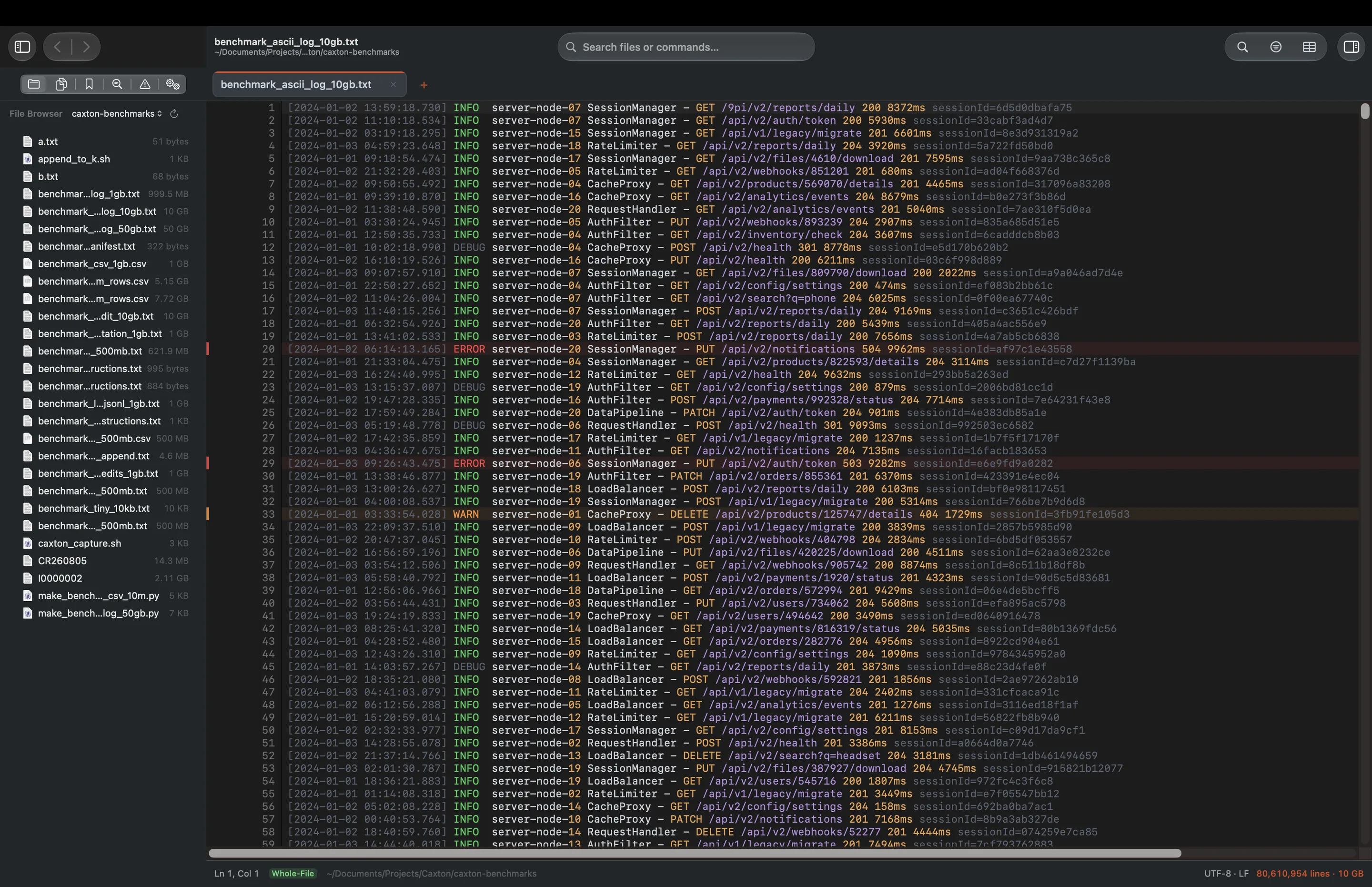
Today, Caxton 2.0 is available with a major expansion of its editing and data-processing capabilities. The update introduces new data tools in Table Mode, a new sidebar and unified search field, a file inspector, eight built-in themes, and a command-line tool. Improvements to file indexing and memory management make working with extremely large files faster and more efficient.
At the center of this release is Table Mode, which now brings powerful data transformation, validation, profiling, and duplicate removal tools directly into Caxton. Users can now perform complex operations on datasets containing tens of millions of records without importing their files into a database or spreadsheet application.
Caxton 2.0 is available as a free update for existing users and runs natively on Apple Silicon and Intel Macs.
Table Mode. Built for real data.
Caxton's Table Mode has always made it possible to open and navigate massive CSV, TSV, and other delimited files as structured tables. Version 2.0 takes that foundation considerably further, introducing a complete set of tools for cleaning, analyzing, and preparing data at virtually any scale.
Whether working with a few thousand records or tens of millions, users can now transform values, identify invalid data, analyze columns, and remove duplicates directly within the editor.
Every clip below is cut from one take on a 50,003,363-row, 7.7 GB CSV in Caxton 2.0.1, recorded on a MacBook Pro with an M1 Max and 64 GB on macOS 27.0. The clips are shortened; the times beside them are measured.
-
1 of 7
A 7.7 GB CSV opens into the grid.
Open the file and the grid is there. The index of every row finishes in the background, and the status bar reports its progress while you read.
Opening a 7.7 GB CSV. -
2 of 7
Transform millions of values with confidence.
The new Transform Cells feature provides 48 transforms for cleaning and modifying data. Users can trim whitespace, change text case, replace or extract values using regular expressions, convert dates, round numbers, normalize boolean values, and more. Transforms can be applied to individual cells, selections, entire columns, or complete tables, and under a filter, to the visible rows only.
Before applying a transformation, the Transform Cells sheet previews the original and resulting values for a sample of the first fifty, along with how many of the sample values will change. After Apply…, a confirmation gives the full count of cells that will change, stay the same, or cannot be converted, and warns when a batch passes 10,000 cells. Values that cannot be converted remain unchanged and are reported rather than silently modified.
Even when a transformation affects millions of cells, the entire operation can be reversed with a single Undo.
Upper Case on the visible rows of one column: the preview, then Apply. -
3 of 7
Find problems before they become bigger problems.
Caxton 2.0 introduces schema-based validation, allowing users to define exactly what their data should contain. Validation rules can specify column types, required values, uniqueness, numeric ranges, regular expression patterns, and lists of permitted values.
Structural checks cover eight rules: column count, quoting, escapes, line endings, encoding, duplicate headers, missing headers, and empty records. The run in this clip adds one column rule to the eight.
Eight structural rules and a column rule. -
4 of 7
Go straight to each problem.
Every issue appears in the new Problems panel, where users can navigate directly to the affected record, inspect a suggested repair, and preview the correction before applying it. Double-click, Return or Go to Problem jumps to the row, and Back returns you to where you were.
Malformed records can also be quarantined into a new document, with three added columns (
problem_rule,problem_message, andoriginal_row) that preserve the reason for each failure.In testing, Caxton identified 505,835 problems in one rule across 2,022,947 rows. The run in these clips found 1,494 problems in 4 rules across all 50,003,363 rows.
The Problems panel and Go to Problem. -
5 of 7
Understand your data at a glance.
The new Column Profile provides a detailed view of the contents of any column. Caxton calculates data-type distributions, blank values, distinct counts, numeric and date ranges, and value frequencies. Results can be searched, exported, or used to filter the table.
Column profiling is designed to remain efficient with large datasets, with frequency data stored in temporary disk space rather than retained entirely in memory.
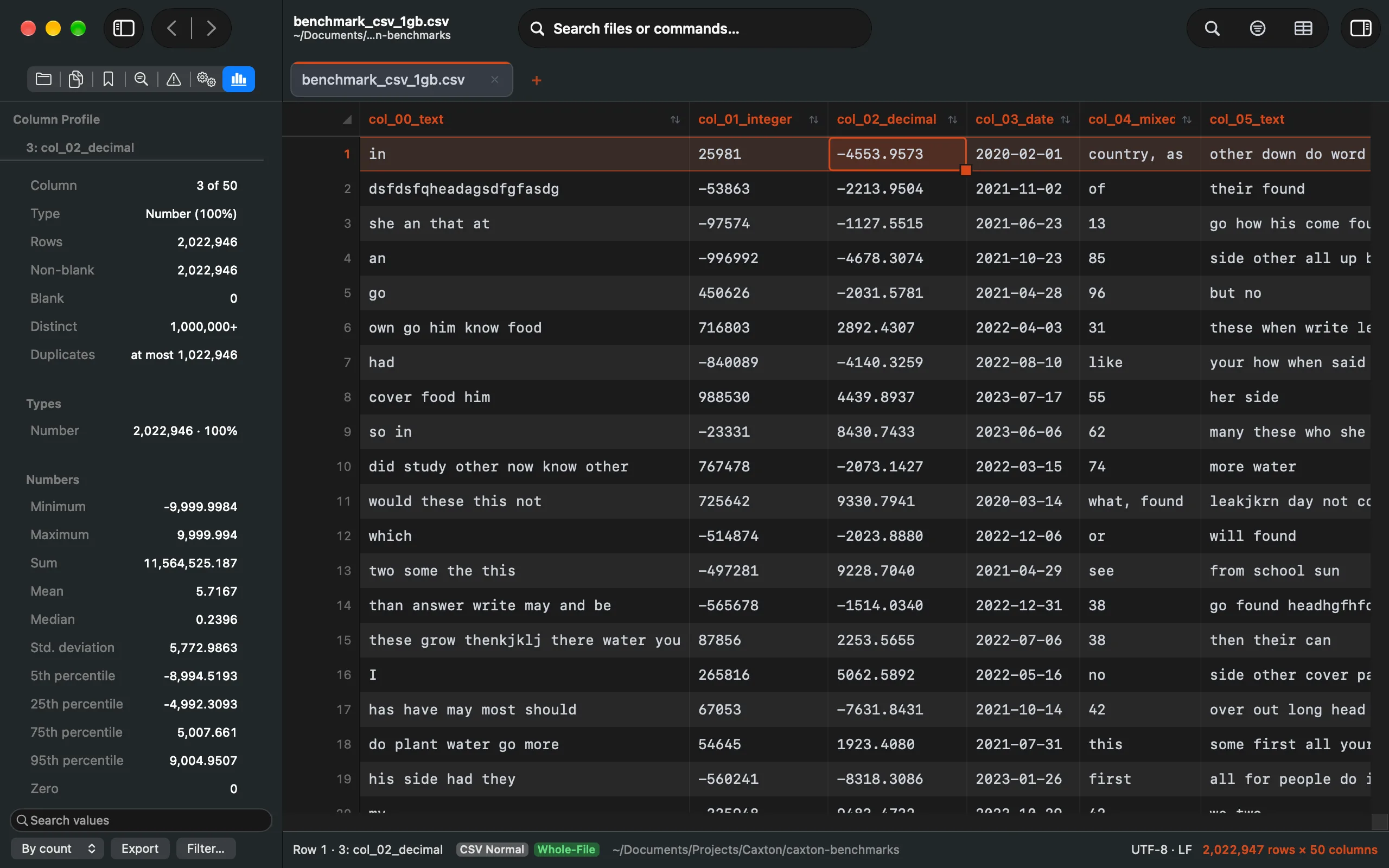
Column Profile in the sidebar. A still image. -
6 of 7
Remove duplicates, even across 50 million rows.
Table Mode also gains advanced duplicate removal and external sorting for datasets that exceed available memory.
Users can identify duplicate groups and choose which records to retain, including the first or last occurrence, the earliest or latest by date, or the highest or lowest numeric value, or keep none of them. Caxton reports duplicate groups before removing records and provides the option to export the results into a new document.
The duplicate group report, before anything is written. -
7 of 7
The same file as plain text.
One switch shows the CSV as text, with Caxton's text tools: find, filter, bookmarks and multiple cursors. Switch back and the grid returns.
The grid and the text, one file.
Fifty million rows. Sixty-one seconds.
Find Duplicates on one column of a 50-million-row CSV, measured on a MacBook Pro with an M1 Max and 64 GB on macOS 27.0.
- 50millionrows in the file
- 2,246,521duplicate groups found
- 61sto scan the column
- ~4GBmemory at the peak
Sorting uses temporary disk storage when necessary, with progress reporting and disk-space checks before processing begins.
Throughout these operations, Caxton preserves important file characteristics, including byte-order marks, CRLF line endings, quoted line breaks, and escaped quotation marks. On files up to 256 MB, sorting and duplicate removal change the file in place, and Undo restores the original file bytes. Larger files stream to a new document and leave the original untouched.
A more capable workspace. A simpler way to work.
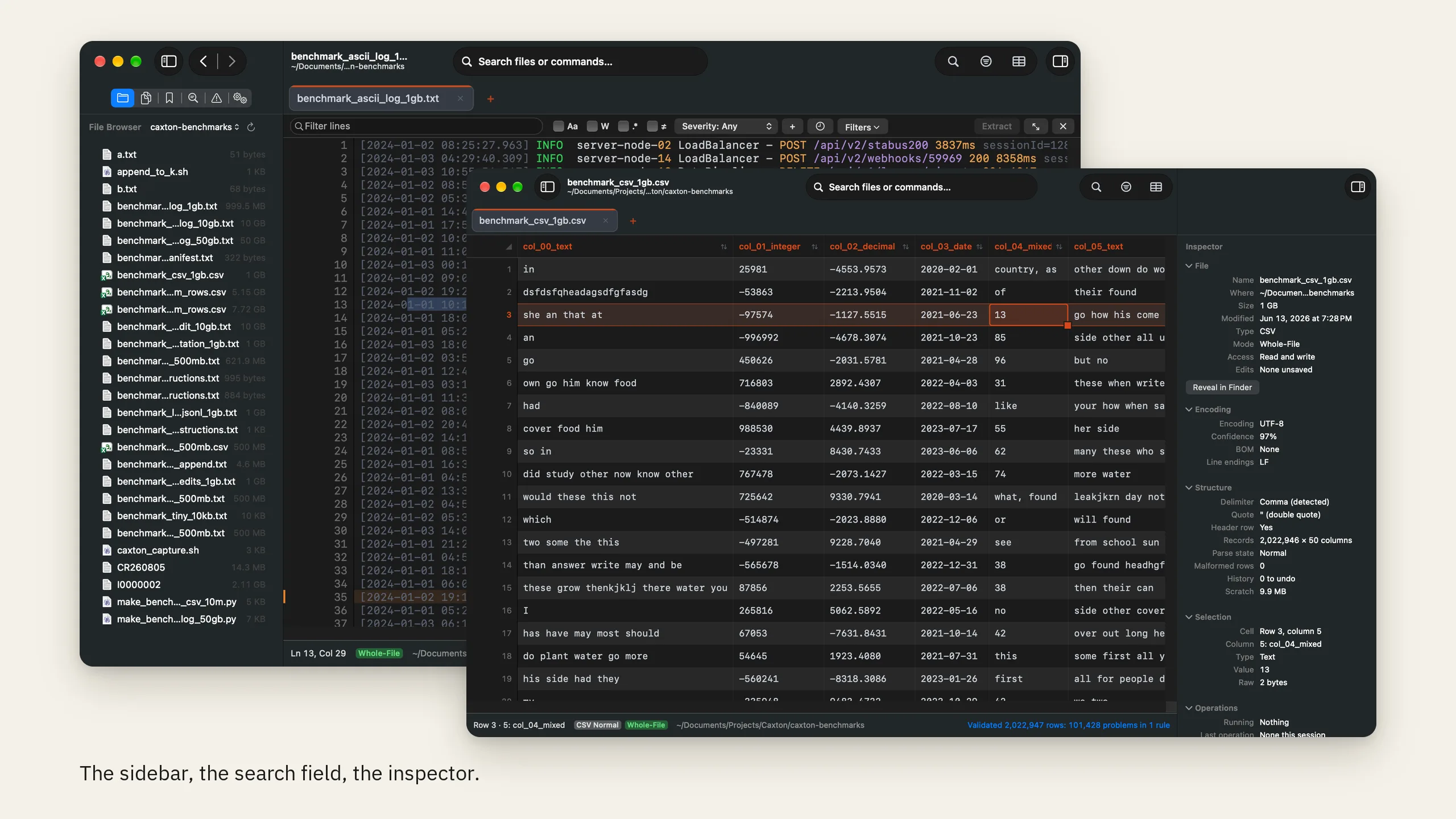
Caxton 2.0 introduces a new sidebar, unified search field, and file inspector, bringing commonly used tools together while keeping the focus on the document.
The sidebar.
The new sidebar includes seven dedicated panels: File Browser, Open Documents, Bookmarks, Search Results, Problems, Operations, and Column Profile.
Previously separate tools, including bookmarks, Find All results, and background operations, are now accessible from a single location. ⌃⌘S shows the sidebar, and ⌃⌘1 through ⌃⌘7 pick a panel. Column Profile appears when the file is open in the grid.
One search field.
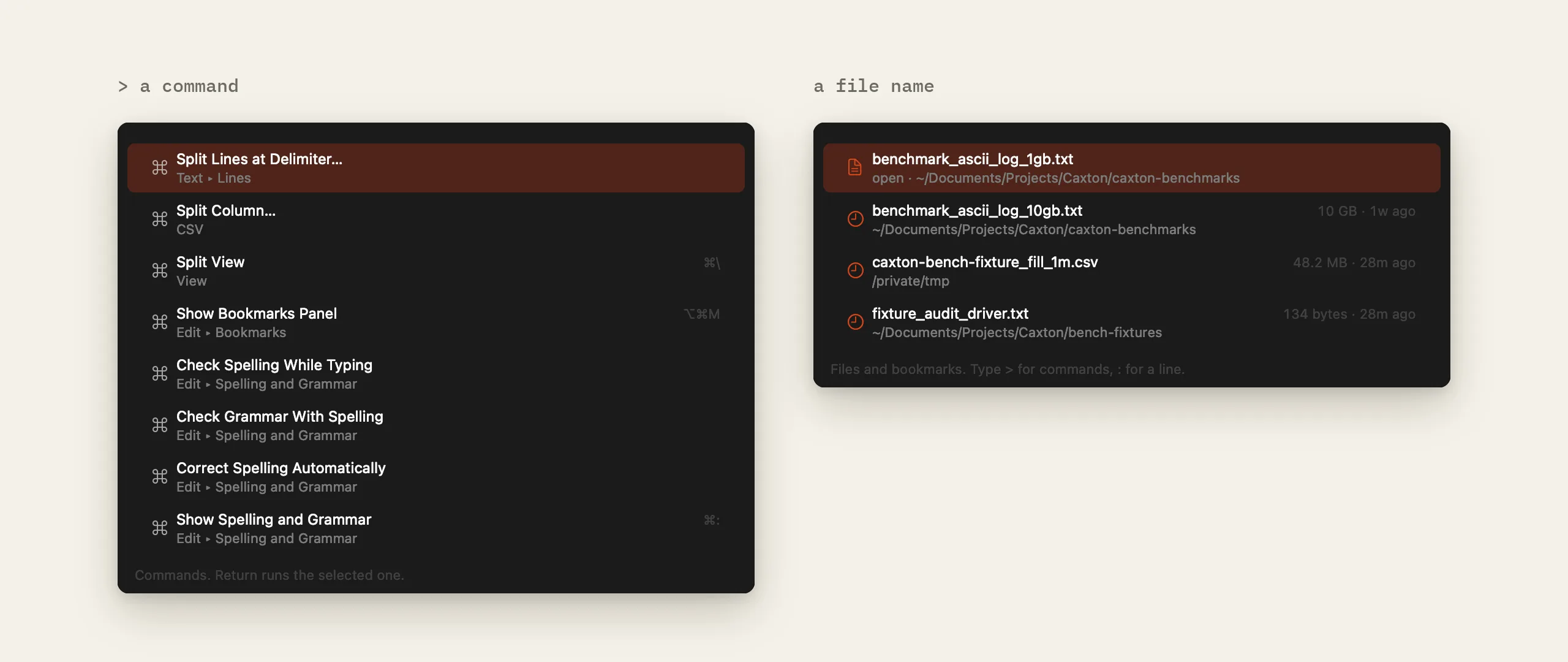
The unified search field provides one place to open files, execute commands, and navigate documents. Users can search by file name, enter > to find commands, or use : followed by a line number to jump directly to a location.
Keyboard shortcuts ⇧⌘P and ⇧⌘O provide immediate access.
More information, exactly when you need it.
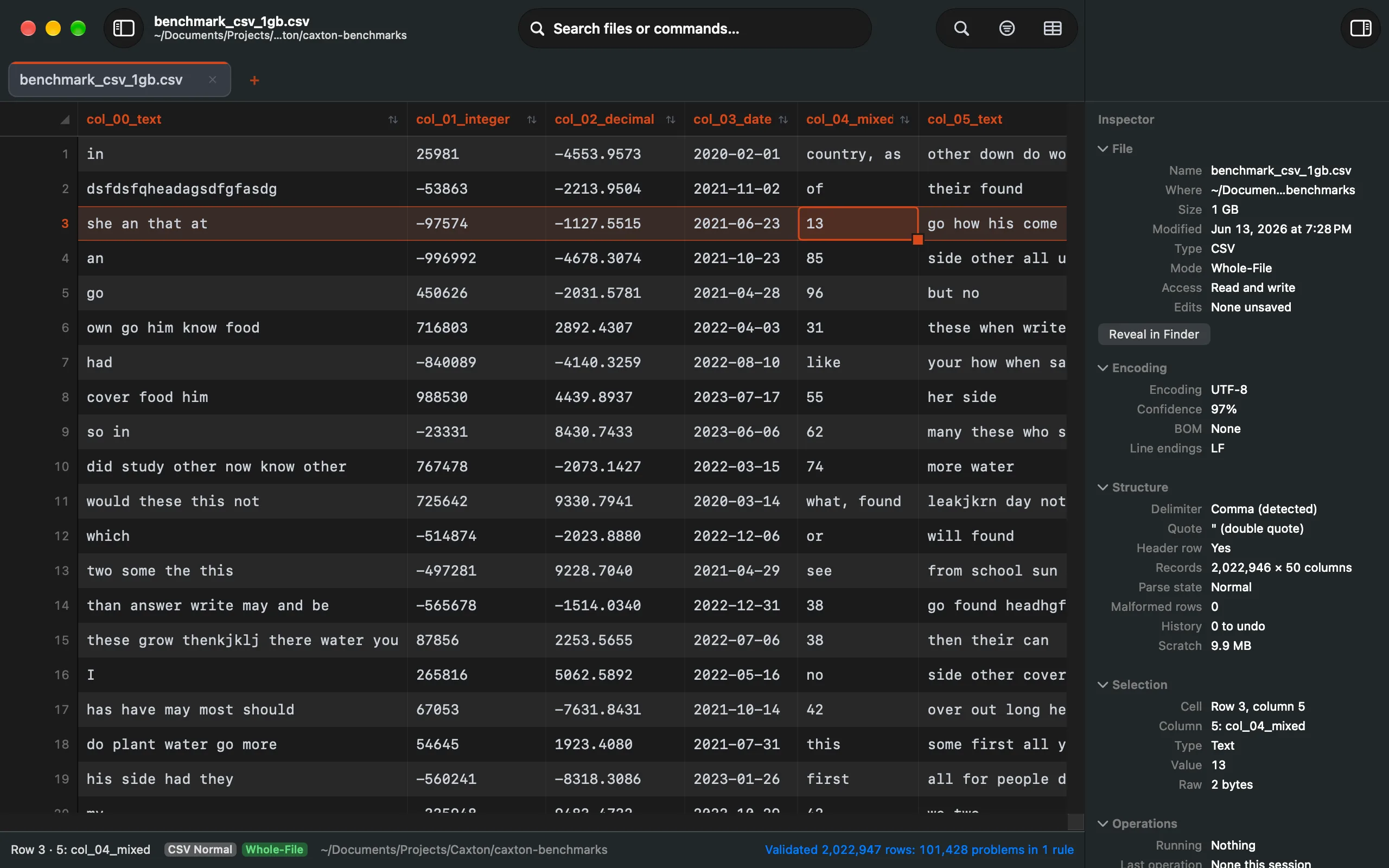
The new Inspector provides detailed information about the active document, including encoding, detection confidence, byte-order marks, line endings, and detected delimiters or timestamp formats.
In Table Mode, selecting a cell reveals its parsed value, field size on disk, and whether the original value was quoted. ⌥⌘I shows the Inspector.
Back and Forward.
New Back and Forward navigation also makes it easier to move between search results, bookmarks, and other locations without losing your place.
Native macOS design, refined.
On macOS 26 and later, Caxton incorporates Liquid Glass into selected interface elements: the command palette, clipboard history, the completion popup, and the toolbar's button capsules.
The document, grid, status bar, sidebar, and Inspector remain opaque to maintain readability, with full support for Reduce Transparency and Increase Contrast accessibility settings.
Eight themes. Designed for clarity.
Caxton 2.0 introduces eight built-in themes, offering more control over the appearance of the editor. Dark and Light are joined by Solarized Dark, Solarized Light, One Dark, Gruvbox Dark, High Contrast Dark, and High Contrast Light.
Every theme maintains minimum contrast requirements for text, syntax highlighting, and line numbers, helping keep dense logs and structured data readable.
Themes can follow the system appearance or be selected independently. Custom configurations can also be exported as JSON and imported on another Mac.
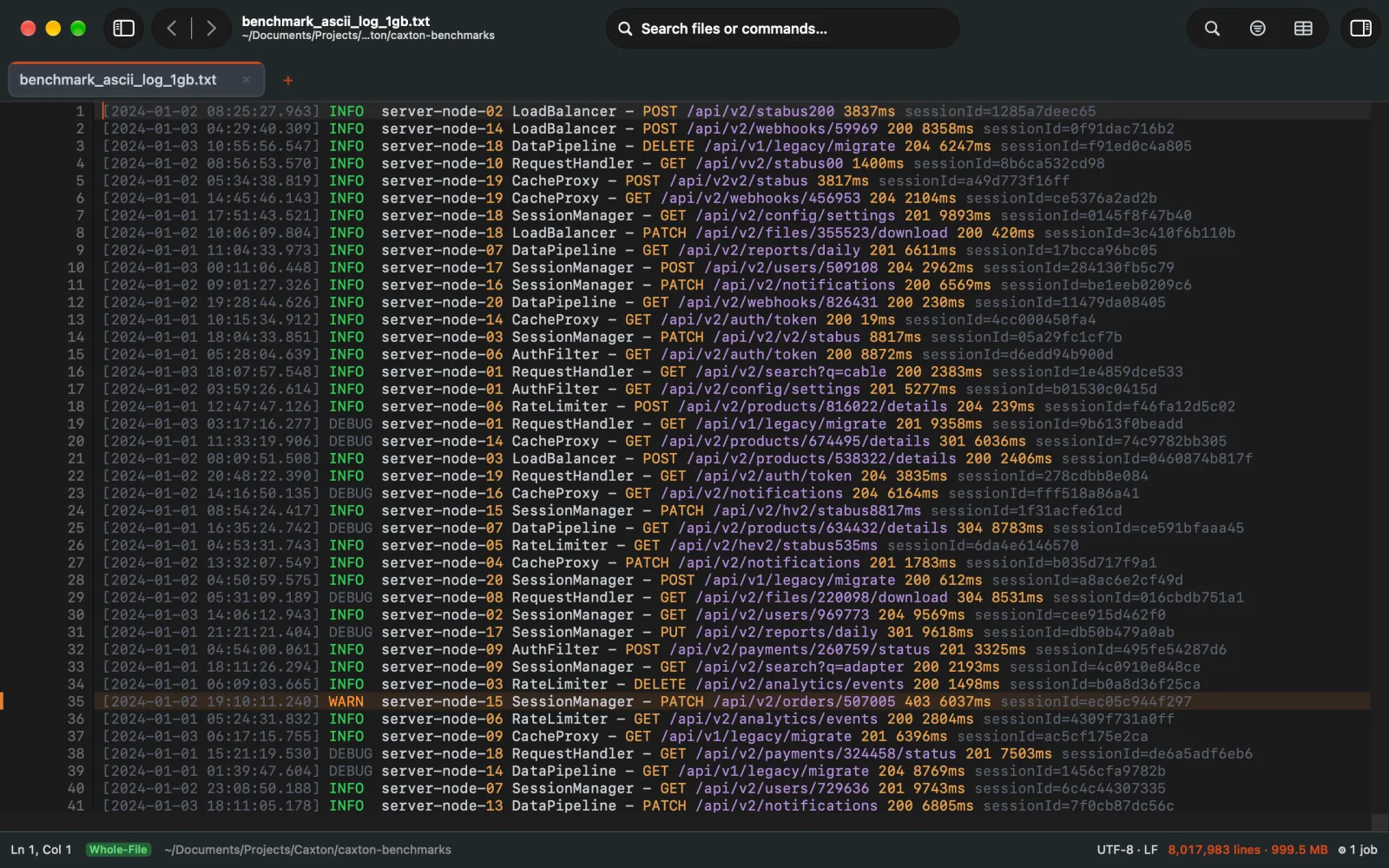
The same 1 GB log and the same 1 GB CSV, captured in Caxton under each theme.
Significantly faster. More memory efficient.
Performance has been a priority since Caxton's initial release. Version 2.0 introduces further improvements to file indexing, disk I/O, and resource management.
Optimized sequential reads allow Caxton to request upcoming portions of a file before they're needed, substantially reducing indexing times for large documents. In cold-disk benchmarks, the improvements are significant.
Both measurements reflect initial line indexing from disk.
Caxton 2.0 also introduces improved resource reclamation when documents are closed. File views and indexes are released, and outstanding search and indexing operations are canceled.
687 MB
Approximate memory use with a 50-million-row CSV open in Table Mode.
Under 130 MB
Total application memory within 0.3 s of closing that document.
These improvements make it easier to move between extremely large files without retaining resources from documents that are no longer in use.
Benchmarks were recorded on an Apple M1 Max with 64 GB of RAM running macOS 27.0. Grid memory measurements were recorded using Caxton 2.0.1.
Caxton, from the command line.
A new command-line tool makes it easier to open files and directories directly from Terminal.
caxton file.logopens a filecaxton data.csv --tableopens in the gridcaxton .opens this folder
The --table option opens supported files directly in Table Mode.
The tool can be installed from within Caxton, with Caxton ▸ Install Command Line Tool…, or alongside the application through Homebrew, making it easy to incorporate Caxton into existing developer workflows. The Homebrew cask installs Caxton and the command together:
brew tap hwyenigmallc/caxtonbrew install --cask caxton
Caxton Free. Caxton Pro.
With version 2.0, Caxton's licensing tiers are now more clearly identified as Caxton Free and Caxton Pro. The underlying licensing model remains unchanged. The new names make it easier to understand which capabilities are available in each tier.
Caxton Free
Caxton Free allows users to open files of any size, search and navigate their contents, filter records, inspect structured data, and copy results without an account or time limit.
In Compare, Caxton Free can open two files side by side and step through the differences; copying changes across is Caxton Pro. Compare reads up to 256 MB per side, and the full Compare Mode is planned for a later release.
Caxton Pro
Caxton Pro unlocks anything that changes a file, saves it, or extracts to a new document, including editing and data transformation.
- Monthly$9.99
- Annual$99.99
- Lifetime$179.99
Each Pro license supports up to three Macs.
New users can try Caxton Pro free for seven days, with no credit card or account required. After the trial, Caxton remains available in its Free tier.
Caxton 2.0. Available now.
Caxton 2.0 represents a major expansion of what a native Mac text editor can do with large files. With professional data-processing tools, a more capable workspace, additional customization, and substantial performance improvements, the release makes it possible to accomplish more without switching applications or moving data between systems.
Caxton 2.0 is a free update for all existing users. The current maintenance release, Caxton 2.0.1, is approximately 7 MB, notarized by Apple, and compatible with macOS 13.0 or later on Apple Silicon and Intel Macs.
Existing users can update through Caxton ▸ Check for Updates…
For additional details, visit the documentation, explore the benchmarks, or review the complete changelog.
Press and media inquiries: hello@caxton.app. The images on this page are free to use.