Word wrap
⌥⌘W toggles soft wrap (View ▸ Word Wrap). Wrap at the window edge or a fixed column (80, 100, or 120 with a guide line) with ↪ continuation markers in the gutter and visual indent on wrapped rows. Wrap stays responsive on multi-gigabyte documents: a line longer than 64 KB opts out per line with an ↔ marker instead of stalling the window. Arrow keys, Home/End, clicks, and selections all think in visual rows while wrap is on; including in split view, where each pane wraps to its own width.
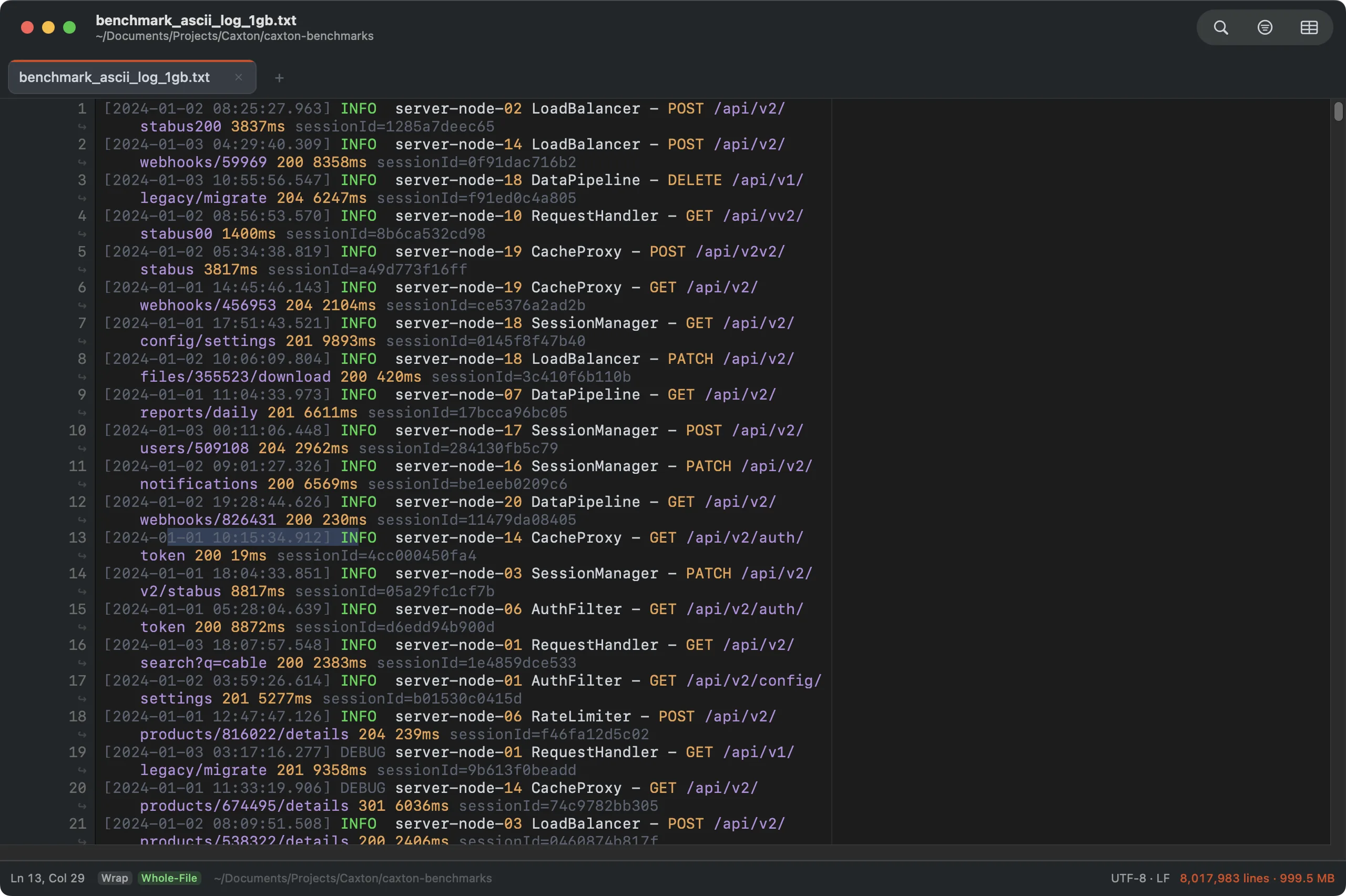
Wrap At 80 Columns on a 1 GB log. The guide line marks the measure; ↪ rows are continuations.
Show Invisibles
View ▸ Show Invisibles draws faint marks for spaces, tabs, and line ends, and highlights the whitespace you can't see and can't explain: non-breaking spaces, ideographic spaces, and zero-width characters get a tinted cell. The classic invisible-diff culprits from PDFs and web copy-paste, made visible.
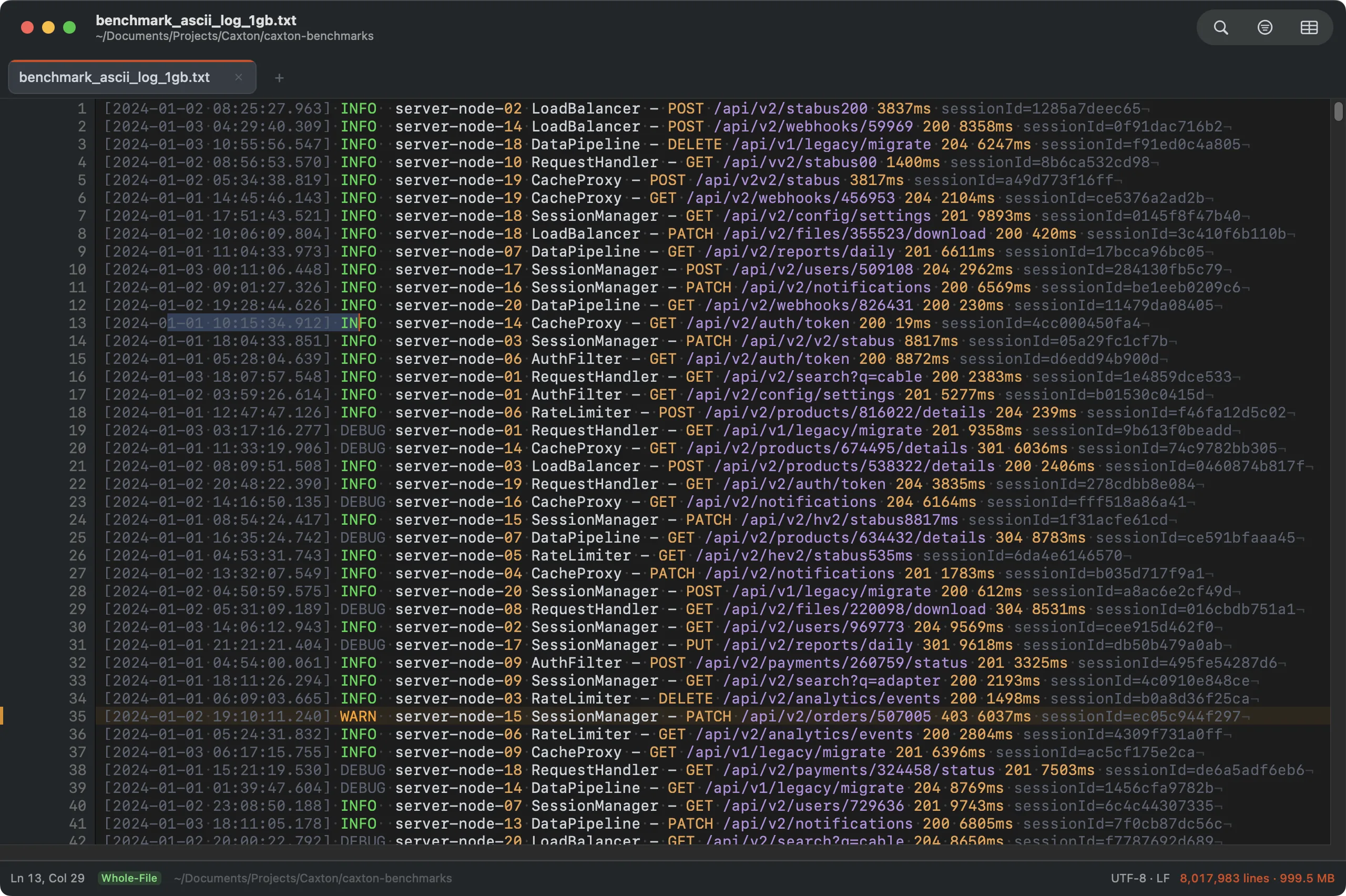
Spaces as dots, line ends as ¬: with unusual whitespace tinted orange.
Minimap
The minimap is the overview strip at the right of the editor, on by default; View ▸ Minimap turns it off or on for every window. It draws the document as miniature text: every character is a small mark in the color the editor gives it, so indentation, blank lines, comment blocks and long lines read at a glance. A document shorter than the map ends where its text ends. A taller one shows a window of its rows that slides with the editor's scroll, so the slider over the rows on screen moves from the top of the map to the bottom as you scroll from the first line to the last.
The slider is a neutral wash with an outline, so the marks keep their colors under it. Drag the slider to scroll, click elsewhere on the map to bring that row to the middle of the editor, or scroll over the map to scroll the editor. In a log, ERROR and WARN rows carry a translucent band across the map in the severity color. The minimap is off for documents above 500 MB, in the CSV grid, and for a one-line document.
Syntax highlighting
Caxton highlights twelve languages, chosen by the file's extension:
| Language | Extensions |
|---|---|
| Log | .log .out .err .trace, and a .txt, .text or extensionless file whose first 4 KB look like a log (INFO, ERROR, WARN or DEBUG between spaces, or a [2026-10-05 stamp) |
| Swift | .swift |
| Python | .py .pyw |
| JavaScript | .js .jsx .mjs .cjs |
| TypeScript | .ts .tsx |
| JSON | .json |
| HTML and XML | .html .htm .xml .xhtml |
| C family (C, C++, Objective-C) | .c .h .cpp .hpp .cc .hh .cxx .m .mm |
| Markdown | .md .markdown |
| YAML | .yml .yaml |
| Shell | .sh .bash .zsh .command |
| CSS (and SCSS, Less) | .css .scss .less |
Full highlighting, which carries state from line to line for block comments and multi-line strings, runs on documents up to 50 MB. Above that only keywords are colored; strings and comments draw as plain text. Keeping state across lines costs work in proportion to the whole file, and coloring keywords does not. Logs are colored line by line at every size, so a 10 GB log is highlighted the same as a small one.
To force a language, add a rule in Edit ▸ File Pattern Rules… and type an extension in its syntax field (log, py, html): every file the pattern matches is highlighted as that language whatever its own extension. Power Editing describes the rules.
Split view
⌘\ splits the window into two independent views of the same document: same edits, same find results, separately scrollable. Compare a stack trace on line 40 with its cause on line 80,000.
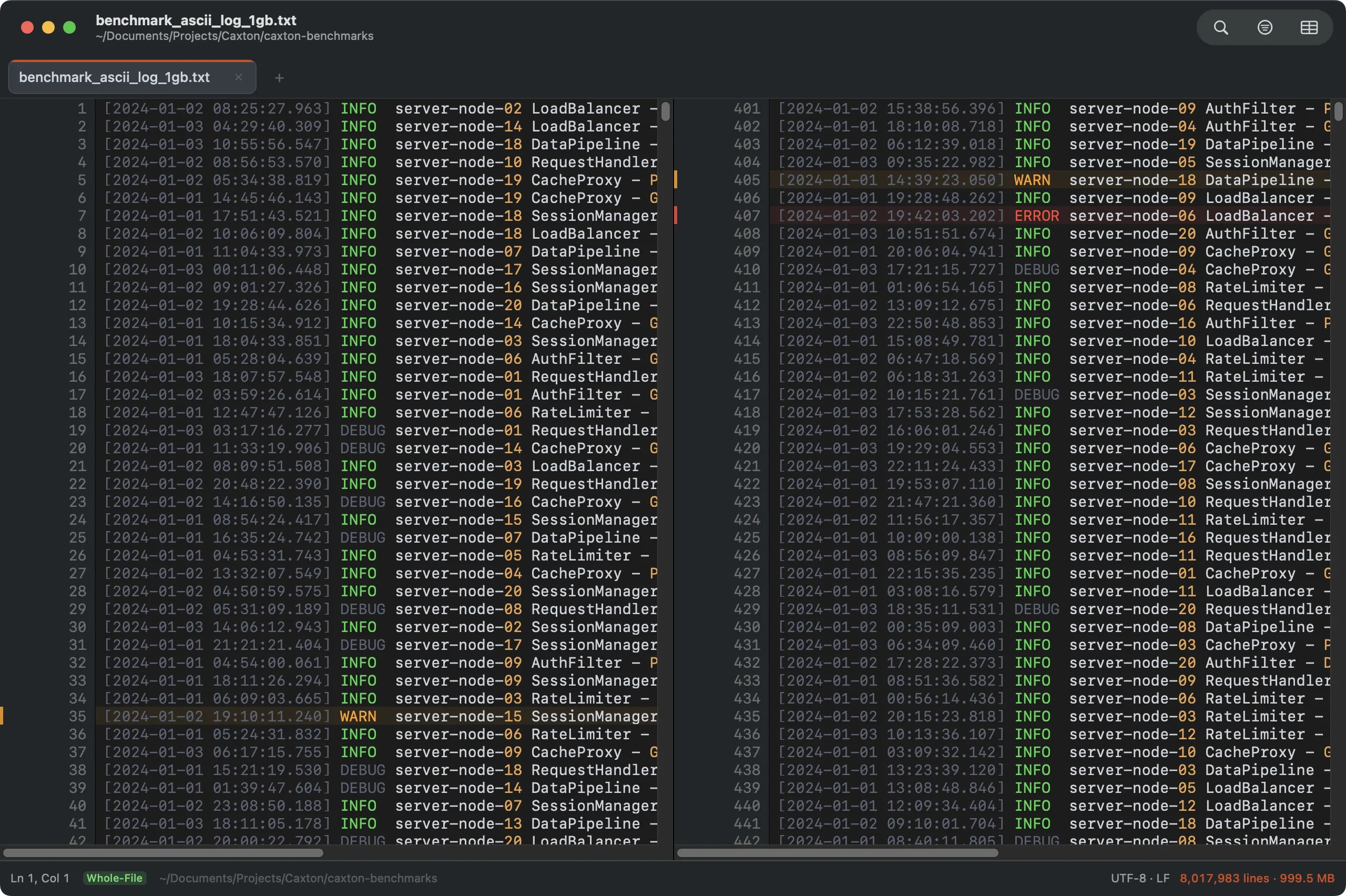
One document, two viewports. Highlights, selections, and edits mirror instantly; scrolling stays independent.
Compare two files
File ▸ Compare With… opens a side-by-side comparison of the current document and any other file: aligned line by line, scrolled as one (both panes live in a single view, so they can never drift), with changed pairs, left-only lines and right-only lines each tinted from the current theme's palette. ⌘↓ and ⌘↑ step through the differences, and clicking a change selects it: the selection is the shared cursor both panes agree on.
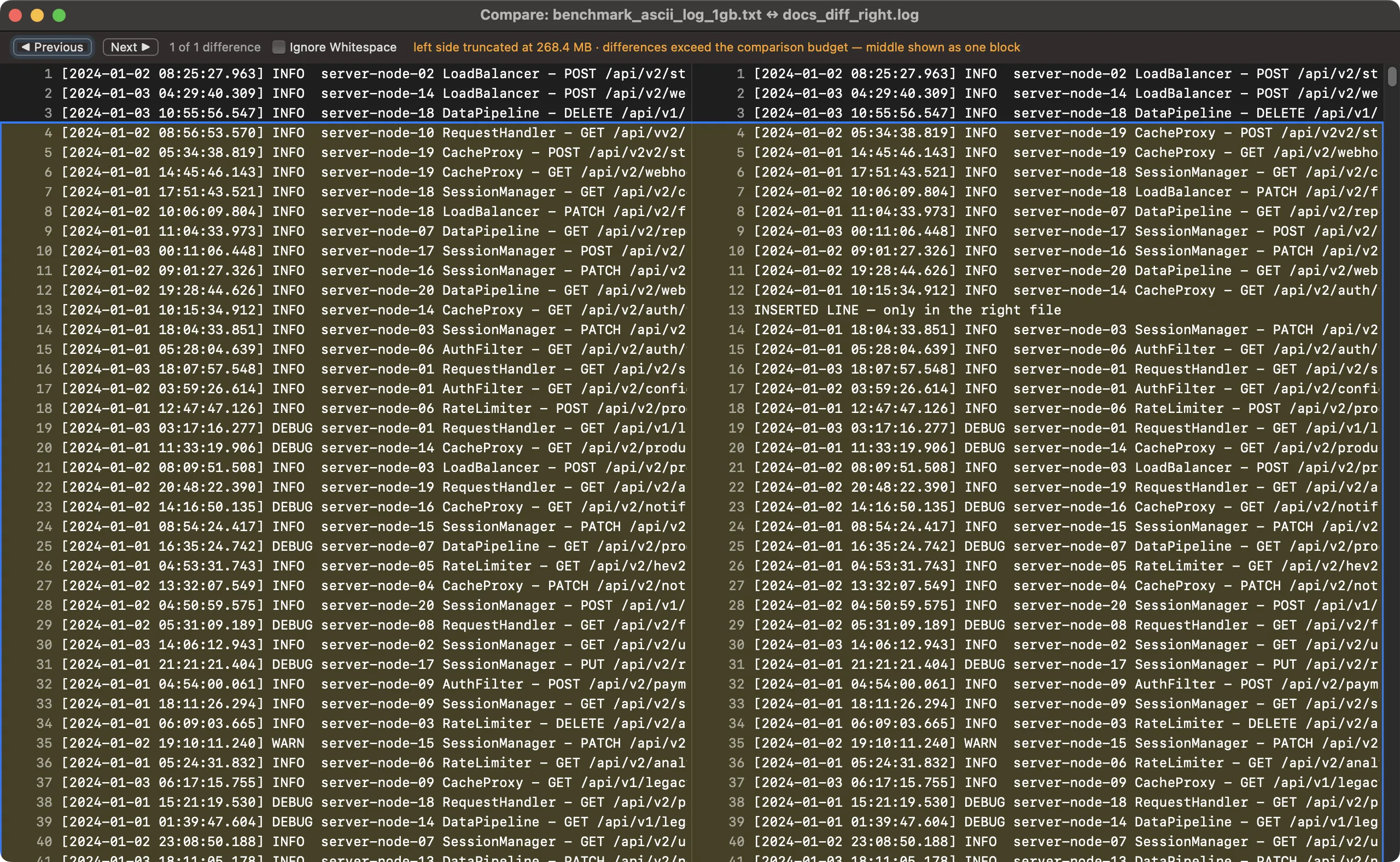
A log compared against a modified copy: aligned rows, tinted changes, the current difference outlined.
The comparison can fix what it finds. Copy Left replaces the selected change in the open document with the right side's lines, one undo step in that document. Copy Right works when the other file is open in Caxton too: an open file compares as its live text, unsaved edits included and labeled, and copies land in its buffer, never silently on disk. After a copy the panes recompute, and a comparison left open catches up automatically when you return to it after editing either document.
Ignore Whitespace collapses indentation and spacing differences; Ignore Case folds A to Z (ASCII; accented case stays significant). Save Report… writes the differences as plain text: one @@ header per change with the left and right line numbers, minus and plus lines below it. Each side is compared up to 256 MB, stated in the window when a file is larger. Line terminators are not compared, so a file and its CRLF-converted copy report no differences; the window says so when the two sides use different line endings. The Compare window uses the editor font and follows its zoom.
Themes
View ▸ Theme lists a curated set: Dark and Light, Solarized Dark and Light, One Dark, Gruvbox Dark and a High Contrast pair, with Follow System Appearance as its own switch and theme import and export. Every window, panel and sheet follows the palette, and the High Contrast pair also widens the separators: beside the gutter and the minimap, and the panel separators in sheets and windows. Themes has the set and the switch.
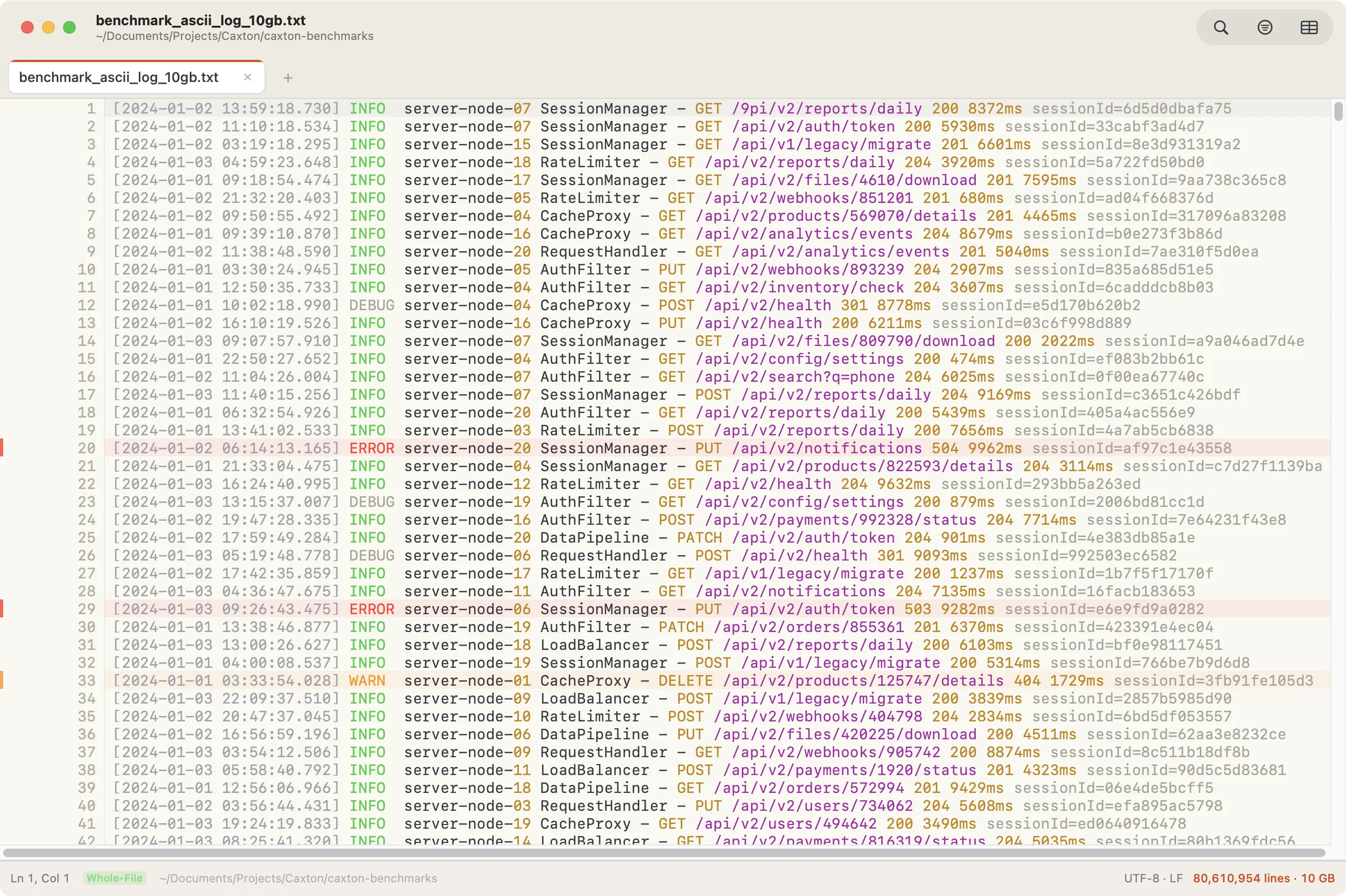
The Light palette on the same 10 GB document.
Log Mode
A file highlighted as a log (by extension, by a pattern rule, or by the shape of its first lines) is a first-class view, not just big text. Error and warning lines carry a tinted row band, the minimap carries the same band across its ERROR and WARN rows, the filter bar gains a Severity popup, and Go to Time jumps by timestamp. Caxton votes the timestamp format from the first lines (ISO 8601, syslog, Apache and nginx, Unix epoch, slash-dated) and View ▸ Log ▸ Timestamp Format… overrides the vote, the zone for zone-less lines, and the year syslog lines lack. One stamped line is enough on a short file, and a followed file that starts empty is detected as lines arrive; a followed syslog that grows past a month boundary keeps the right year. View ▸ Log ▸ Severity Patterns… adds your own words or regexes with a level each; they win over the built-in words in the row tint, the minimap bands, the filter and the Bookmarks panel (the text color of level words stays with the built-in vocabulary), applied top to bottom with the first match winning.
The View ▸ Log submenu holds four items:
- Timestamp Format…: the format, the zone and the syslog year described above, or Auto-detect to return to the vote. Enabled in log documents; the choice is kept with the session.
- Severity Patterns…: your own severity words and regexes, for every log document.
- Catch Up to Live: while you follow a file that grows faster than Caxton absorbs it, skips to the last 64 MB and names the byte range left outside. Enabled in tail mode while Follow is on.
- Open Skipped Range as Slice: the bytes a Catch Up skipped, opened as a slice in their own window.
Toolbar
The default toolbar holds the sidebar toggle, Back and Forward, the document's title, the Search files or commands field, the Find · Filter · CSV group, Follow on a document opened in tail mode, and the inspector toggle at the right. View ▸ Customize Toolbar… adds, removes and rearranges items; View ▸ Show Toolbar (⌥⌘T) hides the whole bar.
| Item | Default | What it does |
|---|---|---|
| Sidebar toggle | yes | Hides or shows the sidebar. |
| Back / Forward | yes | Steps through the places you jumped to (⌃⌘← and ⌃⌘→). |
| Document Title | yes | The document's name, as plain text. |
| Search files or commands | yes | The field at the top of the window: files with ⇧⌘O, commands with ⇧⌘P. |
| Find · Filter · CSV | yes | Three buttons in one group: the find bar, the filter bar, and the CSV grid. Each click toggles. |
| Follow Tail | tail mode | Follows a growing file; shows only for a document opened in tail mode. |
| Inspector | yes | Hides or shows the inspector (⌥⌘I). |
| Save | no | Saves the document. |
| Find, Filter Lines, CSV Grid | no | The three buttons of the group as separate items. |
| Markers | no | Opens the Markers panel. |
| Compare | no | Picks a file to compare with the document, as File ▸ Compare With… does. |
| Operations | no | Opens the sidebar's Operations panel. |
| Clipboard | no | Opens Clipboard History. |
| Go To | no | Opens Go to Line (Go to Cell in the grid). |
| Find in Files | no | Opens Find in Files. |
| Word Wrap | no | Turns word wrap on or off. |
| Split | no | Turns split view on or off. |
| Bookmark | no | Bookmarks or unbookmarks the caret line. |
| Spacer | no | The space that centers the search field; flexible and fixed spaces are there too. |
Status bar
The status bar runs along the bottom of the window. From the left:
- Ln, Col: cursor position, byte-accurate on any line length. In the CSV grid it reads
Row 4 · email: the selected row (orHeader) and the column's name, orColumn · emailwhen a whole column is selected. - The license pill: during the trial,
Pro trial · N days left · Buy; after it,Caxton Free · Get Caxton Pro; offline past the revalidation date,Offline · N days to revalidate; a lapsed or unconfirmed subscription says so. Click it to open the License window. A licensed copy shows no pill. - Narrowed or Filtered: the view shows part of the document, through Text ▸ Narrow to Selection or the filter bar.
- CSV Normal, CSV Warning, CSV Degraded or CSV Failed: the grid's parse state, which the inspector explains.
- Wrap: word wrap is on (text view only).
- Folds N: how many regions are folded. Click it to unfold them all.
- The mode pill:
Whole-Filein green, or in amberSlicewith the loaded range,Tailwith its size, orRead-Only Inspect. - Read-Only: the file is open read-only (the Read-Only Inspect mode). Caxton Free never shows this badge; the license pill names the tier instead.
- Following, or Following · N behind when a growing file outpaces one poll; View ▸ Log ▸ Catch Up to Live skips to the end.
- The folder path: the document's folder, dimmed, with your home folder as
~. It gives way first when the window is narrow.
On the right, the facts: encoding · line ending (UTF-8 · LF), then lines · size (2,022,947 rows × 50 columns in the grid), Indexing N% or Parsing CSV N% while the index builds (counts carry a ~ until it finishes), and ⚙ N jobs while background operations run; the Operations panel lists them. Messages about what just happened take this place for a few seconds.
The license pill and the Folds badge act on a click; the other badges are labels.
Zoom and layout
- ⌘+ / ⌘− / ⌘0: text zoom.
- Tab Width (Text ▸ Whitespace ▸ Tab Width): 2, 3, 4, or 8 columns; rendering, caret positioning, and the tab/space conversions all agree on it.
- Documents open filling the screen (the regular kind of full; menu bar and Dock stay); native full screen, window tabs, and the standard macOS toolbar behaviors all apply.
- The caret blinks: solid the instant you type or move, steady when a pane isn't focused.