CSV ▸ Validation Schema… opens the rules for the file in a sheet headed Validation Schema; Validate runs them and Keep Schema saves them for this window without running. After that, CSV ▸ Validate… runs the kept schema, and the Problems panel's Re-run does the same after an edit. Validation runs as a job over every row, cancellable from the Operations panel, and never changes a byte.
The schema sheet
The list at the left holds every column by number and name, with the rules it carries. Select a column and set its rules on the right; the structural rules sit below them as checkboxes, and a line under the list counts the columns with rules and the structural rules that are on. A note under the column rules says that rules read each value with the spaces around it removed. Cancel and Validate sit at the right, Schemas and Keep Schema at the left.
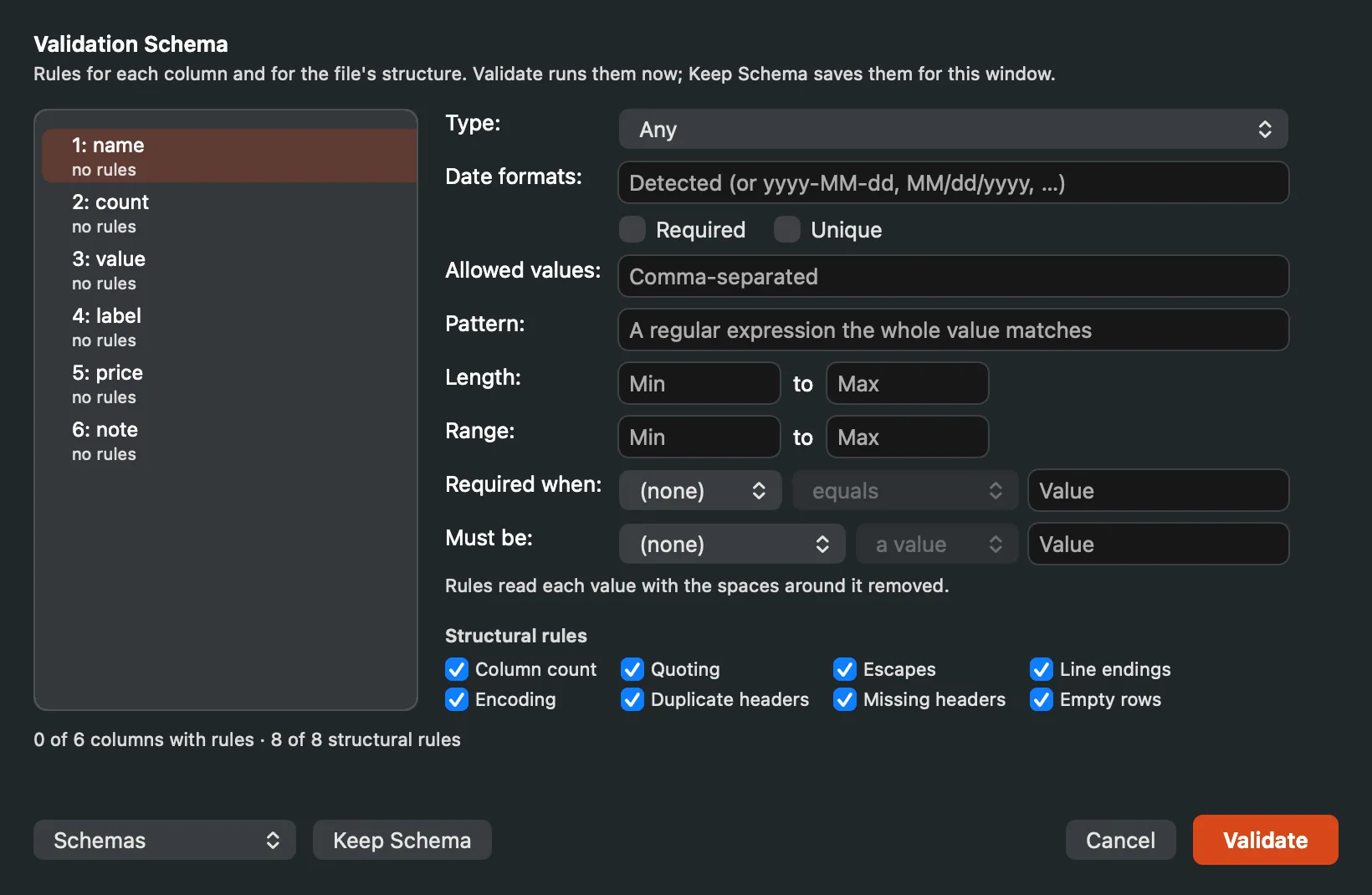
The Validation Schema sheet: columns at the left, their rules at the right, the structural rules below.
Structural rules
Checked across the file: the column count (every record has the header's number of fields), quoting and escapes (a quote that opens and never closes, a stray quote in an unquoted field), termination (a record ending without the file's line ending, or with the other one), the encoding (a byte sequence that is not valid UTF-8), duplicate and missing headers, and empty records.
Column rules
For each column: a type (Any, Number, Integer, Date, Boolean, UUID, IPv4 address, IPv6 address, IP address, Email address, URL), required, unique, an allowed values list, a pattern (a regular expression the whole value must match), a minimum and maximum length, a minimum and maximum value for numbers (the Range row), required when another column matches a condition, and must be. Every rule reads the value with the spaces around it removed. Numbers are read strictly: grouping marks come in threes, and 1.2.3 or 192.168.0.1 is not a number.
Date formats is open when the type is Date. Left blank, a value counts as a date when Caxton detects one; filled in with formats separated by commas, such as yyyy-MM-dd, MM/dd/yyyy, a value has to match one of them, and the problem names the formats it missed.
Must be compares each non-empty value of the column with something in the same row. Pick a comparison (contains, equals, is greater than, is less than), then either a value typed in the field beside it or another column of the file. Greater and less compare as numbers when both sides are numbers and as dates when both are dates; text comparisons ignore case. A row where the comparison does not hold is a condition problem, for instance an end date that is not greater than its start date.
A rule that cannot run says so instead of disappearing: an invalid pattern, a condition or comparison column the file does not have, and a unique check that reached its cap of distinct values and stopped are reported in the banner and in the Problems panel. A column named in the schema that the file does not have is reported once and skipped.
Named schemas
The Schemas menu at the bottom of the sheet keeps schemas by name. Save as Schema… asks for a name (Save Validation Schema) and stores the current rules on this Mac; saved schemas are listed below the commands, and picking one applies it to this file, matching its rules to columns by name and then by position and naming any rule whose column is not in the file. Export Schema… writes the current schema to a JSON file, and Import Schema… reads one: a schema exported from Caxton, or a plain JSON object of column name to rule list, such as {"amount": ["required", "number", {"min": "0"}]}.
The Problems panel
Every finding is a row in the sidebar's Problems panel with its row, column, rule and message, grouped by rule. Double-click a problem, press Return, or choose Go to Problem from its menu, and the grid selects the cell; Back returns to where you were. The Repair… button offers the repairs for the selected problem's rule, each one a command the Repair menu has. The severity popup (All, Errors, Warnings, Info) narrows the list; Show Raw, in the problem's menu, opens the cell's raw value, or a strip of the record's bytes in hex and text for a structural problem; Filter Rows narrows the grid to the rows that have one. A malformed row found by both the structure scan and a validation is listed once, and the sidebar's badge shows the count before the panel is first opened. Findings are tied to the version of the document they came from: after an edit the panel says so and offers Re-run.
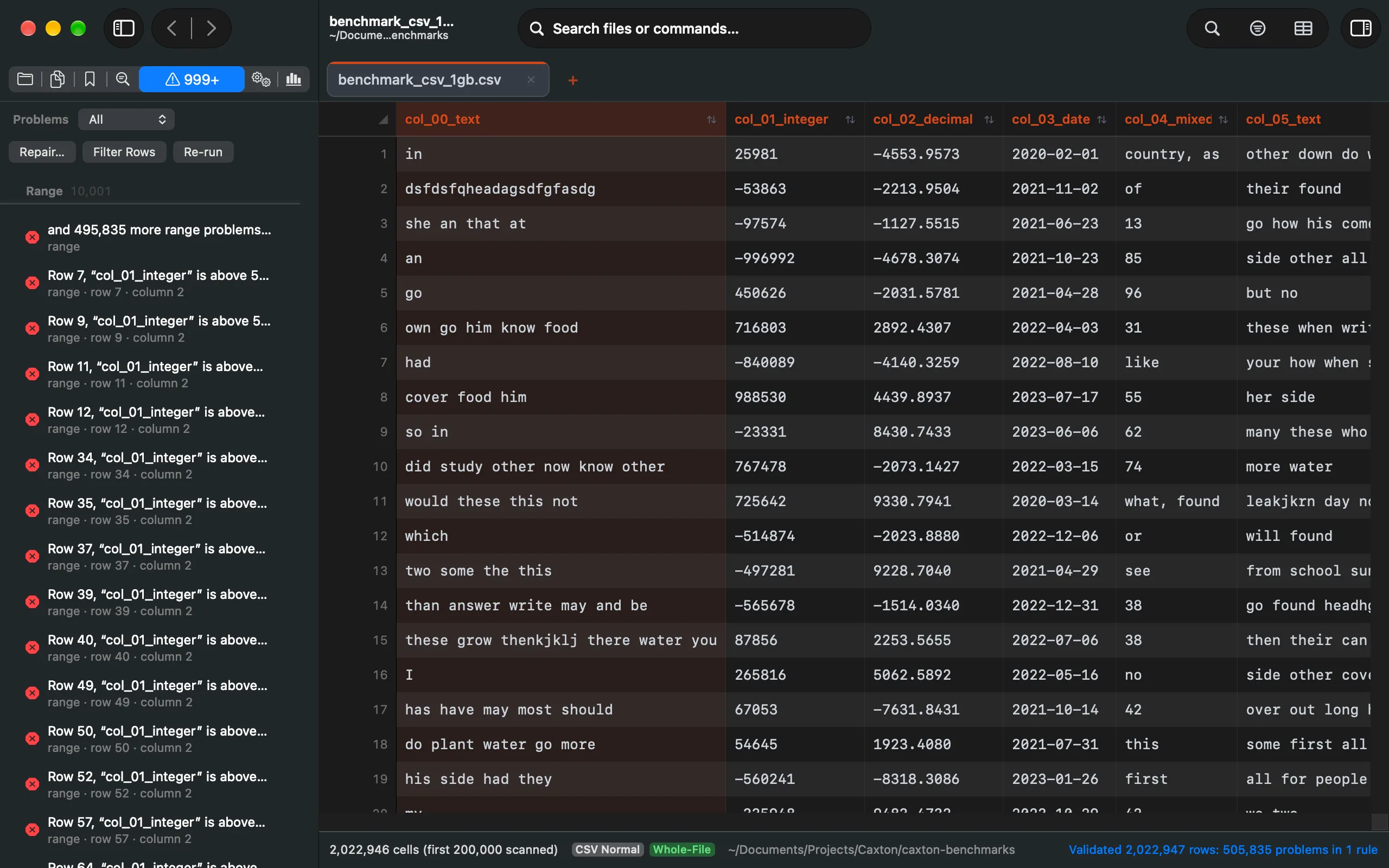
A range rule about half the rows of a column; the panel lists up to 10,000 problems per rule and says how many more there are.
The and N more line at the end of a capped rule names the cap and stays in the list under the Errors filter.
Repairs
CSV ▸ Repair offers nine repairs, each with a preview of exact examples before it applies and one undo after: Pad Missing Fields, Merge Overflow Fields (the extra fields joined into the last column, quoted), Remove Extra Fields, Repair Quotes, Normalize Delimiters, Normalize Line Endings, Remove Blank Rows, Replace Invalid Bytes (with a replacement you choose), and Rename Headers (duplicates numbered, missing ones named). A repair never happens silently: the preview says what changes and by how much, and a repair with nothing to do says so. A repair, like Quarantine, needs current findings: after an edit it asks you to re-run the validation instead of acting on rows that moved. Normalize Line Endings also gives the last row a line ending when it has none.
Reparse with Another Profile… reads the file again with a different delimiter or header setting when the problem is how the file was read rather than the file. Its form has a Delimiter popup (Comma, Semicolon, Tab, Pipe) and First row is a header, both starting on the current reading; Reparse rebuilds the grid without rewriting a byte and clears the old findings.
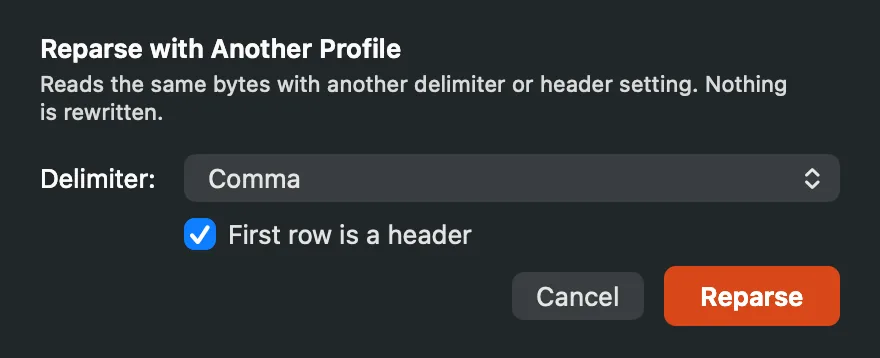
Reparse with Another Profile: the same bytes, read another way.
Quarantine
CSV ▸ Quarantine Problem Rows… says how many rows it will write and asks first, then writes every row with a problem to a new document, with three columns added at the end: problem_rule, problem_message and original_row, and then offers to remove those rows from this file with a preview and one undo. A row with several problems appears once, its rules and messages joined with a semicolon, and the reason columns line up for short and long rows alike. When the Problems panel lists only the first rows of a capped rule, the quarantine scans the whole document again so every problem row is written, not just the listed ones. Past the in-place limit (256 MB) the clean copy streams to a new document and the original is untouched. The findings have to be current: after an edit the command asks you to re-run the validation first.