View ▸ Show Sidebar (⌃⌘S) opens a column at the left of the window with a row of buttons at its top. One panel shows at a time; ⌃⌘1 through ⌃⌘7 switch between them in the order below, and the same keys open the sidebar when it is closed. While the sidebar is open the menu item reads Hide Sidebar. The sidebar remembers its width and its panel for each window, shared by the window's tabs, keeps both when the find or filter bar opens, and slides out of the way when you narrow the window for a while. Dragging the divider resizes the other tabs once, when you let go. A new window starts from the layout you last set; a session Caxton restores at launch does not change that starting layout. A panel does its work only while it shows: a hidden File Browser stops watching its folder, and a hidden list holds on to nothing.
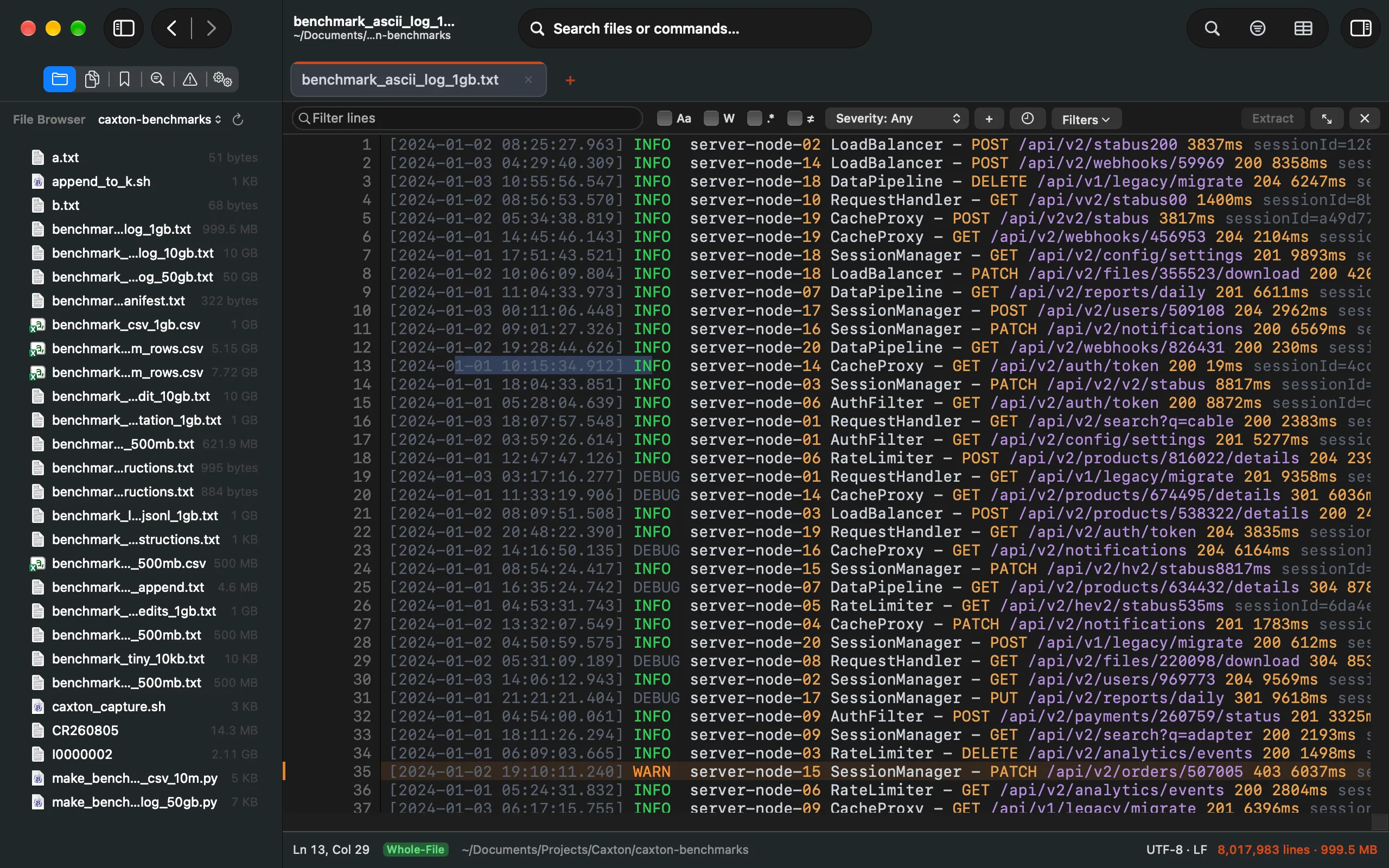
The File Browser over a folder, with the editor beside it. The header line runs level with the top of the text.
File Browser ⌃⌘1
A folder and its files, with each file's type icon and size. Folders come first, then files, each in name order; hidden files are left out, and an app or other package lists as a single item. The browser lists what it can see and does no indexing of its own.
The browser starts on the document's folder. A new, untitled document shows Choose a folder instead of listing your home folder. The popup at the top names the folder shown and switches it: Document Folder, Workspace Root when the document belongs to a saved workspace, the last eight folders you browsed that still exist, and Choose Folder… to pick another. You can also drop a folder on the window, or use Open Folder in Sidebar (⌃⌘O) in the File menu. A request to browse something that is not a folder, from the caxton command for example, is refused with a message and the sidebar stays as it was.
Double-click or Return opens a file in this window and opens or closes a folder. Right-click a file for Open, Open in New Window, Compare With Current Document (which compares it with the document in this window, when that document has been saved to a file), Reveal in Finder and Copy Path, which puts the file's full path on the clipboard. Right-click a folder for Set as Root, which makes it the folder the browser shows, Find in This Folder…, which opens Find in Files scoped to it, Reveal in Finder and Copy Path.
Open folders are watched, and checked once a second while the panel shows, so a file that appears or goes shows up on its own; the Refresh button beside the popup reads the folder again at once. A folder of more than 5,000 entries lists the first 5,000 and ends with a row that counts the rest. A link to a folder opens as a folder, and a link to a file shows the size of the file it points to. Two tabs on the same folder share one listing, and each keeps up with changes after you switch between them.
Open Documents ⌃⌘2
Every document open in Caxton, across windows and tabs, grouped by window when there is more than one, with the one you are in marked. Each row shows the document's folder and whether it is read-only, a tail, a slice or in the grid. Return or a double-click switches to it. A document with unsaved changes carries a dot, and a pinned tab a pin.
Right-click a row for Pin Tab or Unpin Tab, Move Tab to New Window, Reveal in Finder and Close Tab, which closes that document's tab, asking first when it has unsaved edits. Close Tab is unavailable on a pinned tab; unpin it first. A closed tab leaves the list at once, and the list never keeps a closed window alive.
Bookmarks ⌃⌘3
The bookmarks of the current document with their notes. Arrow keys move, a double-click goes to the line, and Return edits the selected row's note in place. The buttons under the list remove the selected bookmarks (select several with ⌘ or ⇧), open Extract Incident Window, and copy the list as incident notes. This is where the floating Bookmarks panel of 1.x went; the commands under Edit ▸ Bookmarks are unchanged.
Search Results ⌃⌘4
Find All results, grouped by capture or by column when the search allows it, with the current match marked. Arrow keys move through the rows and the editor follows; Return goes to the row.
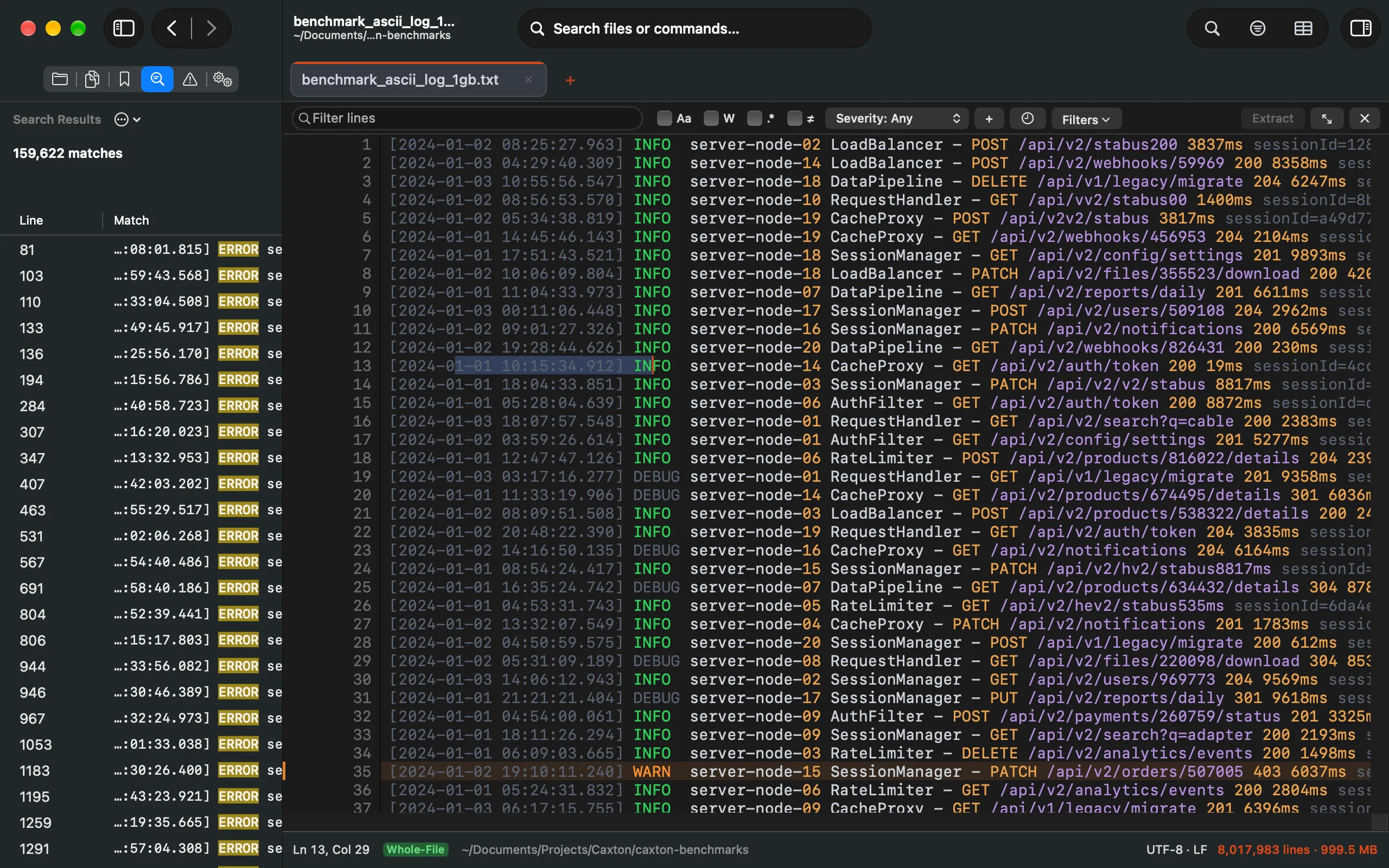
Find All results in the sidebar, the current match outlined in the text.
Problems ⌃⌘5
What Validate found, and what the parser flagged while it read the file: one row per problem, grouped by the rule that found it, with its message, row and column and the repair it suggests. A malformed row found by both the parser and a validation is listed once. The severity popup on the header line narrows the list to Errors, Warnings or Info. The bar holds Repair…, Filter Rows to narrow the grid to the rows that have a problem, and Re-run after an edit (it reads Validate… when a schema is set but has not run yet); right-click a row for Go to Problem, Show Raw for the bytes behind it, and Repair….
A line above the list says when the findings are older than the document, and another names a rule that did not run or stopped early. A rule with more findings than the list keeps ends with an "and N more" row that names the cap, under the Errors filter too. The panel's button carries the count of problems even before the panel is first opened.
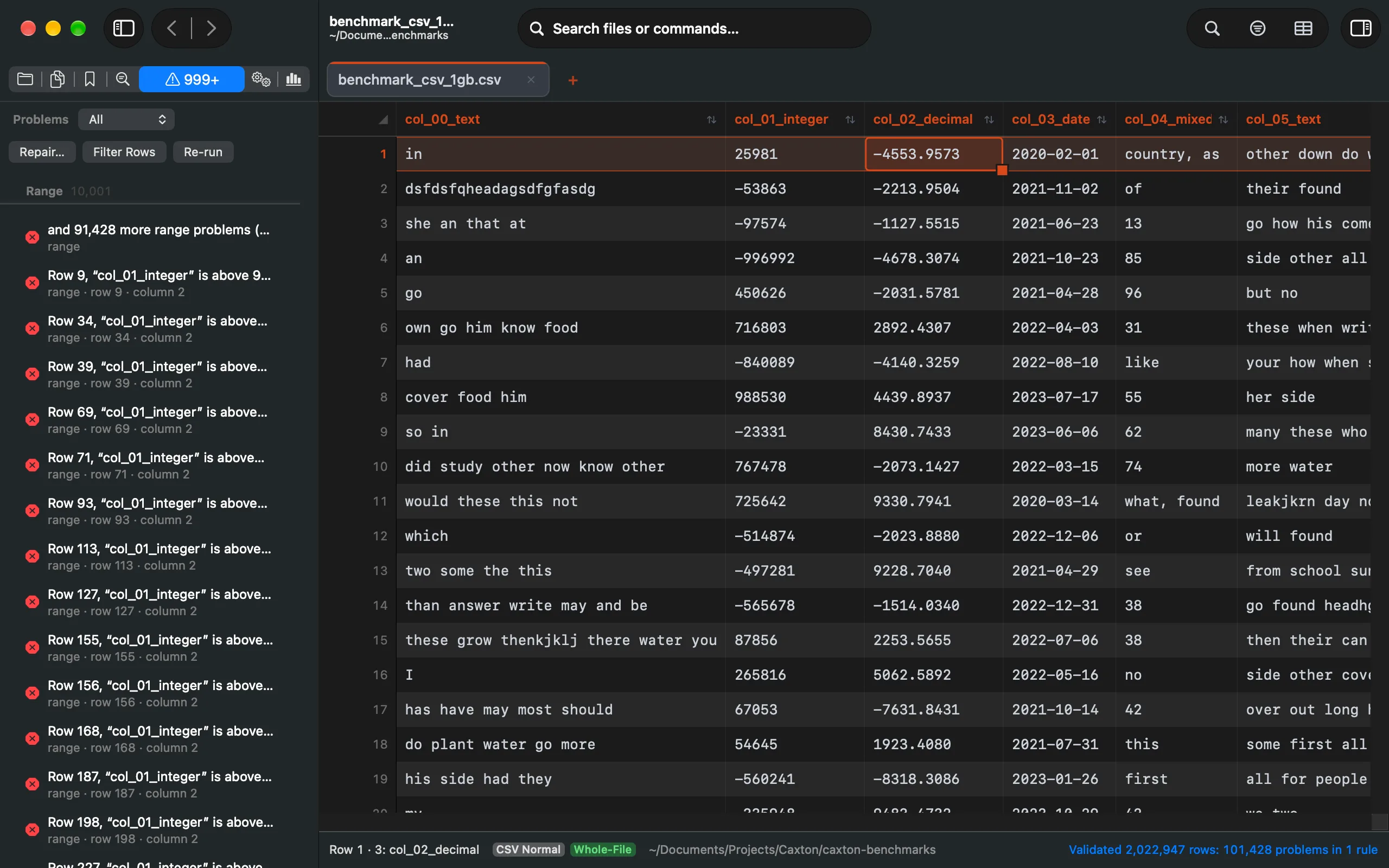
Problems from the parser, each with its rule; the severity popup narrows the list.
Operations ⌃⌘6
Two lists. Running holds the jobs in progress (a sort building its keys, a validation, an index) with their phase and progress, and Cancel stops the selected one. Recent holds the report of every operation that ran in this session: what it did, how many rows or cells it touched, and how long it took. Clear Recent empties that list. Whether ⌘Z reverses the last one is in the inspector's Operations section. The Jobs panel of 1.x lives here.
Column Profile ⌃⌘7
In the grid only: the profile of the selected column, updated as you move between columns. In a text document its button is not on the row, and ⌃⌘7 says in the status bar that the panel is available in the CSV grid.
Hiding panels
Right-click the row of buttons at the top of the sidebar: each panel has a checked item there, and unchecking one takes its button off the row. View ▸ Sidebar lists the panels too and shows the one you pick, with a check on the panel showing. The keys keep their numbers, so ⌃⌘5 is Problems whether or not Bookmarks is shown. The sidebar keeps at least one panel: the last one shown cannot be hidden.